Raising or Changing Your Default Prices
Update your default rates and choose which clients keep their current rate
Written By Lucas Steflor
Last updated 6 months ago
Raising your rates is one of the highest-stakes things you do all year. You want to charge what your work is worth. You also don't want the family who's been booking weekly walks for three years to open an invoice and find a surprise.
Update Prices does both in one operation. You set your new defaults, choose which existing clients stay at their current rate (this is called grandfathering), and apply. New clients sign up at the new rate. Long-time clients keep what they're used to.
You can also use it to lower prices or to change a single service. The flow is the same.
Where to Find It
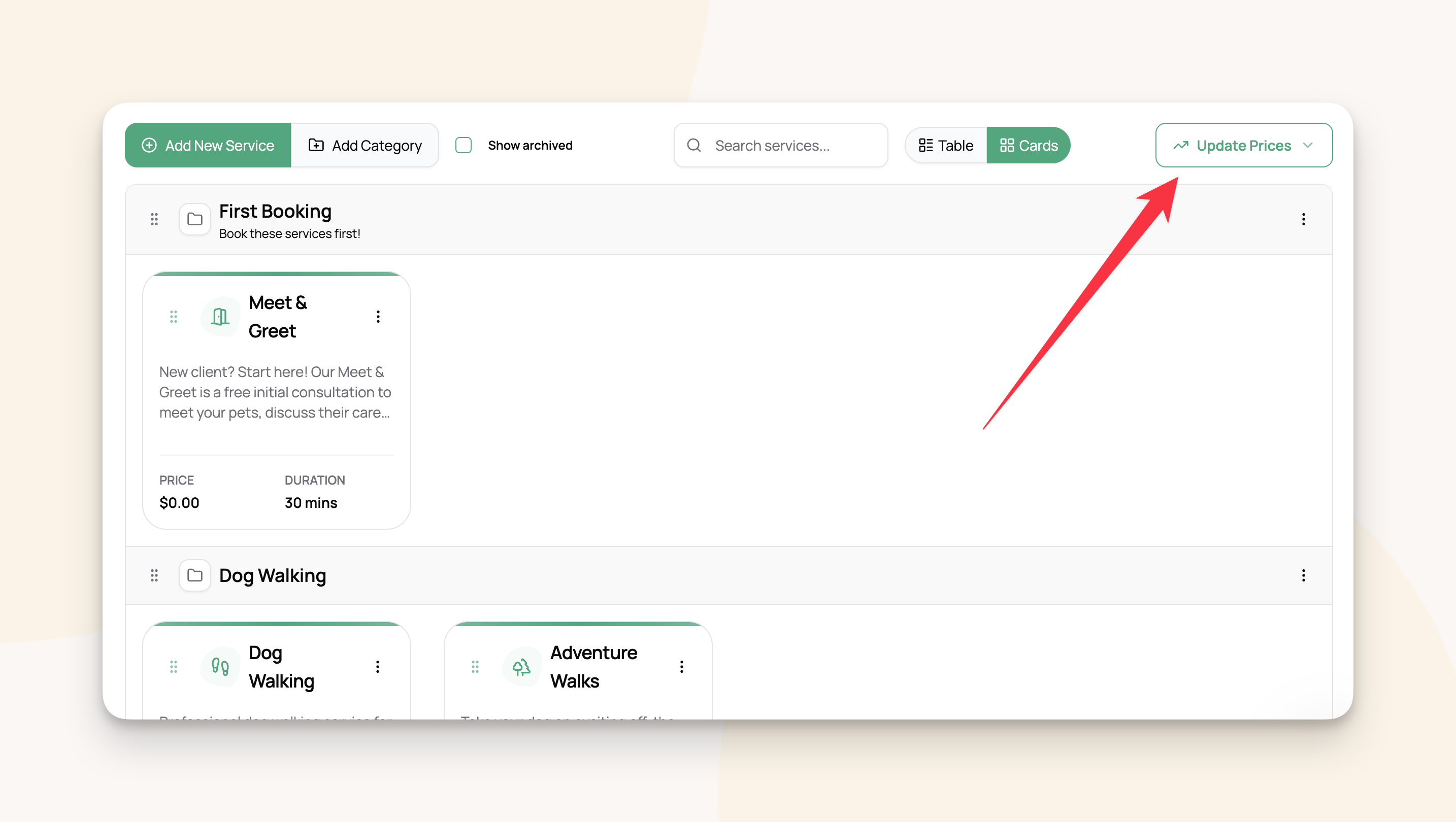
Open Services, click Update Prices in the top right, and pick Update prices.
The Walk-Through
One running scenario for the rest of this article:
You charge $25 for a 30-minute walk and $35 for a 60-minute walk. You want to bump those to $30 and $40. You have 47 active clients, and 20 of them are long-time regulars you want to keep at the old rate.
Step 1: Pick the services to update. Check off the services you're changing. You can change multiple services in one run, and you can mix raises and reductions.
Step 2: Enter the new rates. Each service you picked gets a row showing its current rate and a field for the new one. We enter $30 for the 30-minute walk and $40 for the 60-minute walk.
Step 3: Choose who keeps their current rate. Four strategies:
For example: We pick Grandfather all current clients. All 47 existing clients stay at their current rate. Anyone who signs up tomorrow pays the new rate.
Step 4: Preview. The tool shows old rate, then new rate, per service, plus three counts:
Grandfathered. Existing clients who get a custom rate locking them at the old price.
Moving to the new rate. Clients who'll pay your new default.
Skipped. Clients who already have a custom rate. Update Prices never overwrites those.
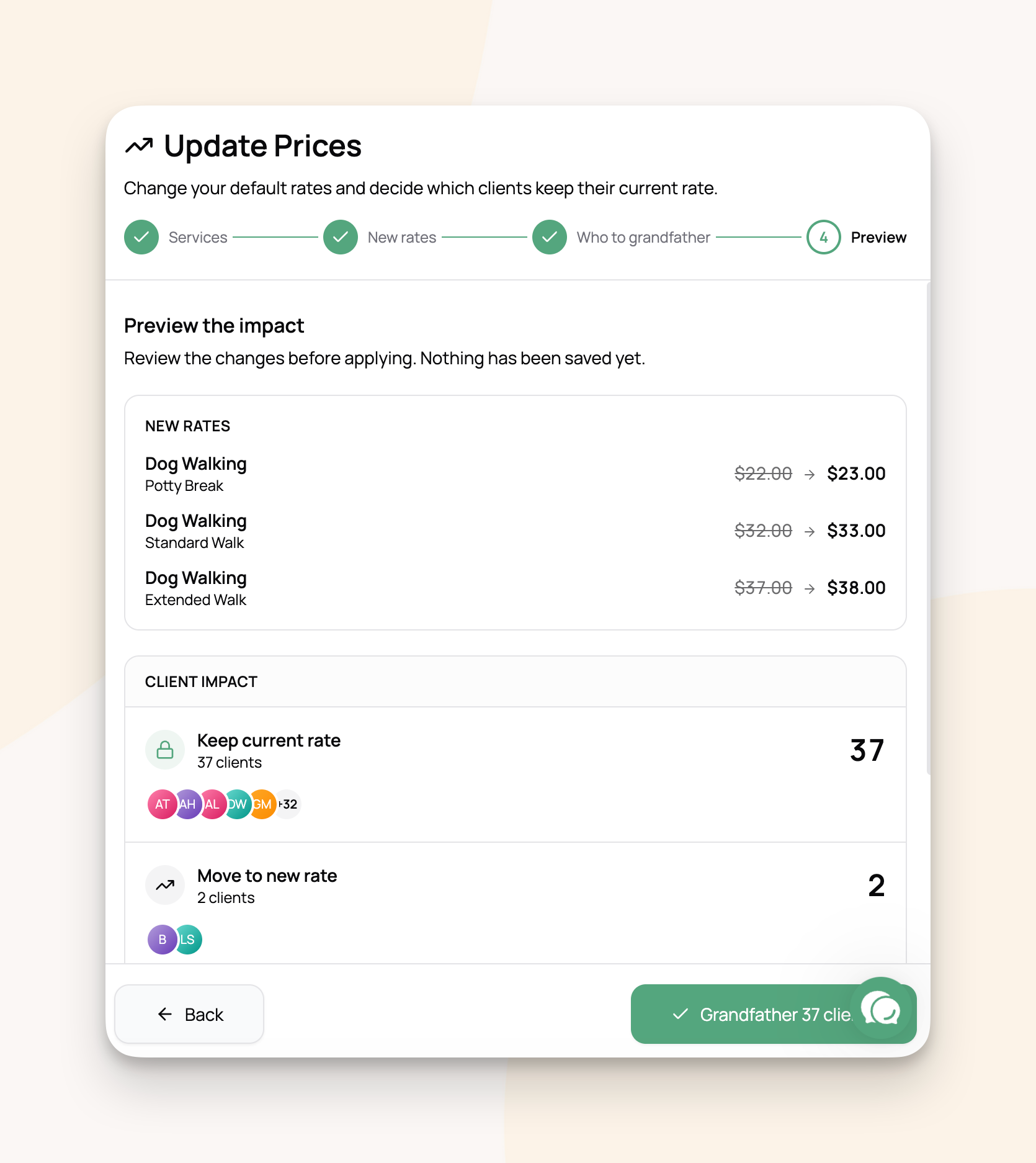
Step 5: Confirm. Click Apply to N clients (where N is the grandfathered count from the preview). A toast confirms when it's done. The 20 grandfathered clients now each have a $25 custom rate on their Rates tab. Your default is $30.
The "Apply to Future-Dated Bookings" Checkbox
By default, bookings already on your calendar keep the price they were created with. Only new bookings going forward use the new rate.
Check this box to also reprice the future-dated bookings of non-grandfathered clients, plus any draft invoices those bookings sit on.
For example: Mary Garcia joined this year, so she's not grandfathered. She has a Tuesday walk and a Thursday walk on next week's calendar at $25 each. Without the checkbox: both stay at $25, and only her bookings after that point cost $30. With the checkbox: both bump to $30, and her draft invoice updates automatically.
‼️ Heads up: When this is checked, any manual line-item edits you've made on those clients' draft invoices get overwritten. If you've hand-tweaked a price on a draft, leave the box unchecked or that tweak goes away.
Past and finalized invoices are never touched, with or without the checkbox.
Clients Who Already Have a Custom Rate
Update Prices skips them. Their custom rate stays exactly as it is. The tool never overwrites a rate you've already set.
If you want to update those clients too, use the Reviewing and Updating Your Custom Rates tool, or open their profile one by one. See the Setting a Custom Rate for a Specific Client article.
Lowering Prices, Mixed Updates, and One-Off Discounts
Update Prices handles price reductions the same way. The tool’s language adapts: "Prices lowered. 12 clients grandfathered."
You can mix raises and reductions in a single run.
For a discount on a single client, set a custom rate on their profile instead. Update Prices is for changes that affect your default rate.
Frequently Asked Questions
Can I undo a price update?
Can I undo a price update?
Not in one click. To reverse it, run Update Prices again with the old rate as the new rate. For a single client, open their profile and reset the custom rate.
Will my clients be notified?
Will my clients be notified?
No. We recommend sending a personal heads-up to your client list before raising rates. Personal beats transactional.
What's the difference between this and "Manage custom rates"?
What's the difference between this and "Manage custom rates"?
Update Prices changes your default. Manage custom rates bulk-edits the rates you've already set on individual clients. See the Reviewing and Updating Your Custom Rates .
Was this helpful?
Still need help? Ask the team