Repeat Bookings
Written By Lucas Steflor
Last updated 5 months ago
The Petersons have two labs who need a walk every weekday at noon. Sarah Smith books a Monday, Wednesday, Friday drop-in while she's at work. The Johnson family's golden retriever gets a biweekly socialization walk.
Instead of booking these clients individually every week, set up the pattern once and Scritches keeps the calendar filled for you.
Finding your repeat bookings
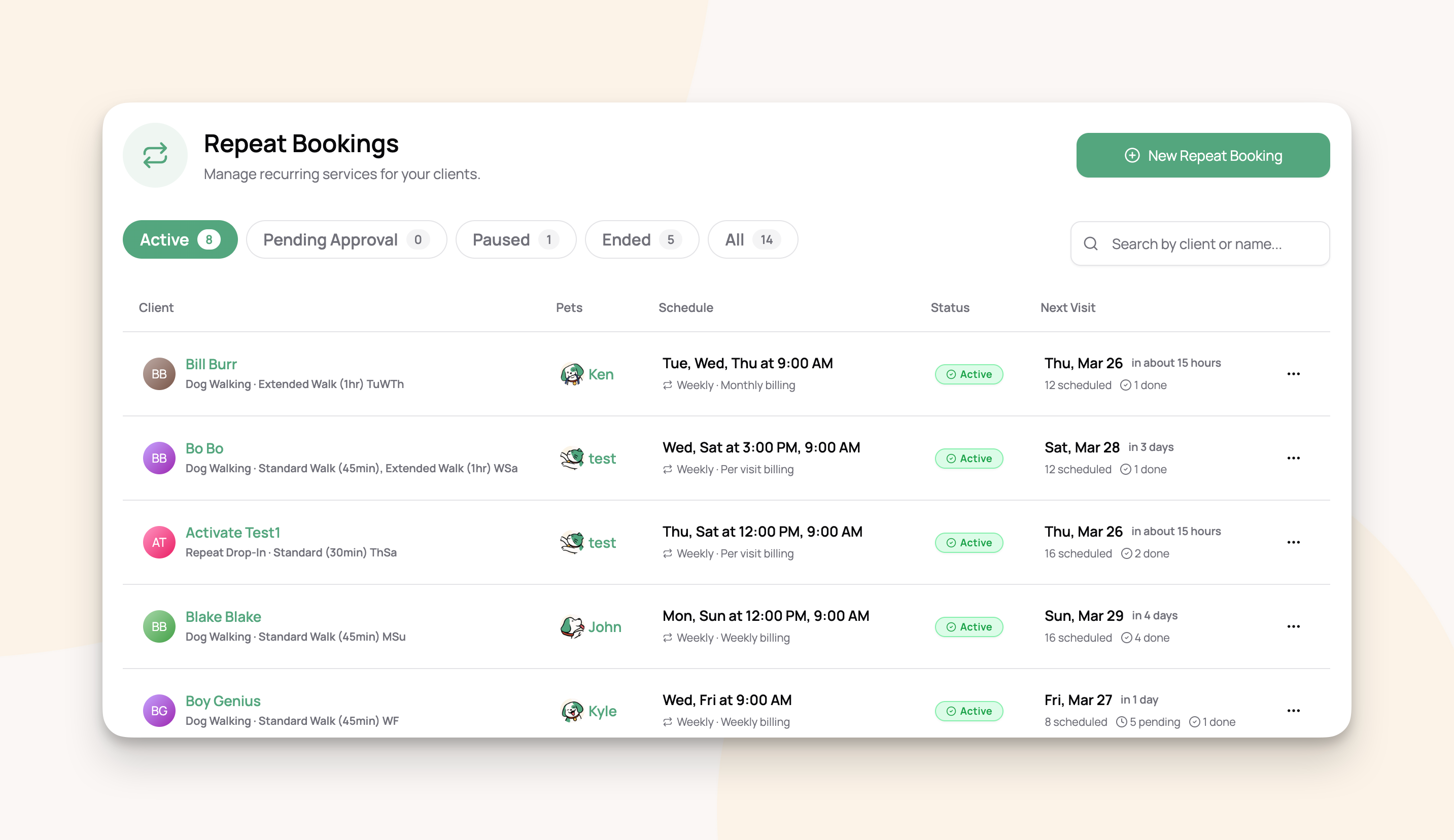
Go to Bookings → Repeat Bookings. Tabs at the top filter by status (Active, Pending Approval, Paused, Ended, All) with a count on each. Search by client or booking name.
Click any row to open the detail page.
Creating a repeat booking
From Bookings, click New Booking. Or from the Repeat Bookings page, click New Repeat Booking.
Client and pets. Pick the client and their pets.
Service. Pick the service. Repeats work for per-visit services like walks and drop-ins. Overnight stays cannot repeat.
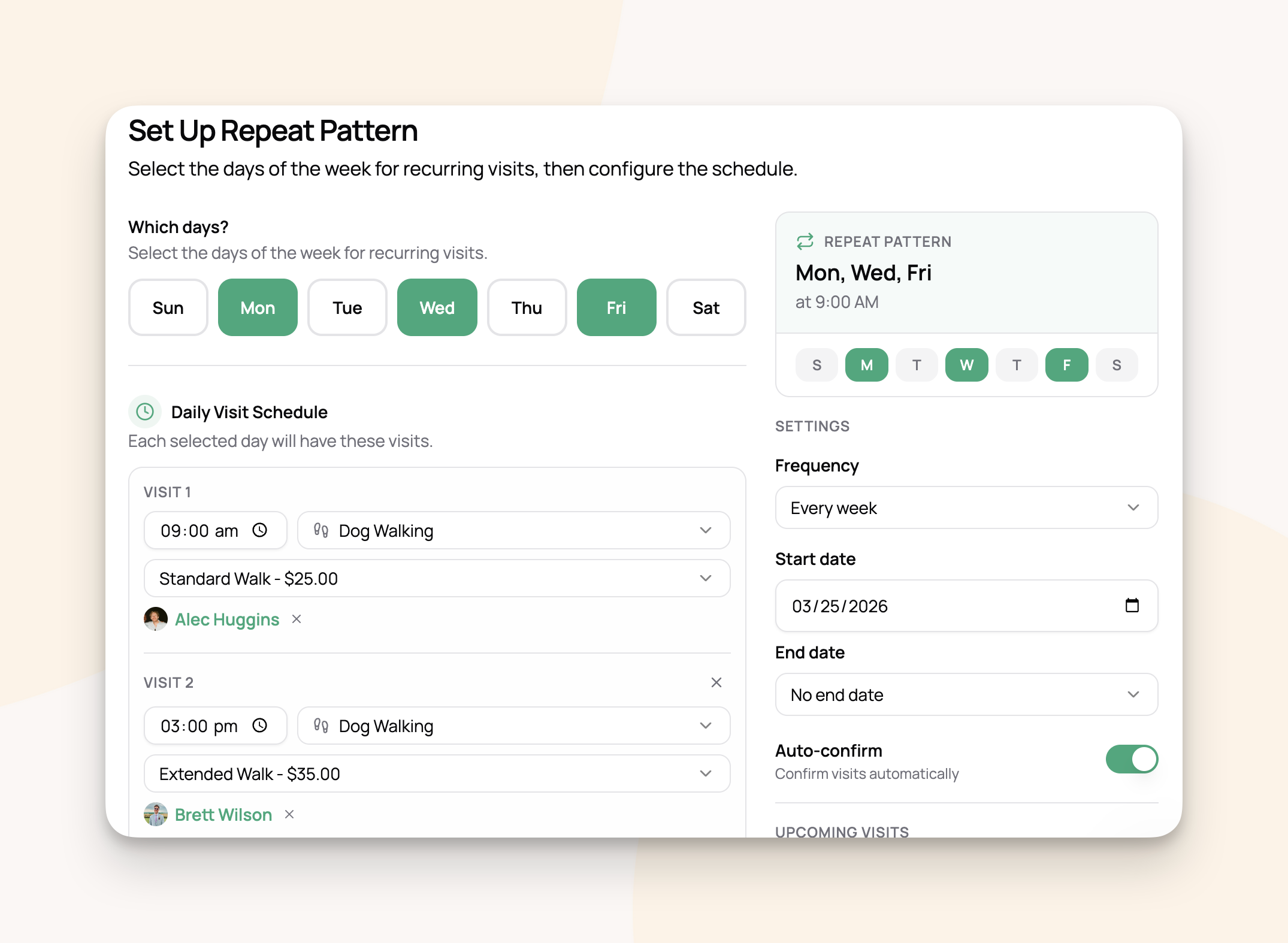
Schedule. At the top of the step, switch from Individual Dates to Repeating Schedule. Toggle the days of the week, set the time for each visit, and pick a frequency (every week, every 2 weeks, every 3 weeks). Add multiple time slots for a day if the client needs more than one visit.
Billing. Choose how invoices are created. See Repeat Booking Billing & Invoicing for the three strategies.
Review. Confirm the pattern and click Create Repeat Booking.
For example: for the Petersons' weekday walks, toggle Mon, Tue, Wed, Thu, Fri, set 12:00 PM, pick the 30-minute walk, choose weekly billing. Five visits per week start appearing on the calendar straight away.
‼️ Important: If your repeat runs for several months, you won't see all of those visits straight away. About the next 3 months appear immediately; the rest fill in week by week as time passes. This is normal, and explained more below.
Clients can also request a repeat booking themselves through your online booking page. See Online Repeat Booking Requests
The repeat detail page
Click any repeat from the list to open it.
Summary: name, client, pets, status, frequency, billing strategy.
Weekly Schedule: every event in the pattern, with the day, service, start time, and assigned staff.
Upcoming Visits: future visits grouped by week. Confirm pending ones, cancel a single visit, restore a cancelled visit, or jump to that date on the calendar.
Past Visits: completed visits with date, status, staff, price, invoice, and report card.
Editing the pattern
Click Edit Pattern to change which days, times, or services a repeat uses. You can toggle days on or off, change the start time for each day, swap the service, add or remove visits on a day, or change the frequency.
For example: Sarah Smith asks to add a Friday drop-in to her existing Monday and Wednesday schedule. Open Edit Pattern, toggle Friday on, save. The Friday visits start appearing immediately.
When you save, future visits regenerate to match. Visits with report cards and visits on sent or paid invoices are always preserved (your work and your money are safe). Everything else, including visits where you previously edited the time, gets regenerated.
Editing the settings
Click Edit on the Settings section to change:
Billing frequency: switch between per-visit, weekly, or monthly invoicing.
Invoice dates: customize when invoices are issued and due.
New visit confirmation: automatic, or manual review for each visit.
Advance scheduling: how far ahead visits are added to your calendar. 90 days by default. Adjustable from 4 weeks up to 6 months.
End date: set, change, or remove when this repeat ends.
Notes: internal notes about this repeat.
For example: the Petersons are moving in 4 months. Open Settings, pick an end date 4 months out, save. Visits stop being added past that date, and existing visits past it get removed.
If you change billing, existing draft invoices are removed and new ones created with the new strategy. The dialog tells you exactly what will happen before you confirm.
Pausing, resuming, and ending
These live in the actions menu on the detail page and the repeat bookings list.
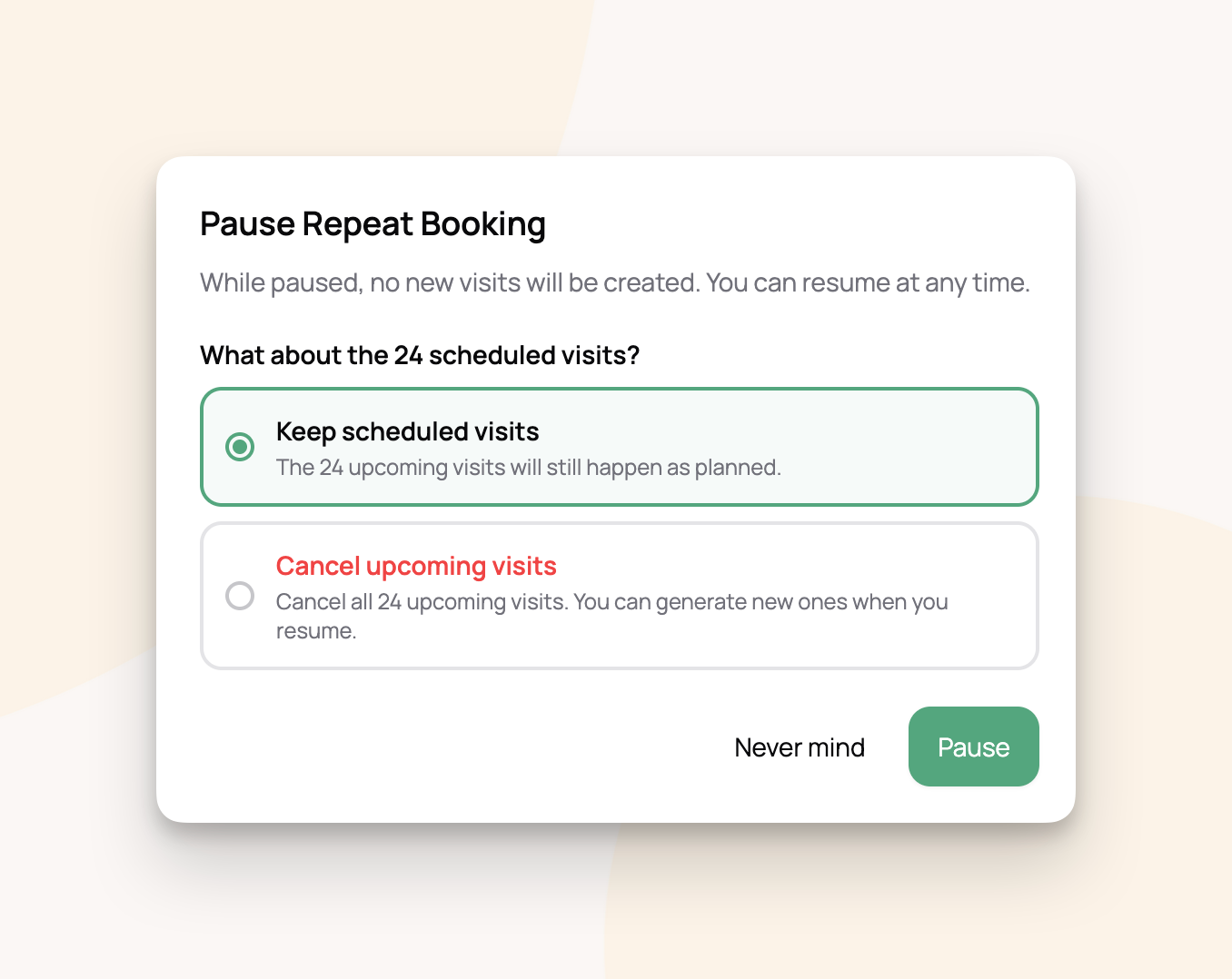
Pause stops new visits from being created. Existing visits stay on the calendar. Useful when a client goes on vacation. You can optionally cancel the upcoming visits at the same time.
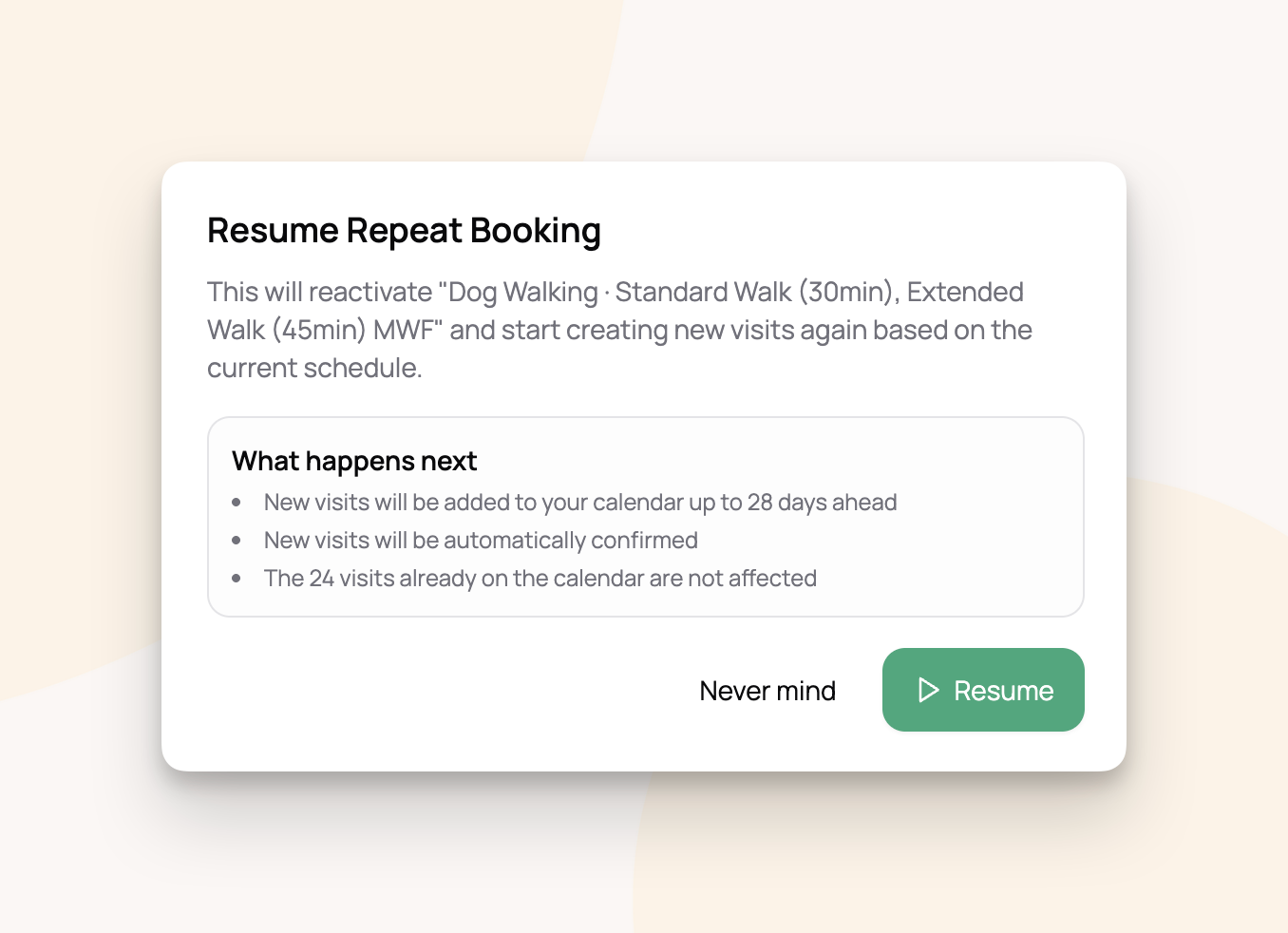
Resume reactivates a paused repeat and starts adding visits from tomorrow. The frequency cycle resets from today, so a biweekly schedule counts from the resume date.
Stop Repeating permanently ends the repeat. Choose Stop Only to leave existing upcoming visits in place, or Stop & Cancel Upcoming to cancel them all.
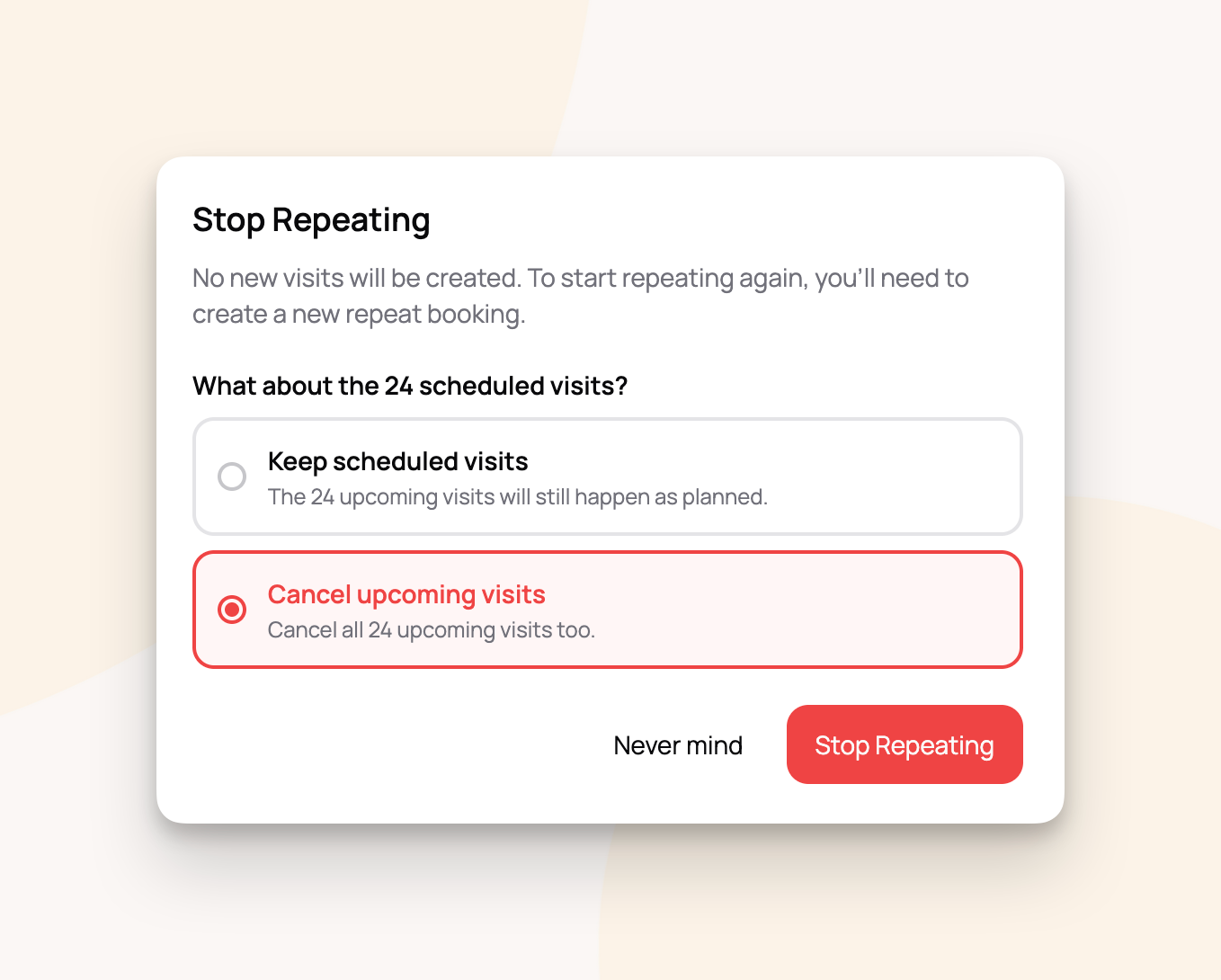
For example: the Johnsons are traveling for two weeks. Pause the repeat and cancel the visits while they're away. When they're back, hit Resume and the schedule picks up again.
Cancelling a single visit
When you cancel a visit that belongs to a repeat, Scritches asks how much you want to cancel:
Skip this one visit. Cancels just this visit. The repeat keeps going. Perfect for one-off conflicts like a vet appointment or a holiday.
Stop repeating entirely. Ends the repeat and cancels all upcoming visits.
Cancelled visits can be restored from the detail page with Restore. They come back confirmed or pending depending on the repeat's confirmation setting.
How visits are automatically created
You don't need to do anything to keep the calendar filled. Each night, Scritches adds visits 90 days ahead for every active repeat. As each day passes, one more day's worth of visits gets added at the end.
Cadence stays consistent. Biweekly and every-3-weeks repeats count from the start date, so the cadence stays right even across month boundaries.
Surcharges are calculated at creation. If a Tuesday walk lands on a holiday you've configured, it gets the holiday rate when the visit is created.
Staff are auto-assigned. If Sarah always handles the Monday walks, she's assigned to every new Monday visit automatically.
Google Calendar syncs if you have sync enabled.
Calendar integration
Repeat visits appear on your schedule calendar alongside one-time bookings. They show a Repeat badge with a link back to the repeat's detail page.
Repeat visits do not show up in the regular Bookings list. Manage them from the Repeat Bookings section.
Frequently asked questions
Why can I only see 90 days worth of bookings on my calendar?
Why can I only see 90 days worth of bookings on my calendar?
Each visit is a real booking with its own price and invoice (not just a calendar reminder), so Scritches doesn't create years of them upfront. Each night, one more day's worth gets added to the end. This helps manage calendar performance and keeps your list of invoices uncluttered.
For example: if it's May and you set up the Petersons' weekday walks to run through October, you'll see visits through about August right away. The September and October visits fill in as time passes.
You can change 90 days to anything between 4 weeks and 6 months in Settings.
What happens if I edit a single visit's time or staff?
What happens if I edit a single visit's time or staff?
The change saves to that visit. If you later update the pattern or settings, edited visits regenerate along with everything else. Only visits with report cards or visits on sent or paid invoices are preserved.
Can I create repeats for overnight services?
Can I create repeats for overnight services?
No. Repeats are for per-visit services like walks and drop-ins. Book overnights and multi-day stays individually.
Can I assign different staff to different days?
Can I assign different staff to different days?
Yes. Each day in the pattern can have its own preferred staff member. Set this when editing the pattern, and new visits on that day are auto-assigned.
Will the repeat keep going forever if I don't set an end date?
Will the repeat keep going forever if I don't set an end date?
Yes. As long as you don't set an end date or stop it, Scritches keeps adding visits forever. You'll see about 3 months ahead at a time, with one new day added each night. You can set or change the end date later in Settings when a client moves away or pauses service.
Can one client have multiple repeats?
Can one client have multiple repeats?
Yes. A client can have one for morning walks and another for afternoon drop-ins, for example.
What happens to visits when I stop a repeat?
What happens to visits when I stop a repeat?
Depends on what you pick. Stop Only leaves existing visits in place. Stop & Cancel Upcoming cancels every future pending and confirmed visit.
Was this helpful?
Still need help? Ask the team