Online Repeat Booking Requests
Written By Lucas Steflor
Last updated 5 months ago
A new client lands on your booking page wanting daily walks for their golden retriever while they're at work. Instead of going back and forth over text to nail down a schedule, they pick their days, times, and frequency themselves and submit a request. You review it, tweak it if needed, and approve.
The client gets a recurring schedule. You keep full control over the calendar.
Turn it on per service
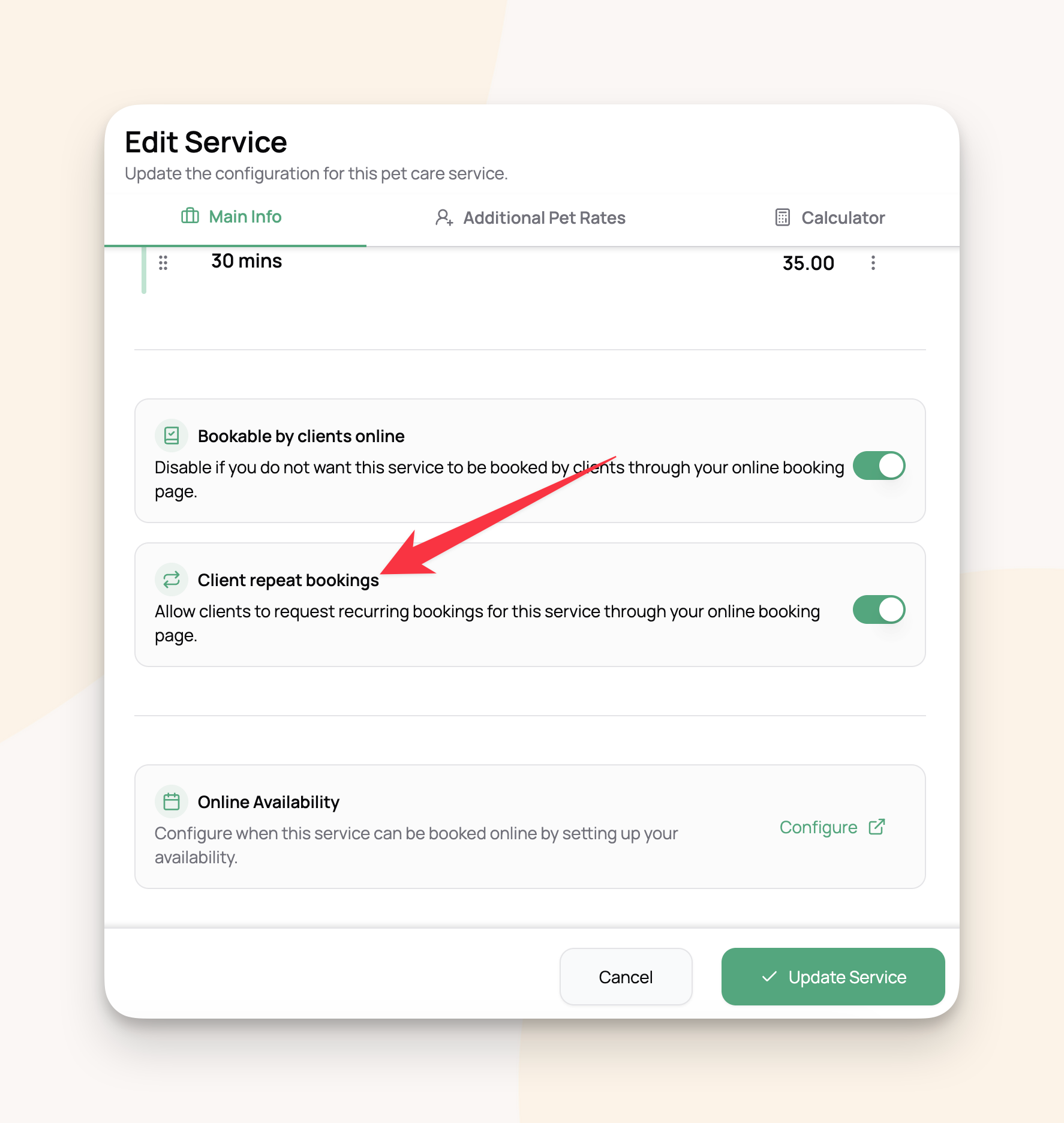
Online repeat bookings are off by default. Turn them on one service at a time:
Go to Services and open the service.
Flip the Client repeat bookings toggle on.
For example: allow repeat requests for dog walks and drop-in visits, but leave them off for one-off meet-and-greets.
What clients see
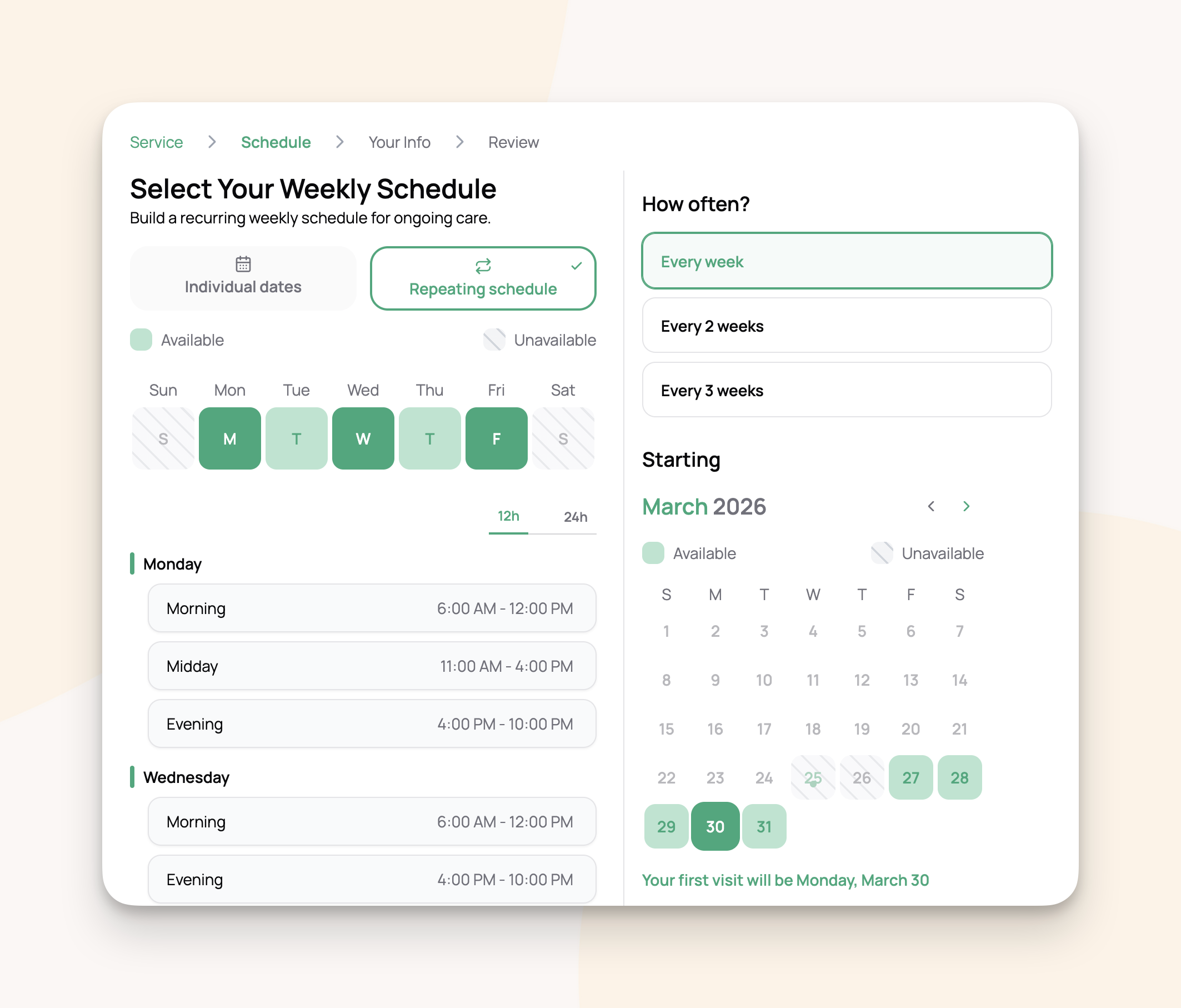
When a client picks a service that has repeats enabled, they get two options: Individual dates and Repeating schedule.
Picking Repeating schedule walks them through:
Weekly schedule. They pick days of the week and a time block for each day. Only your configured time blocks show up.
Frequency. Every week, every 2 weeks, or every 3 weeks.
Start date. A calendar picker that respects your minimum advance notice settings.
Review and submit. A summary with room for notes. The screen makes it clear they're requesting, not booking.
Nothing hits your calendar until you approve.
Reviewing a request
When a client submits, you get an email and the request lands on the Repeat Bookings page under the Pending Approval tab (with a count badge).
Open the request. The detail page works just like a live repeat (see Repeat Bookings ), with an approval banner across the top. Before approving, you can:
Edit the pattern (days, times, services)
Assign preferred staff to each day
Configure billing (see Repeat Booking Billing & Invoicing )
Set auto-confirm
Add internal notes
Approving
Click Approve & Start. The repeat goes Active, the first few weeks of visits appear on the calendar, and the client gets a confirmation email.
From here it's just like a repeat you created yourself.
Declining
Click Decline. You can add an optional reason that gets sent to the client.
For example: "Mondays and Wednesdays are full this season, but we can fit a Tuesday and Thursday schedule for Sasha. Want to resubmit, or give us a call?"
Declined requests show up under the Ended tab for your records.
What the client sees in their portal
Each repeat in the client's portal shows the status, service, pattern, frequency, and pets. Messaging changes with the status:
Active and paused repeats list the next few upcoming visits. Clients can expand a past visits section for their history.
Email notifications
Frequently asked questions
Can a client request multiple repeat bookings? Yes. They can submit separate requests, like one for morning walks and another for evening drop-ins.
What if a client picks a service that doesn't have repeats enabled? They won't see the "Repeating schedule" option for that service.
Can I edit a client's request before approving? Yes. Adjust the pattern, assign staff, configure billing, change any settings, then approve.
Do visits get created before I approve? No. While the request is Pending Approval, no bookings exist. Visits only appear after you approve.
What if I decline and the client wants to try again? They can submit a new request through the booking page. No resubmission limit.
Can clients cancel their own repeat booking? Clients can view their repeat status in their portal, but cancellations and changes are managed by you from the Repeat Bookings page.
Was this helpful?
Still need help? Ask the team