Setting a Custom Rate for a Specific Client
Charge an individual client a different rate without changing your defaults
Written By Lucas Steflor
Last updated 6 months ago
Most of the time every client pays your standard rate. But there are exceptions. Maybe the Petersons have been with you since 2019 and you'd never raise their rate above what they pay today. Maybe a client's two huskies are a handful and you've agreed those walks are $35 instead of $25. Maybe a friend gets the family discount.
Custom rates let you set a per-client price for any of your services. The rate sticks even when you raise your defaults later, so you never need to remember to protect that client during a price change.
Where Custom Rates Live
Open a client's profile and click the Rates tab.
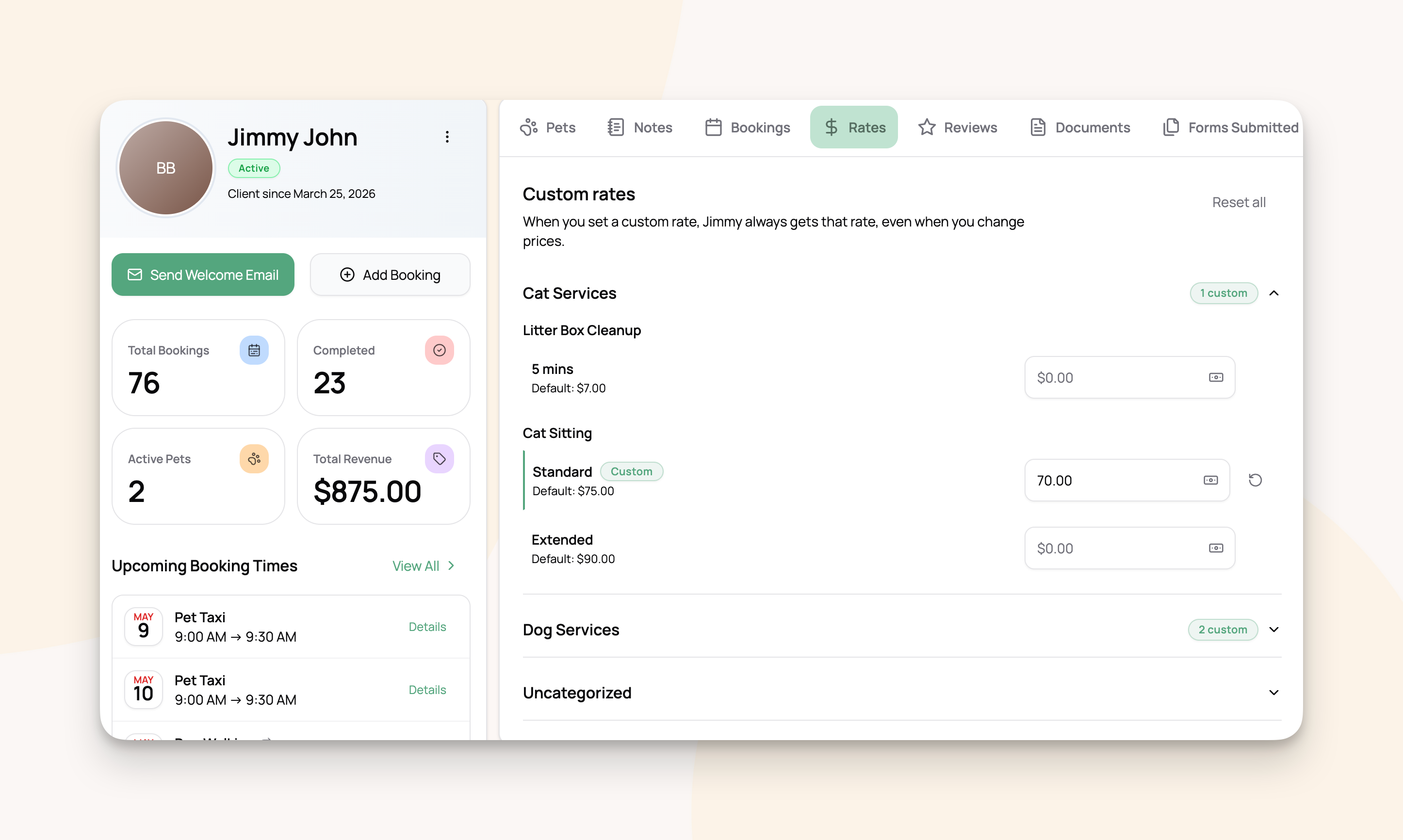
Services are grouped by category, with one row per pricing option.
Setting a Custom Rate
Find the service you want to update.
Type the rate.
Press Enter, or click out of the field. It saves automatically.
For example: Your default 30-minute walk is $25. The Petersons get $22. Open Tom Peterson's profile, find the 30-minute walk on the Rates tab, type 22, press Enter. Tom is now locked at $22. He keeps that rate even if you raise your default to $30 next year.
Custom rates can go higher or lower than your default. Charging a premium for a difficult client is a real, expected use case.
What Happens to Already-Scheduled Bookings
Setting a custom rate doesn't automatically reprice bookings already on your calendar. New bookings going forward use the new rate; existing ones keep their original price.
When the client has upcoming bookings, you'll be asked which to do:
Just save the rate. Existing bookings keep their price. Only new ones use the new rate.
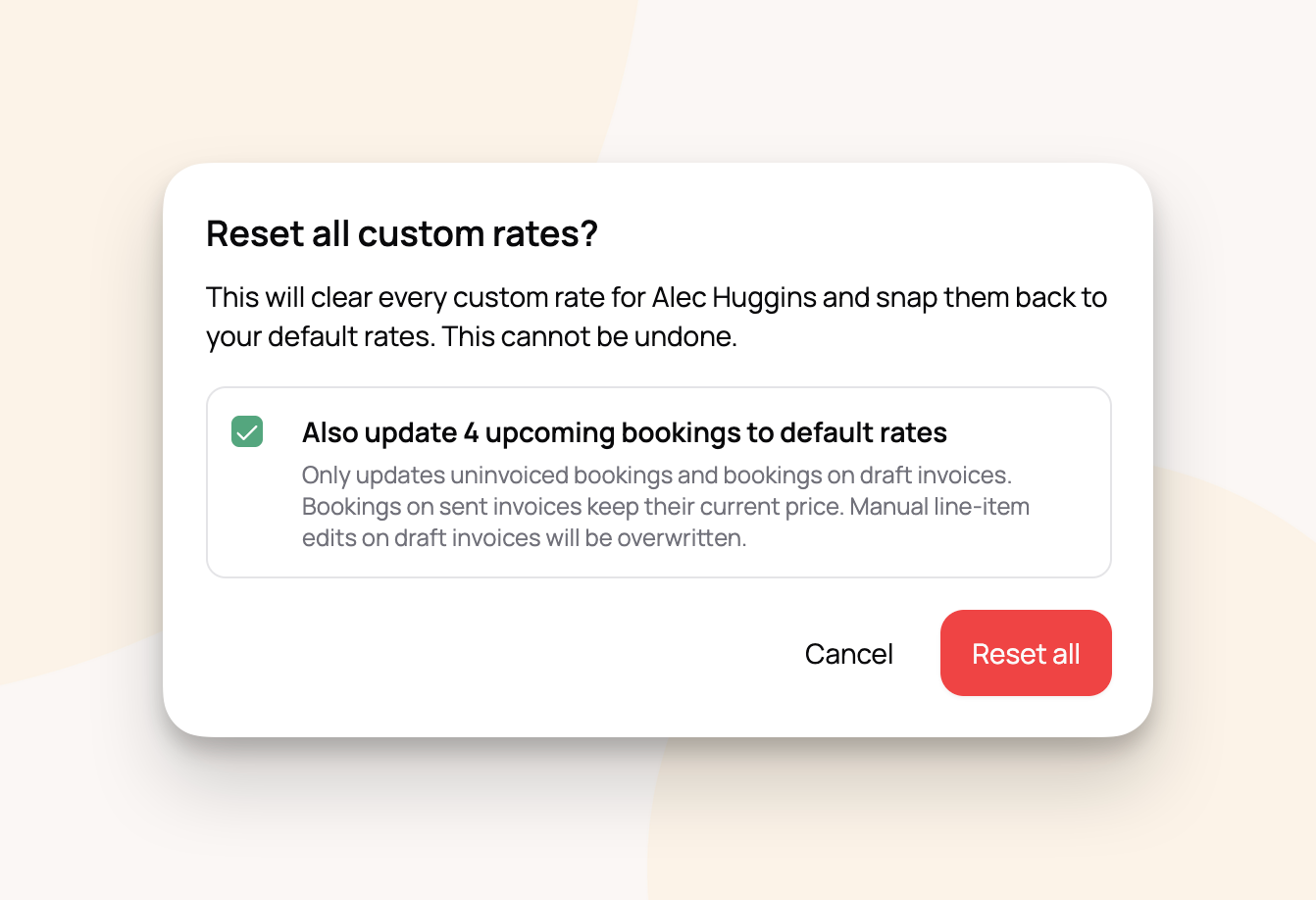
Save and re-price upcoming bookings. Existing scheduled bookings update to the new rate, including any draft invoices they sit on. Past or finalized invoices are never touched.
For example: Sarah Smith has 8 dog walks on her calendar over the next two weeks at $25 each. You change her custom rate to 22. With "re-price upcoming bookings" checked, all 8 drop to $22 and her draft invoice updates. Without it, the 8 stay at $25 and only her 9th walk onward costs $22.
Removing a Custom Rate
Click the reset icon next to the rate. The client snaps back to your current default.
If the client has upcoming bookings, the same re-price prompt appears.
Grandfathered Rates
If a custom rate was set automatically by an Update Prices run (the workflow that grandfathers long-time clients during a price change), Scritches remembers. Resetting one of those rates triggers an extra confirmation, so you don't accidentally move a long-time client onto your new default.
See the Raising or Changing Your Default Prices article for more on grandfathering.
Resetting Every Custom Rate at Once
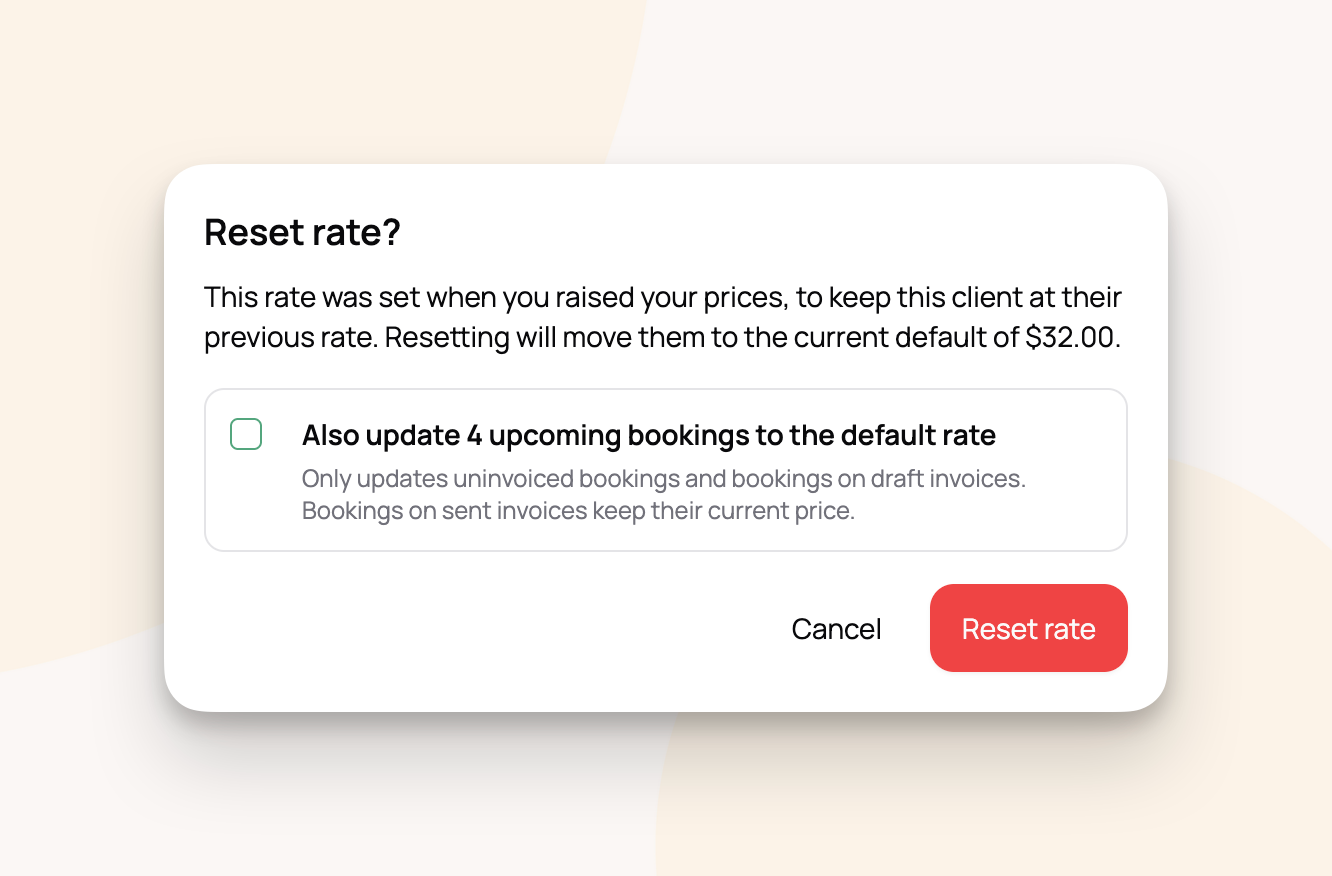
Click Reset all at the top of the Rates tab to clear every custom rate for this client. You'll get a confirmation with the same re-price-upcoming-bookings option. The button only appears when at least one custom rate is set.
What Pet Parents See
Logged-in clients see their custom rate as their rate. No "special price" label, no comparison to your default. The rate they see during booking is the rate that lands on their invoice.
Anonymous shoppers on your public booking page (people who haven't logged in yet) see your default rate.
For example: The Petersons have a $22 custom rate. When Tom logs into the portal, he sees $22. His invoice shows $22. A new client browsing your public booking page sees the $25 default.
The Custom Rate Indicator
When you create a booking from the admin app, or look at an invoice line item for a client with a custom rate, a small "i" icon appears next to the price. Click it for a quick reference of default vs. custom rate, with a button to jump to the client's Rates tab.
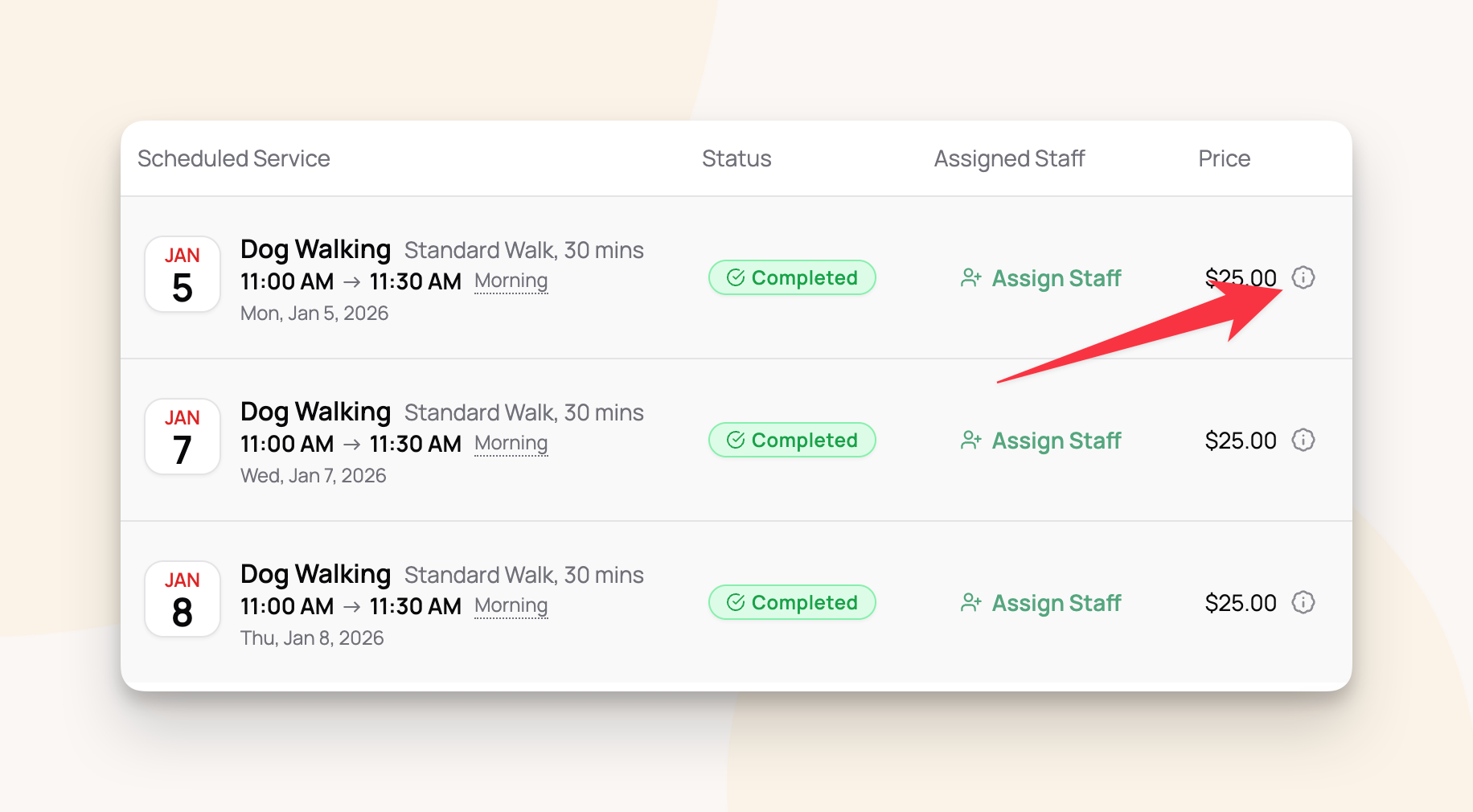
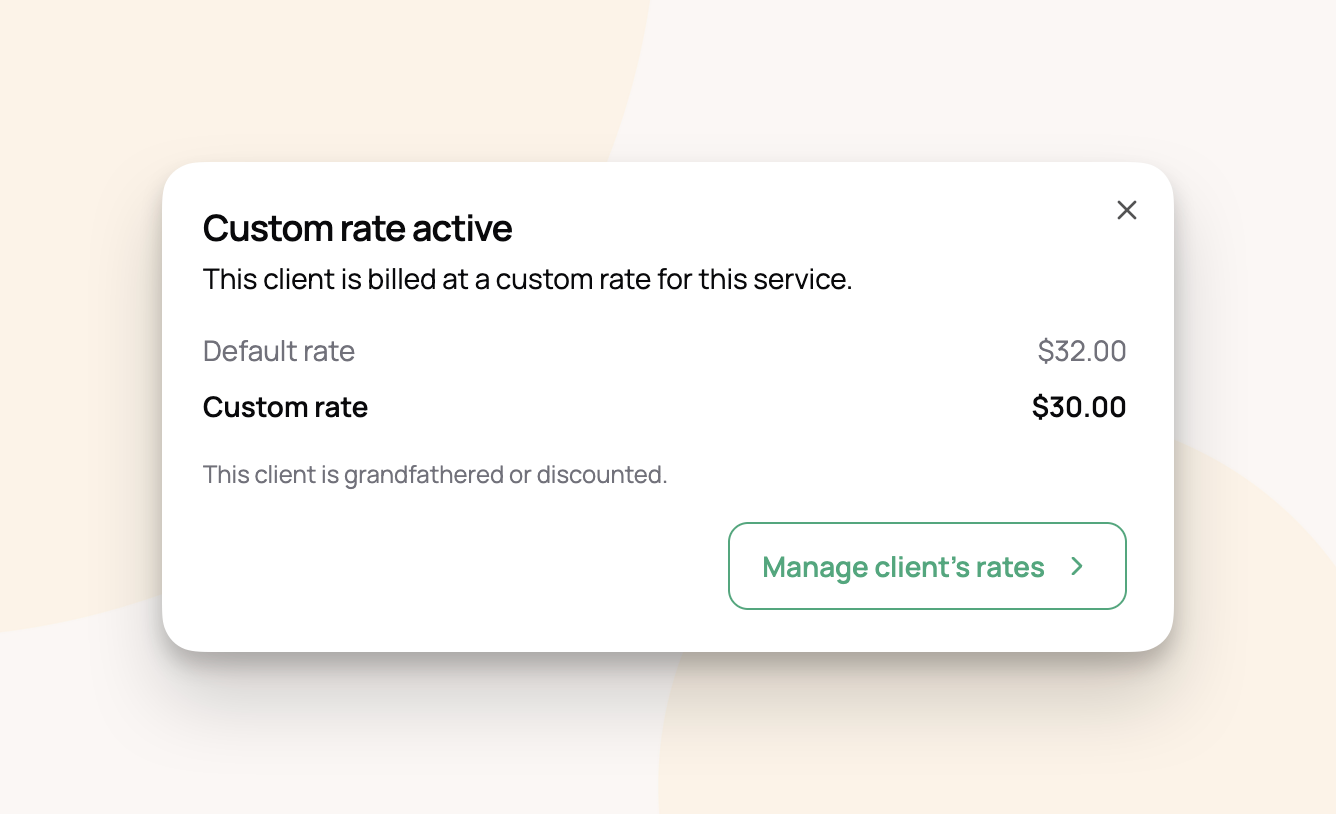
The indicator also flags when a line item has been manually edited beyond the client's custom rate, so you can see all three numbers (default, custom, this-invoice-only) at once.
Frequently Asked Questions
Can a custom rate be higher than my default?
Can a custom rate be higher than my default?
Yes. Custom rates accept any non-negative number. Charging a premium for a difficult client is a real use case.
Does a custom rate change my staff's pay?
Does a custom rate change my staff's pay?
Depends on how you've set up staff compensation. Percentage pay scales with the actual rate (60 percent of $22 instead of $25). Fixed pay stays flat: your staff get paid the same and you absorb the difference. See the Staff Compensation & Payroll article for details.
Do custom rates apply to weekend, holiday, and extra-pet surcharges?
Do custom rates apply to weekend, holiday, and extra-pet surcharges?
Surcharges are calculated off the rate the client is actually paying. Percentage-based extra-pet surcharges follow the custom rate; fixed-amount surcharges stay the same.
What if I want a one-off rate for a single booking?
What if I want a one-off rate for a single booking?
Edit that line item directly on the invoice. Custom rates are for recurring deviations; per-invoice tweaks are easier to handle on the invoice itself. The custom rate indicator will show all three numbers (default, custom, this-line-item) so you can see what's going on.
Can I edit custom rates for many clients at once?
Can I edit custom rates for many clients at once?
Yes, with the Manage custom rates tool. See the Reviewing and Updating Your Custom Rates article.
What happens to a custom rate if I archive the service?
What happens to a custom rate if I archive the service?
The custom rate is preserved but hidden from the Rates tab while the service is archived. Unarchive it and the rate comes back exactly as it was.
Was this helpful?
Still need help? Ask the team