Printing/Downloading Your Schedule
Written By Lucas Stefanski
Last updated 3 months ago
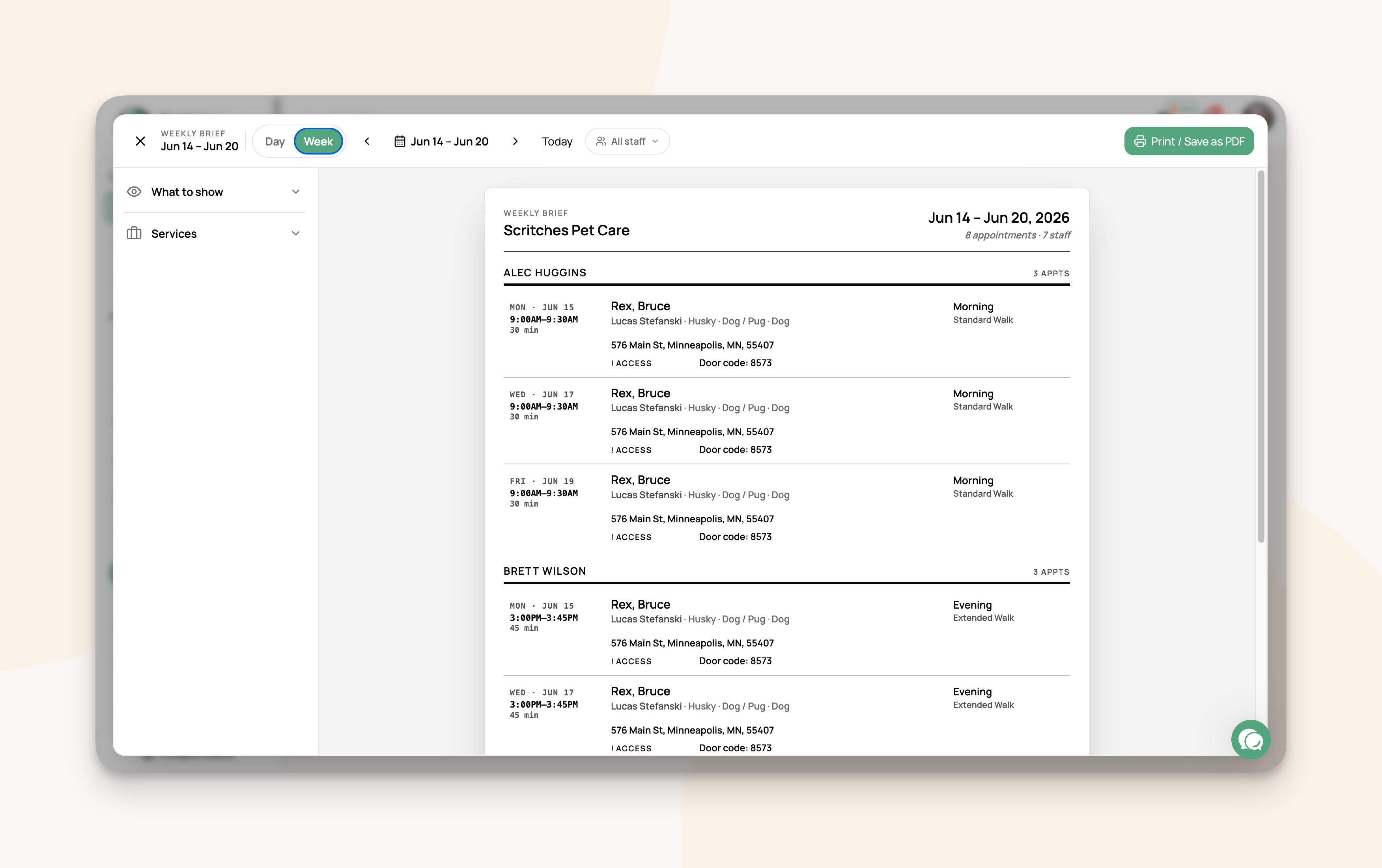
Mike runs five dog walkers. Every morning he wants each of them to head out with their stops, gate codes, and which dog doesn't like strangers, all on one sheet of paper, no app required. The brief is that sheet: a clean, printable rundown of everything on your schedule for a day or a week.
Opening the brief
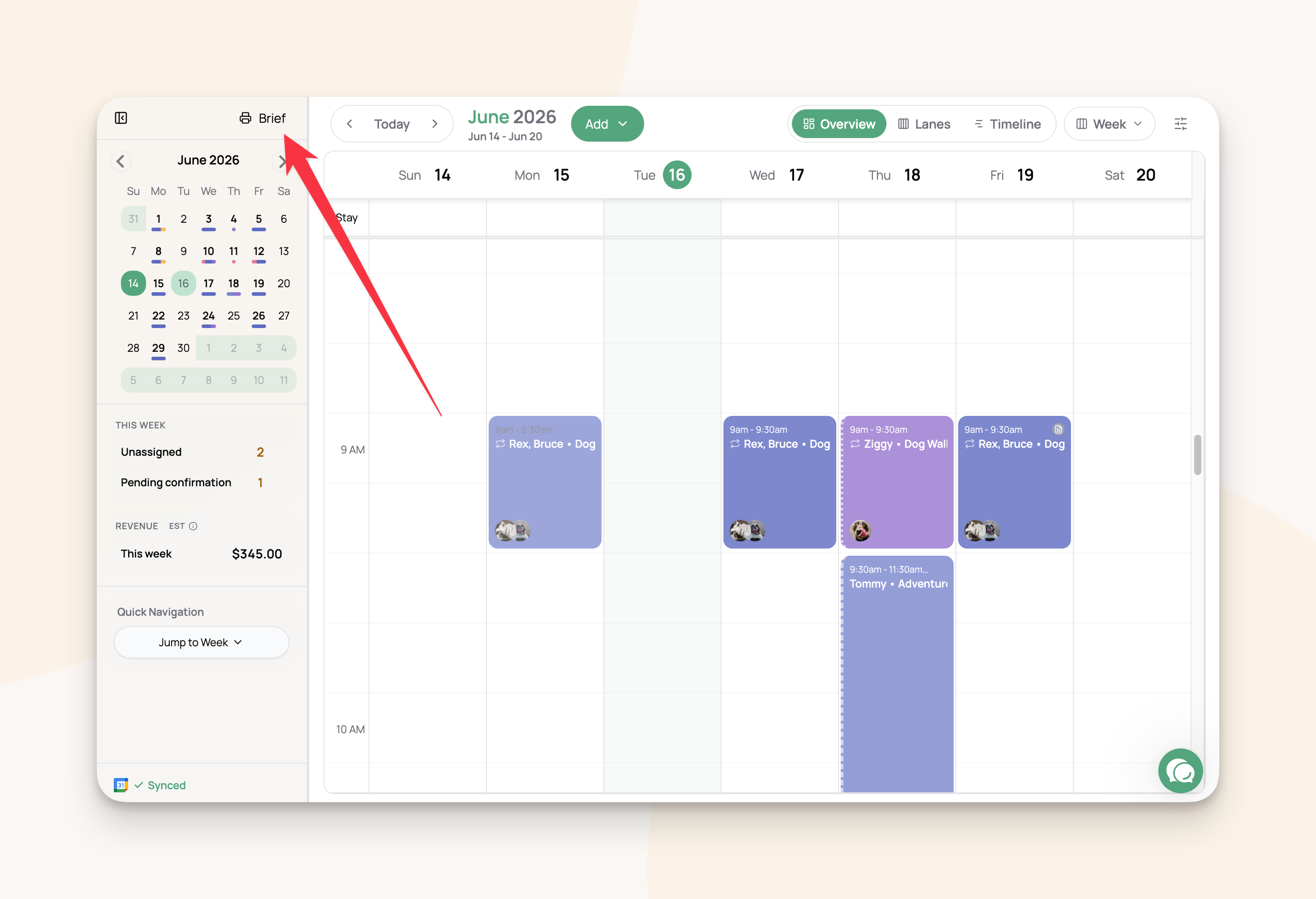
From your schedule, open Brief in the sidebar, then choose Day or Week and pick your date.
What you'd use it for
Hand each walker their day on paper. When you have a team, the brief splits into a section per person, so you print once and tear off each walker's stops.
Show up prepared, without digging through the app. Gate codes, medications, allergies, and temperaments ride along on every stop, so the answer is already in hand at the door.
Plan the whole week. Week mode lays out every day at once, which makes an overloaded Friday or a busy holiday stretch easy to spot before it arrives.
Send a sitter who doesn't use the app. Save the brief as a PDF and email it to a backup sitter covering a weekend for you.
Keep a paper backup. Dead phone or no signal at a rural property? The printed brief still has the address and the door code.
Choosing what shows on the page
Everything is included by default. Use the filters to tailor the sheet:
What to show toggles each detail on a row: gate code and access, medications, medical conditions, food allergies, temperaments, pet and visit notes, client phone, and species or breed.
Services (and, for teams, staff) narrow the brief to just what you want, for example only your overnight stays, or only one walker's stops.
Printing or saving as a PDF
Press Print / Save as PDF to open your browser's print dialog. Choose your printer to print, or pick "Save as PDF" to keep a digital copy or email it on. The printed sheet drops the on-screen toolbar and stamps the date and time it was printed.