How to do I add Scritches to my mobile device?
Written By Lucas Stefanski
Last updated 3 months ago
You can add Scritches to your phone’s home screen so it opens quickly, similar to an app. This creates a shortcut that launches Scritches in a simplified window without browser toolbars. It is not the same as installing a native app, but it can make mobile access easier.
Before starting, here is a quick note about what to expect.
Important information
Adding Scritches to your home screen does not fully mirror the experience of a native mobile app. It is still the web version of Scritches running inside your browser. If something looks off or does not behave quite right, that is normal and can usually be fixed with a quick refresh. You can also close the window fully and reopen it from your home screen shortcut.
If you run into anything unusable, please reach out. Details are included at the end of this article.
Adding Scritches to an iPhone (Safari)
Open Safari and go to https://app.scritches.com.
Tap the Share button (square with an arrow pointing up) at the bottom of the screen.
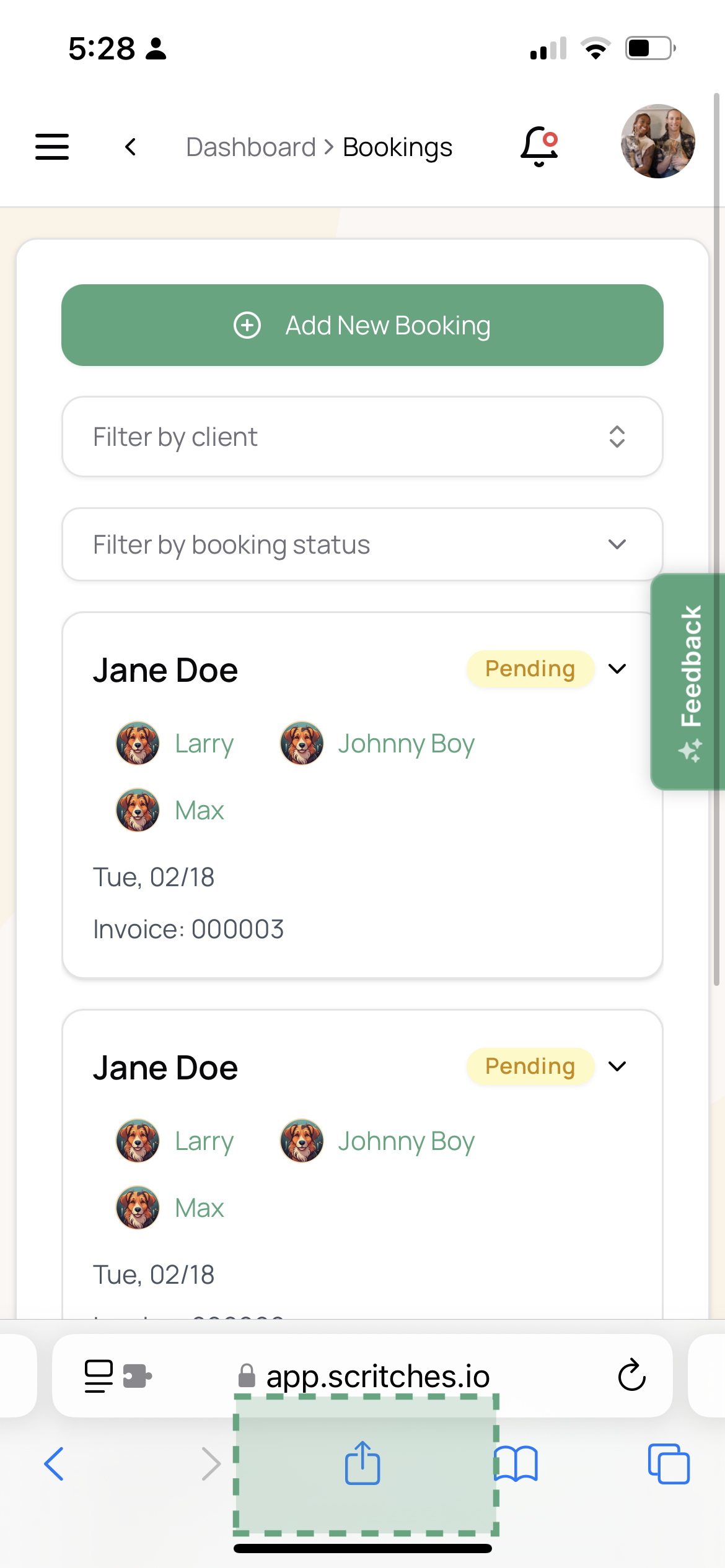
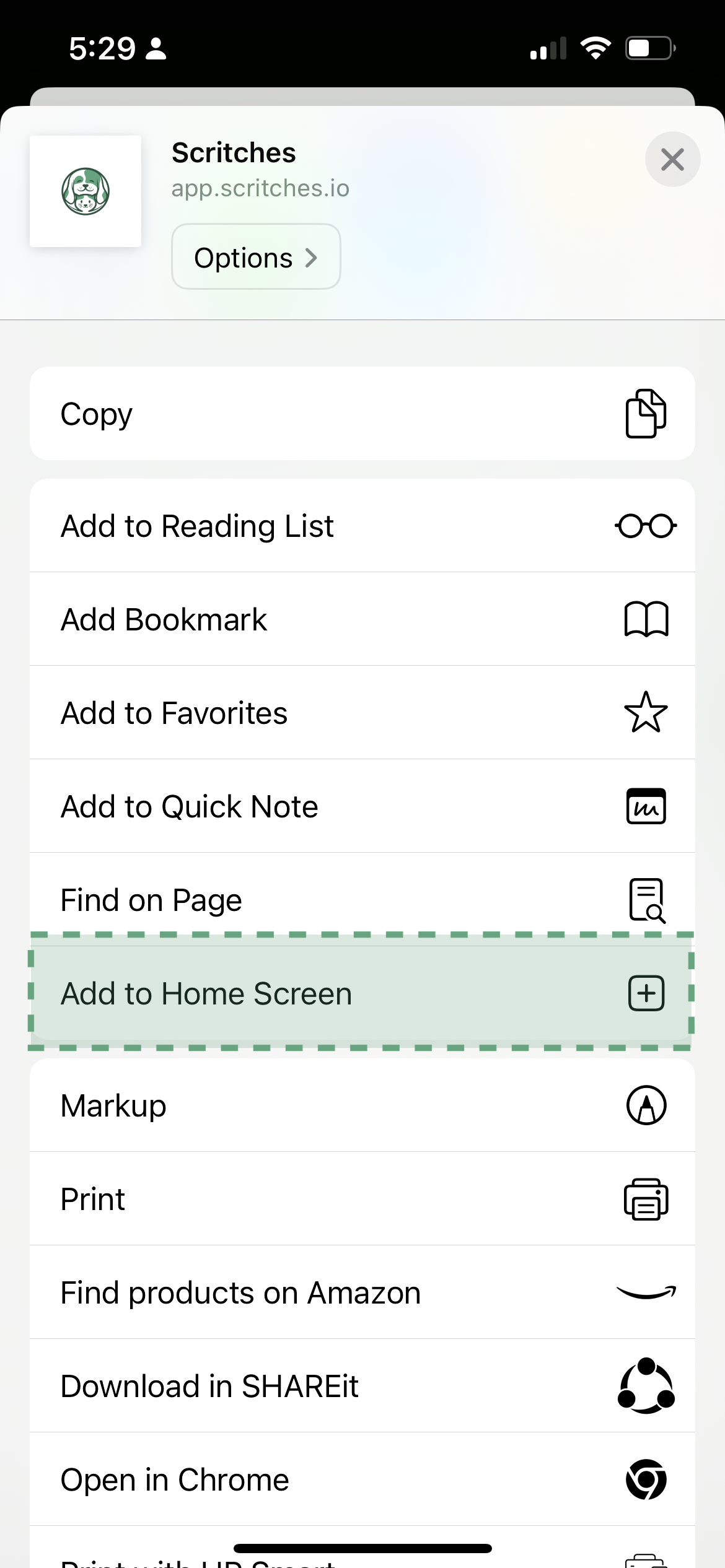
Scroll down and tap Add to Home Screen.
Rename the shortcut if desired, then tap Add.

Scritches will now appear on your home screen like a regular app!
Tip: If you don’t see the option to “Add to Home Screen,” ensure you are using Safari. Other browsers like Chrome may not support this feature on iPhone.
Adding Scritches to an Android Phone (Chrome)
Open Chrome and go to app.scritches.com.
Tap the three-dot menu in the top-right corner.
Select Add to Home Screen or Install App (depending on your device).
Rename the shortcut if desired, then tap Add.
Scritches will now be accessible from your home screen!
What this setup provides
Faster access since you can open Scritches directly from your home screen
A cleaner, more app-like window that removes most browser controls
A simple way to keep Scritches handy if you use it often on the go
Troubleshooting
If something does not look right or the screen gets stuck, try the following:
• Close the Scritches window completely and reopen it from your home screen
• Pull down to refresh the page
• Check your internet connection
• Make sure your browser is updated to the latest version
• On iPhone, confirm you are using Safari
• On Android, try reinstalling the shortcut (remove it and add it again)
If issues continue, you can:
• Contact support at support@scritches.io
• Report mobile bugs at https://feedback.scritches.io
We are always improving the mobile experience and appreciate any reports that help us make it better.