Choosing How Clients Pay You
Turn on Venmo, Zelle, check and cash with your real details, accept cards with Scritches Pay, and charge tax if you need to.
Written By Lucas Steflor
Last updated 13 days ago
Linda Peterson always pays by Zelle, Sarah Smith prefers Venmo, and a new client just asked if they can use a card. Right now every invoice you send only offers cash, because that's the one payment method new accounts start with. Here's how to give clients the ways they actually pay you.
Two ways to get paid
You can offer both. Every method you turn on appears on your invoices, and the client picks one.
Turn on Venmo, Zelle and other methods
Every method starts with placeholder details, like "your-venmo-username". Add your real details before you turn a method on, or clients will see a pay button that goes nowhere.
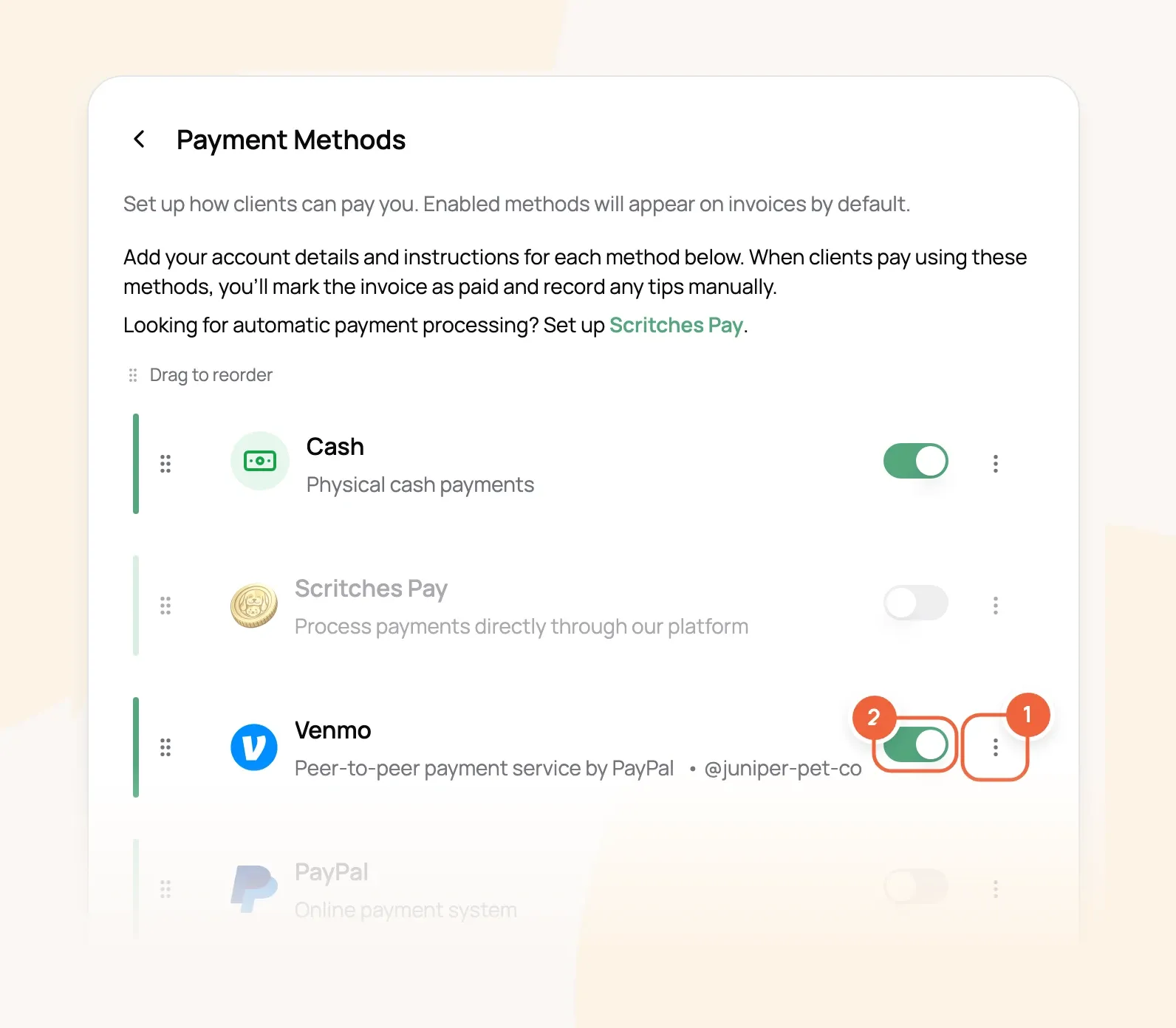
Open Payment Methods. For each method you take:
-
Open the method's menu and choose Edit Details. Fill in Account Details (your Venmo username, Zelle phone or email, or who checks are made out to) and any Client Instructions, then choose Save Details.
-
Turn on the method's switch.
Clients see every method you turn on, with your details and instructions, under Payment Options on their invoice. Venmo also gets a Pay in Venmo button with the amount already filled in.
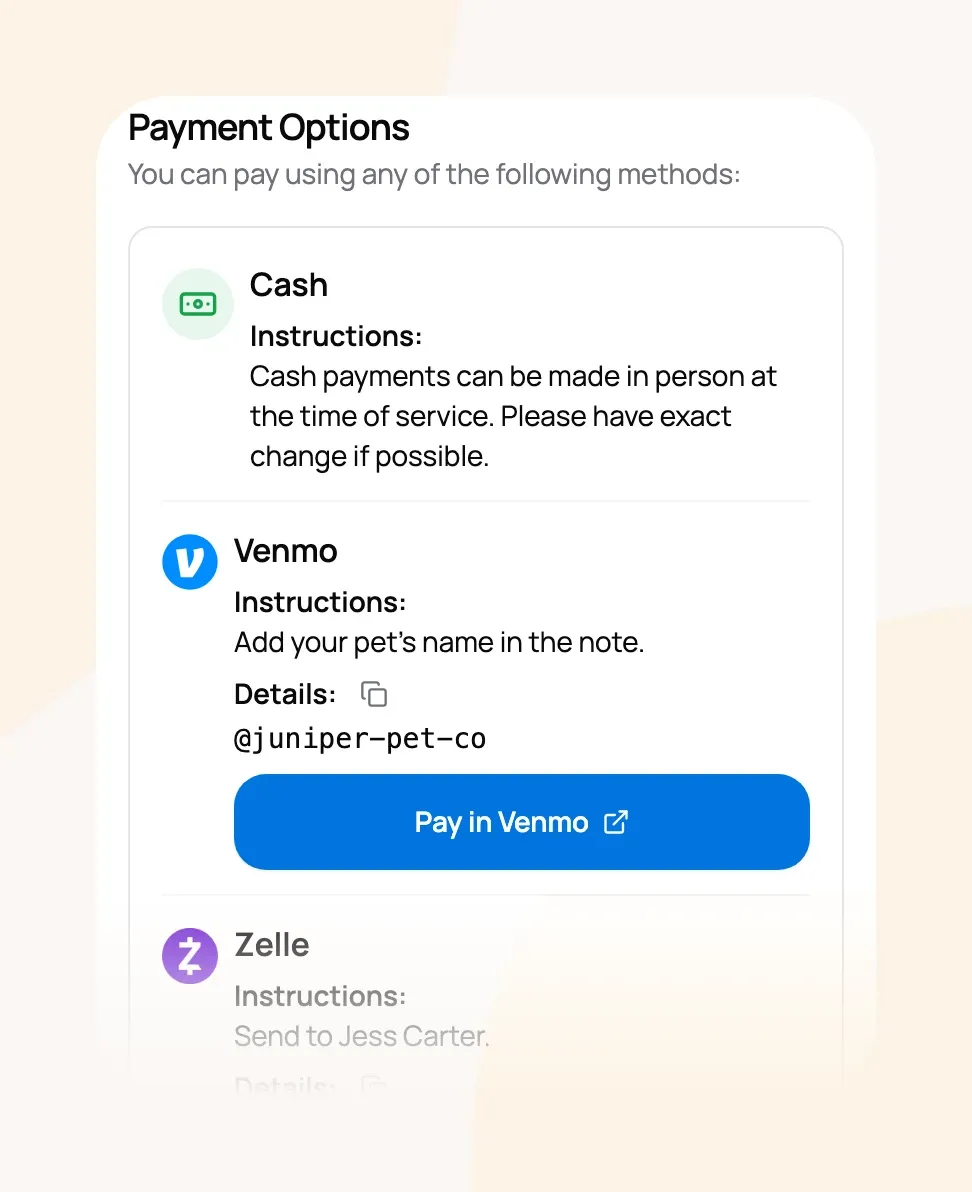
For example: Michael Brown opens his $25.00 invoice and taps Pay in Venmo. Venmo opens with $25.00 and the invoice number filled in. Once the money arrives, open the invoice in Scritches and choose Record Payment so it shows as paid.
Accept cards with Scritches Pay
Scritches Pay lets clients pay any invoice by card, Apple Pay or Google Pay. Payments are recorded on the invoice for you, and the client gets a receipt. Only the account owner can set it up.
-
Open Scritches Pay and choose Connect to Stripe.
-
Stripe, our payment partner, asks for some business details and the bank account you want paid into. When you finish, you're brought back to Scritches and card payments are turned on.
-
Under Processing Fees, choose I'll pay the fees or Pass fees to clients. Passing them on adds a "Credit Card Processing Fee" line the client sees before they pay.
Tips, fees and what clients see when they pay are covered in Accepting Card Payments with Scritches Pay.
Charge tax, if you need to
If you collect sales tax, GST or VAT, open Organization Details, turn on Charge tax, and enter your rate. It's added to the whole invoice, including holiday and extra pet charges, but never to tips. Invoices you've already sent keep the tax they were sent with.
When clients actually pay
Every invoice starts as a draft your client can't see. Nothing goes out until you send it, and online booking requests don't create invoices on their own. Sending your first one is covered in Booking a Visit and Sending Your First Invoice.
Frequently Asked Questions
Can clients pay by bank transfer?
Can clients pay by bank transfer?
Not through Scritches Pay, which takes cards, Apple Pay and Google Pay. To take bank transfers, turn on the Bank Transfer method with your bank details and mark those invoices paid yourself.
Can I leave a method off one invoice?
Can I leave a method off one invoice?
Yes. When you send an invoice, choose which payment methods it shows. Your settings here are only the default.
Why can't I see Scritches Pay in my settings?
Why can't I see Scritches Pay in my settings?
Only the account owner can see and set up Scritches Pay. Team members with admin access still manage the other payment methods.
Does Scritches take a cut of card payments?
Does Scritches take a cut of card payments?
No. The only cost is Stripe's processing fee, shown under Processing Fees, and you decide who pays it.
A client paid in cash. How do I mark the invoice paid?
A client paid in cash. How do I mark the invoice paid?
Open the invoice, choose Record Payment, pick Cash and save. The invoice moves to Paid once the full amount is recorded.
Was this helpful?
Still need help? Ask the team