Booking a Visit and Sending Your First Invoice
Book a visit for a client, make sure they hear about it, and send the invoice so you get paid.
Written By Lucas Steflor
Last updated 13 days ago
Emily Johnson texts you: can you take Cooper for his hour-long walks on Tuesday and Thursday next week? Booking it in Scritches takes a minute, puts both walks on your calendar, and starts an invoice for you. Here's how to book it, let Emily know, and send her the bill.
Clients aren't emailed about bookings you make unless you turn it on. The confirmation email is off by default, under Communication on the last step.
Book the visit
-
Open New Booking, find the client and tick their pets.
-
Choose the service and pricing option.
-
Under Individual Dates, click each date on the calendar. Every visit gets a start time and a service window, like Morning, which is what the client sees unless you choose to show exact times.
-
Leave Create New Invoice selected to start an invoice for this booking.
-
On Review & Confirm, choose Customize next to Communication and turn on Send confirmation email if you want the client to get one. Then choose Create Booking.
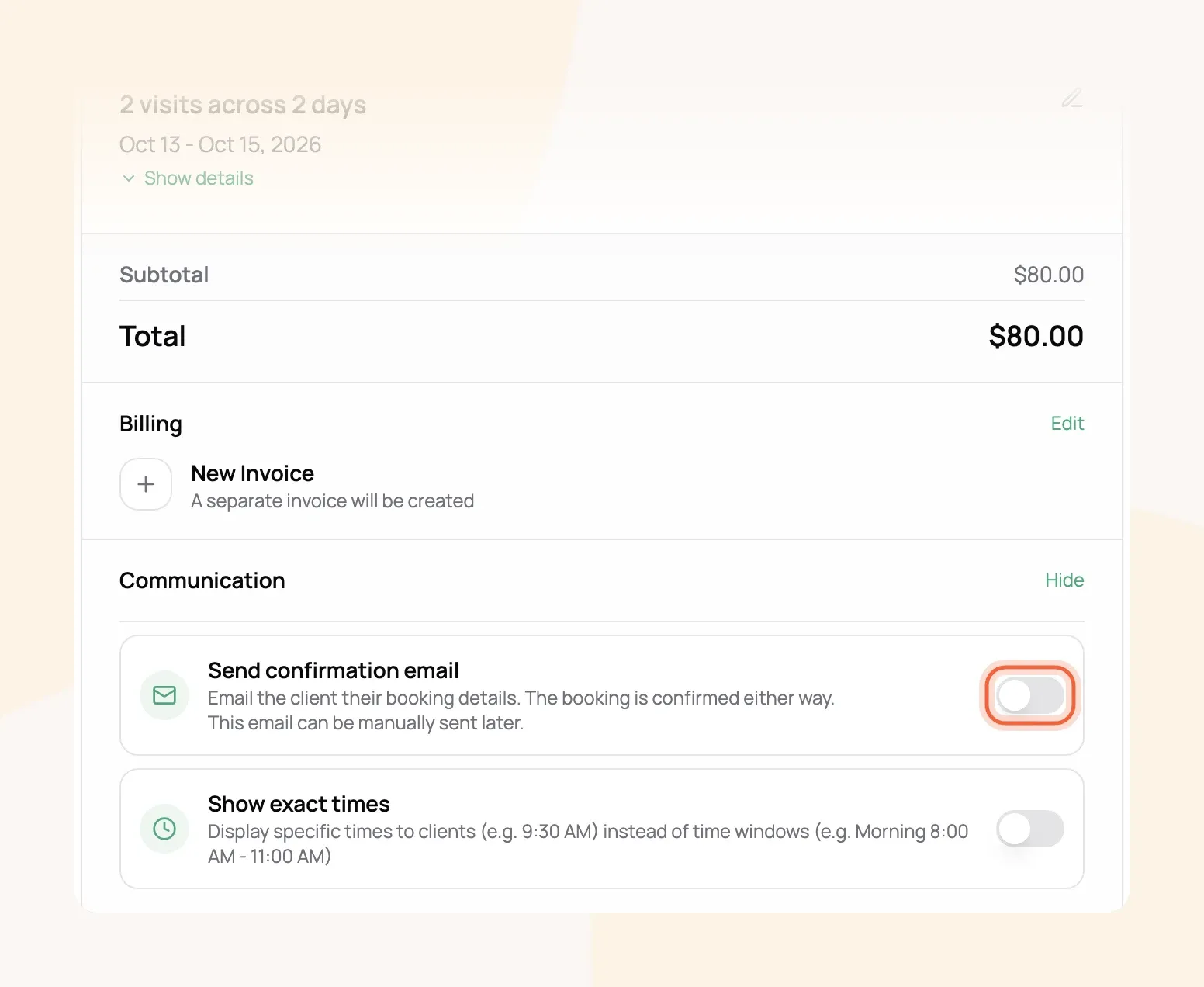
For example: Two 60-minute walks for Cooper at $40.00 each come to $80.00. The booking is confirmed and both walks appear on your calendar right away, and a draft invoice for $80.00 is waiting in Invoicing.
Send the invoice
The invoice starts as a draft, which your client can't see. When you're ready to bill, often once the walks are done:
-
Open Invoicing on the Draft tab and open the invoice.
-
Choose Send to Client, then Request Payment.
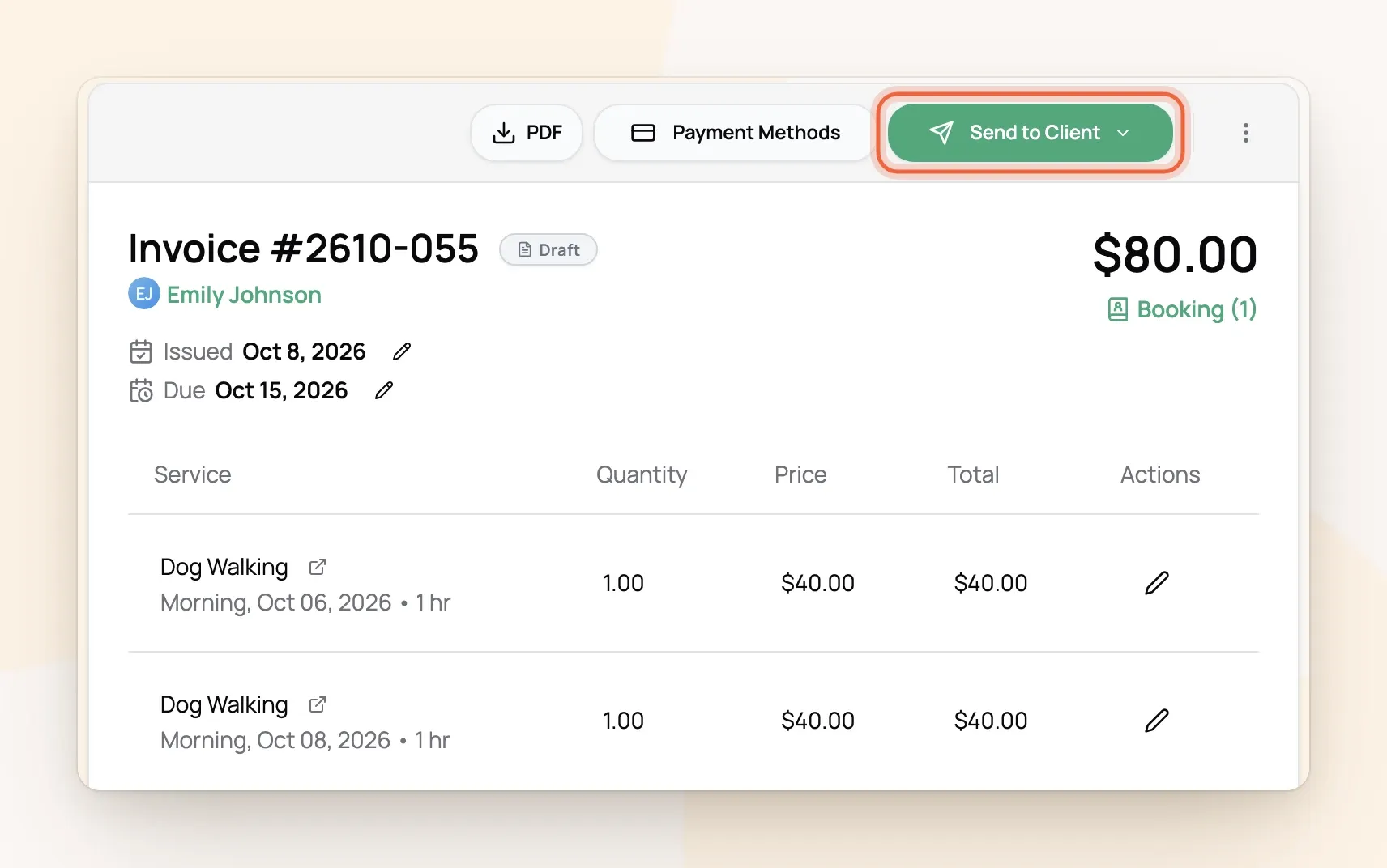
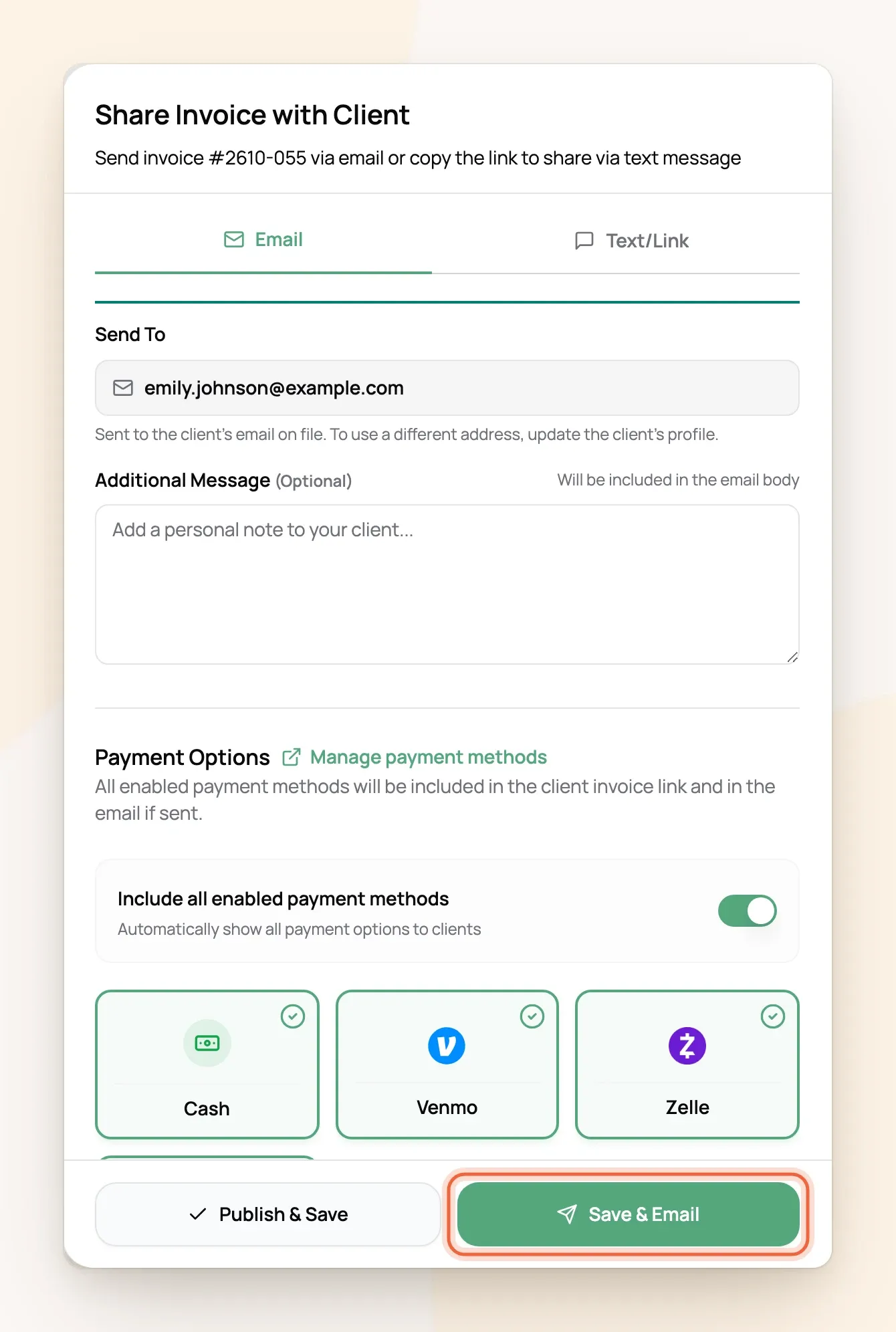
Add a note if you like, check which payment options it shows, then choose how to send it:
-
Save & Email emails the client a payment request with a View Invoice & Pay button.
-
On the Text/Link tab, Save & Copy Link copies a link you can text instead.
-
Publish & Save makes the invoice visible in their portal without sending anything.
Once it's sent, the invoice shows as Unpaid until the client pays. Card payments mark it paid on their own. For Venmo, Zelle, cash or check, open the invoice and choose Record Payment when the money arrives (Choosing How Clients Pay You).
When a client books online instead
Requests from your booking page wait under Bookings, on the Requests tab. Choose Confirm or Decline, and the client gets an email with your answer.
Online bookings don't create an invoice. To bill one, open the booking and, under Invoice, choose Add to Invoice, then Create invoice. Send it the same way as above.
Frequently Asked Questions
Can I practice on my demo client first?
Can I practice on my demo client first?
Yes. Your demo client uses your own email, so anything you send it lands in your inbox and you see exactly what clients get. Its invoices can't be paid.
Can I put a whole week of walks on one invoice?
Can I put a whole week of walks on one invoice?
Yes. Choose Add to Existing Invoice on the billing step, or set up a repeat booking that bills weekly (Repeat Booking Billing & Invoicing).
How do I book the same walk every week?
How do I book the same walk every week?
Choose Repeating Schedule instead of Individual Dates and pick the days and how often (Repeat Bookings).
Can I book outside my hours or over my limits?
Can I book outside my hours or over my limits?
Yes. Your hours and limits only apply to clients booking online. You may see a warning, but you can still book it.
When is the invoice due?
When is the invoice due?
On the last visit's date unless you change it. Set your default in Invoice Settings, or change it on one invoice by editing its due date.
Was this helpful?
Still need help? Ask the team