Accepting Card Payments with Scritches Pay
Let clients pay by card, Apple Pay or Google Pay, choose who pays the card fee, take tips, and get your money to your bank.
Written By Lucas Steflor
Last updated About 18 hours ago
Emily Johnson asks if she can just pay by card, and Michael Brown's check is two weeks late again. Scritches Pay puts a Pay button on every invoice, and the invoice marks itself paid the moment the money comes in. What it can do depends on your plan:
In short: on Solo, clients pay when they choose to. Solo Pro lets you charge a client when you choose, covered in Keeping Client Cards on File and Using Autopay. Sending invoices automatically, reminders and Earnings come with every plan.
Set up Scritches Pay
Only the account owner can set it up, since it connects their bank account.
Open Scritches Pay and choose Connect to Stripe.
Stripe asks for some business details and the bank account to pay into. It takes about 5 to 10 minutes.
When you finish, you're brought back to Scritches and card payments are on. New invoices include Scritches Pay unless you turn it off for one.
What clients see when they pay
Every invoice gets a Pay button. What opens depends on your plan and whether the client is signed in to their portal:
A saved card, signed in: one tap on Pay. Signed-out clients can choose Email me a code to sign in and use it.
A new card on Solo Pro and Growth: signed-in clients type their card, or use Apple Pay or Google Pay where their phone supports it, without leaving the page, and can save the card for next time.
Everyone else: Pay with a card opens Stripe's secure payment page.
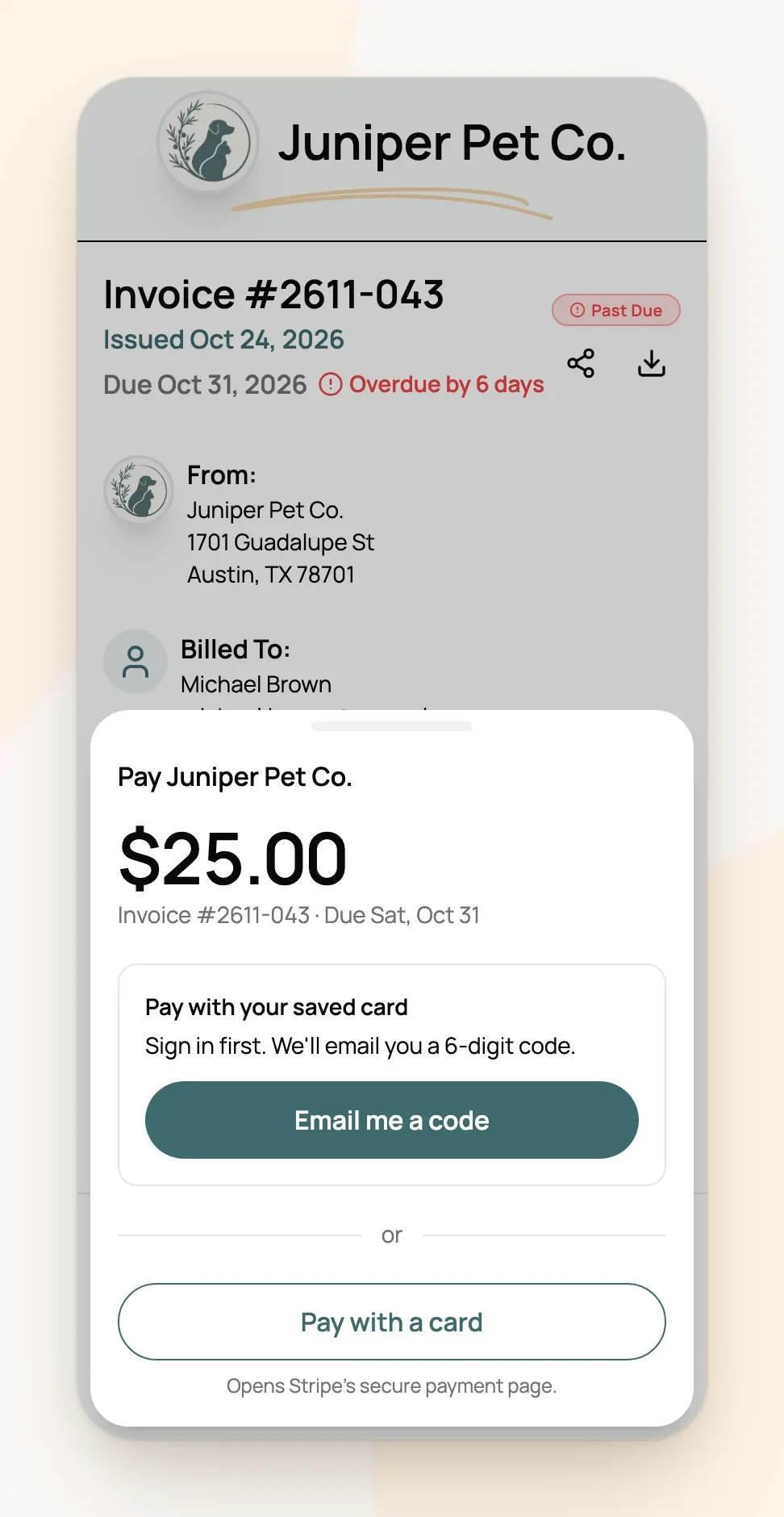
Once the payment goes through, the invoice is marked paid and the client gets a receipt.
Choose who pays the card fee
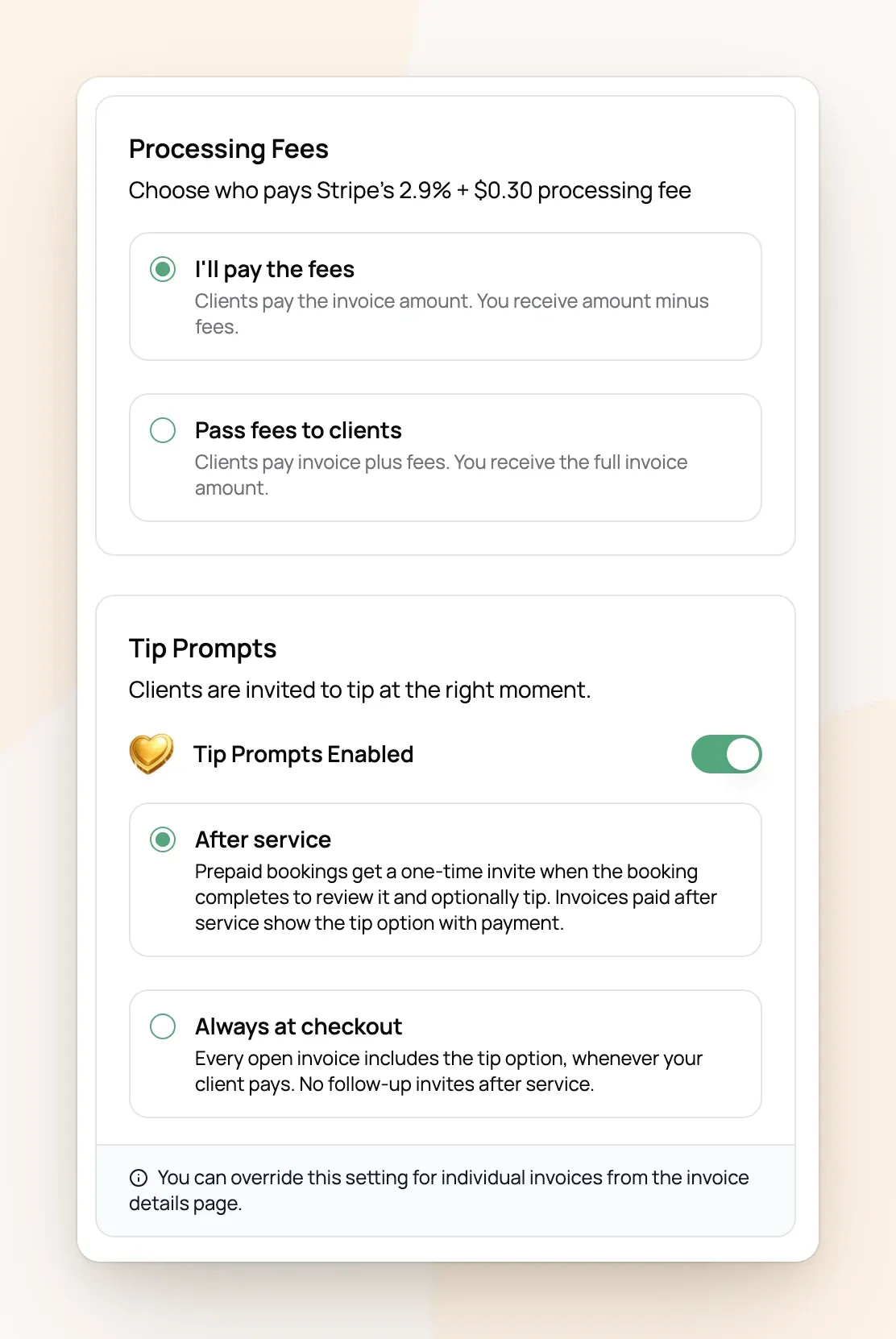
Stripe charges a processing fee on every card payment (2.9% + $0.30 in the US; your rate shows in the settings). Under Processing Fees in Scritches Pay settings, choose:
I'll pay the fees: clients pay the invoice amount, and the fee comes out of what you receive.
Pass fees to clients: the fee is added to every card payment, including saved cards, autopay and tips, and clients see it before they pay.
For example: with fees passed on, Sarah Smith's $25.00 walk costs her $26.06 by card, and you receive the full $25.00.
The choice applies to every card payment from then on, including invoices you've already sent.
Take tips
Tip Prompts are on from the start. Clients pick 15%, 20% or 25%, or type their own amount. Choose when they're asked:
After service (the default): invoices paid after the visits show the tip option with the payment, and prepaid bookings get one invite to tip when the booking is finished.
Always at checkout: every open invoice shows the tip option, whenever the client pays.
Tips are never taxed. You can turn the tip prompt off for one invoice from that invoice's settings menu.
See your money and get paid out
Finances › Scritches Pay shows your next payout, every card payment and fee, autopay charges, and any dispute that needs a response (see Payment Disputes & Chargebacks). Only the account owner sees balances and payouts.
Payouts go to your bank every business day by default. Under Account, change it to once a week, once a month, or only when you ask.
Instant payouts: when money is ready early, the Overview offers to send it to your debit card or bank now (Get $86.40 now), typically within 30 minutes. It costs 1.5%, at least $2.50, and the exact fee shows before you confirm. Regular payouts are always free. Instant payouts are available where Stripe offers them (US, Canada, Australia, the UK and Ireland) and need an eligible debit card or bank.
For totals by service, client or month, open Earnings. At tax time, its Year-end summary lays out income, tips, sales tax, refunds and card fees for the year, as a PDF for your accountant or a spreadsheet of every payment.
Frequently Asked Questions
Does Scritches take a cut of card payments?
Does Scritches take a cut of card payments?
No. The only fee on a card payment is Stripe's processing fee, and you decide who pays it. The one fee Scritches charges is for instant payouts, which are optional.
Why can't I see Scritches Pay in my settings?
Why can't I see Scritches Pay in my settings?
Only the account owner sees it. Team members with admin access still see autopay and the other payment methods.
Can clients pay by bank transfer?
Can clients pay by bank transfer?
Not through Scritches Pay. Turn on the Bank Transfer payment method with your details and mark those invoices paid yourself (see Choosing How Clients Pay You).
How do I refund a card payment?
How do I refund a card payment?
Open the invoice, choose the payment and refund all or part of it. The money goes back to the client's card; Stripe keeps its processing fee.
Was this helpful?
Still need help? Ask the team