Keeping Client Cards on File and Using Autopay
Save a client's card, charge it in a tap, let autopay collect invoices on the due date, and fix a card that won't charge.
Written By Lucas Steflor
Last updated 3 days ago
Sarah Smith has three walks a week and always pays late because she forgets, David Kim travels for work and asked you to just charge his card, and you'd rather not chase either of them on a Friday night. With a card on file, you charge a client in a tap, or let autopay collect every invoice on its due date while you're out walking dogs.
Card on file and autopay are part of the Solo Pro and Growth plans, and need Scritches Pay set up first (see Accepting Card Payments with Scritches Pay).
Get a client's card on file
Card details go straight to Stripe. Neither you nor Scritches ever sees the full card number, and saving a card never charges it. A client's card can be saved four ways:
-
You ask for it. Open the client from Clients, choose the Card on file tile, then Request a card. Pick Email it for me, or I'll send it myself to copy the link and text it. The link works for 7 days.
-
They save it in their portal, under Payment Methods in their account menu. That's also where they replace or remove a card.
-
They save it while paying. A client signed in to their portal can tick Save this card for next time when paying an invoice.
-
Your intake form asks for it. Turn on Collect a card on file in the form's Card on File section, and new clients add a card as the last step before they submit (more in Configuring Intake Forms).
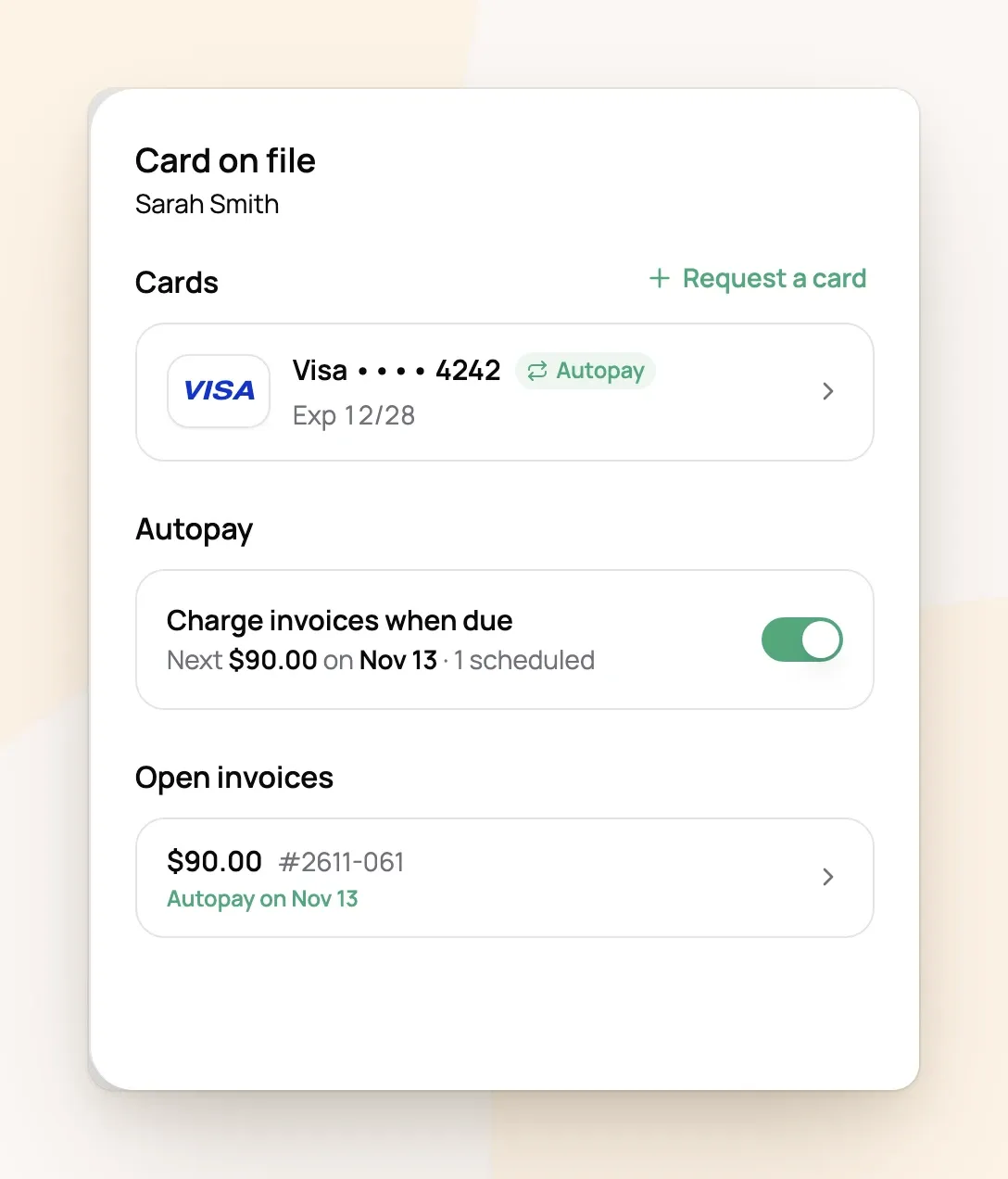
The Card on file tile then shows the client's cards, their autopay switch and any open invoices. Choose a card to make it the default or remove it.
Charge a saved card
-
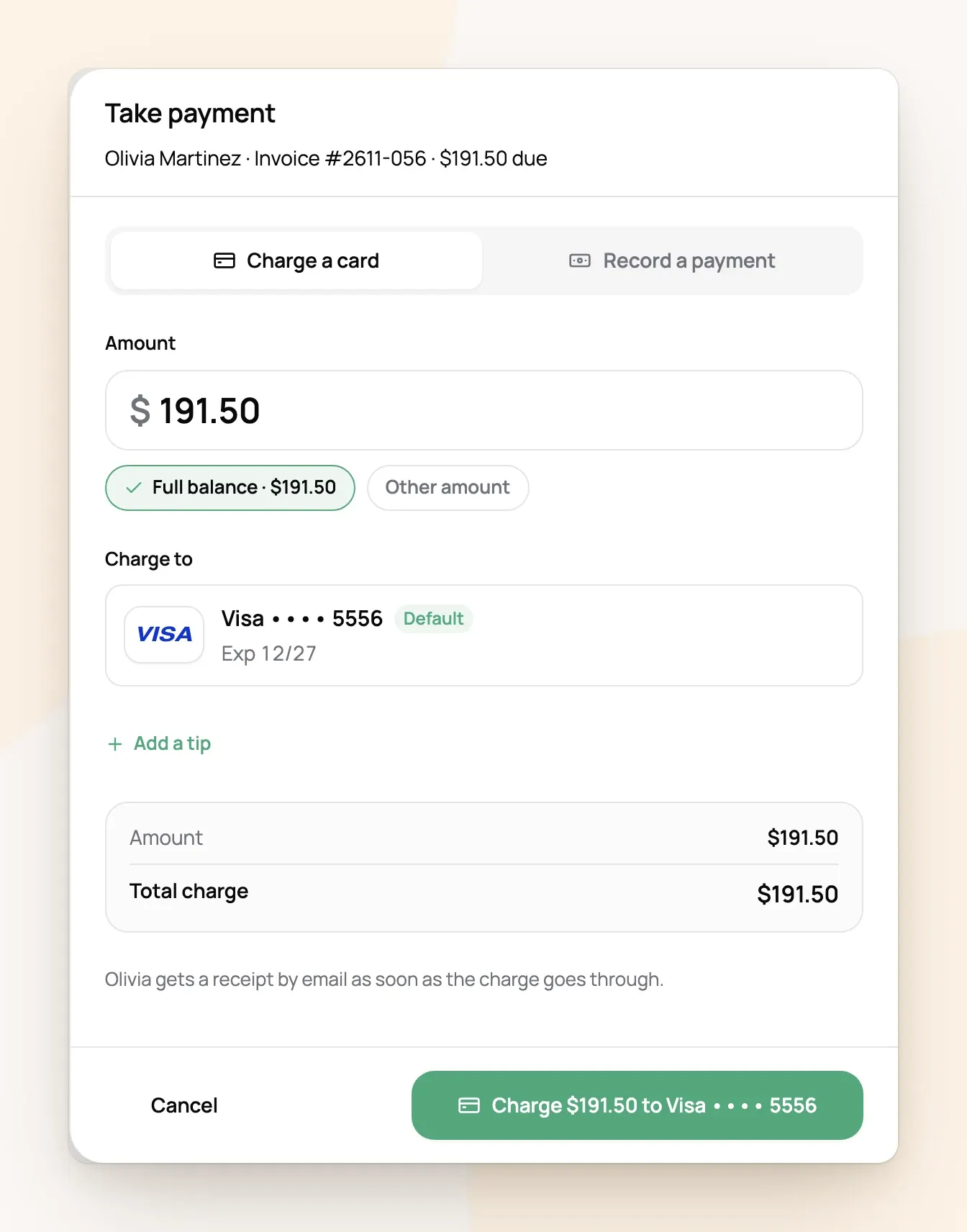
Open the invoice and choose Take payment. On a phone, the button sits at the bottom of the screen.
-
Check the card under Charge to and, if the client asked, Add a tip.
-
Choose Charge. The card is charged right away and the client gets a receipt by email.
Only invoices you've sent can be charged. If you see "This invoice is still a draft", send it first.
Let autopay collect invoices
With autopay on, every invoice you send a client on autopay is charged to their default card on its due date. You don't press anything.
-
Open Autopay and turn on the Autopay switch.
-
Pick who starts on autopay. Every client with a card is ticked. Overdue invoices aren't charged unless you tick Also charge overdue invoices.
-
Choose Turn on. The clients you picked get an email saying they're on autopay. Nothing is charged today.
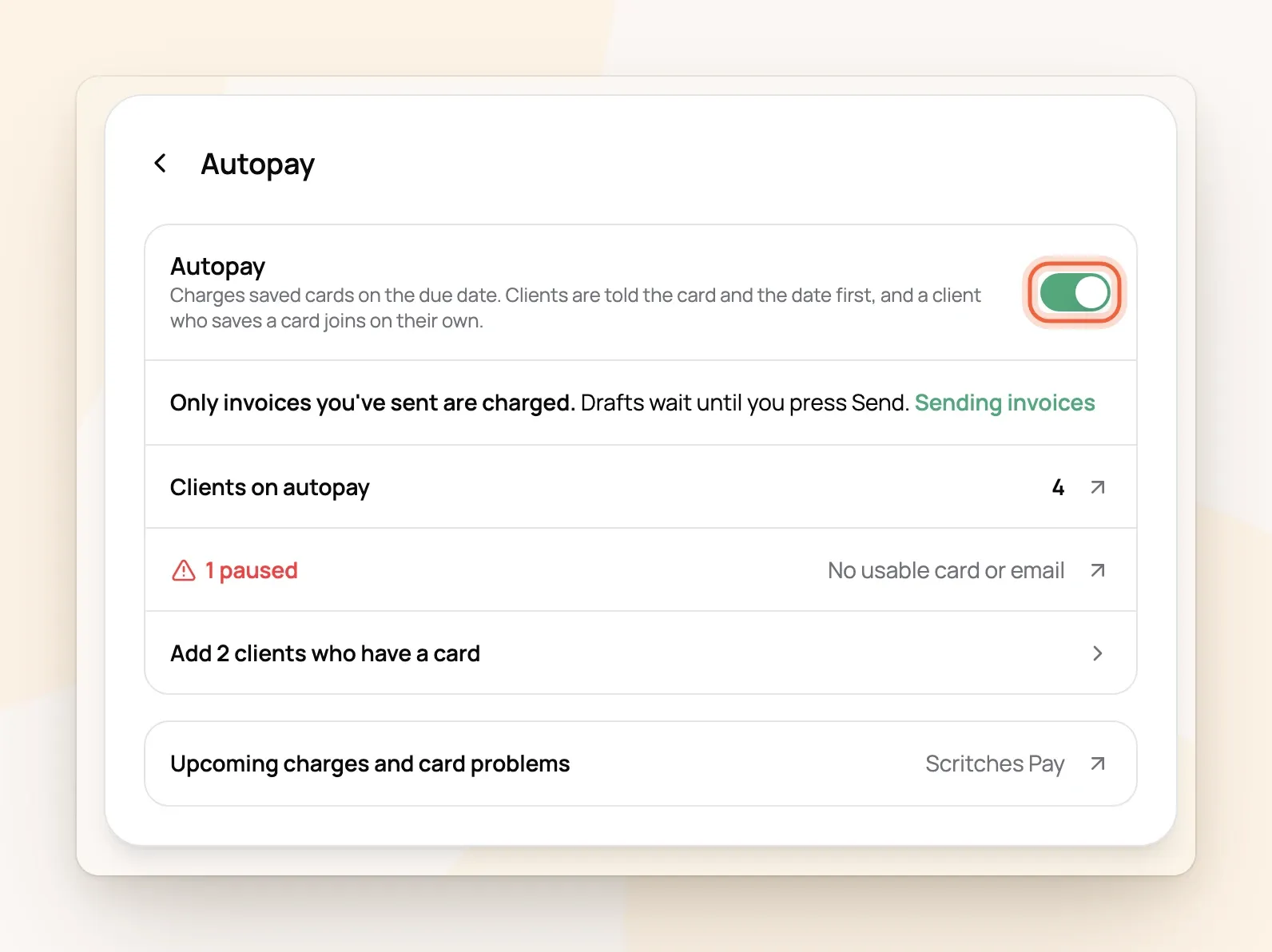
To add a client later, turn on Charge invoices when due on their Card on file tile. While autopay is on, a client who saves their first card joins on their own (the card form tells them so).
How each charge runs:
-
The day before, the client gets an email with the amount, the card and the date.
-
On the due date, the card is charged at 10 AM your business's time, and the client gets a receipt.
-
Only sent invoices are charged. If Scritches sends your invoices automatically (Sending invoices in Payments settings), the autopay email is the invoice. If not, drafts wait until you send them.
-
Paying early cancels the charge. If the client pays the invoice another way first, autopay leaves it alone.
-
Tips ride along. The email links to the invoice, where the client can add a tip before the charge.
For example: Sarah Smith's three walks come to $75.00, due next Friday. She gets the email Thursday morning, opens the invoice and adds a 20% tip, so on Friday autopay charges $90.00 to her Visa ending 4242.
Charge a cancellation fee when you cancel
When you cancel a visit late enough to owe a fee under your cancellation policy, the cancel window offers to Charge the fee now to the client's saved card. Tick the card, and the button becomes Cancel visit and charge. The client's cancellation email says what was charged, in place of a separate receipt.
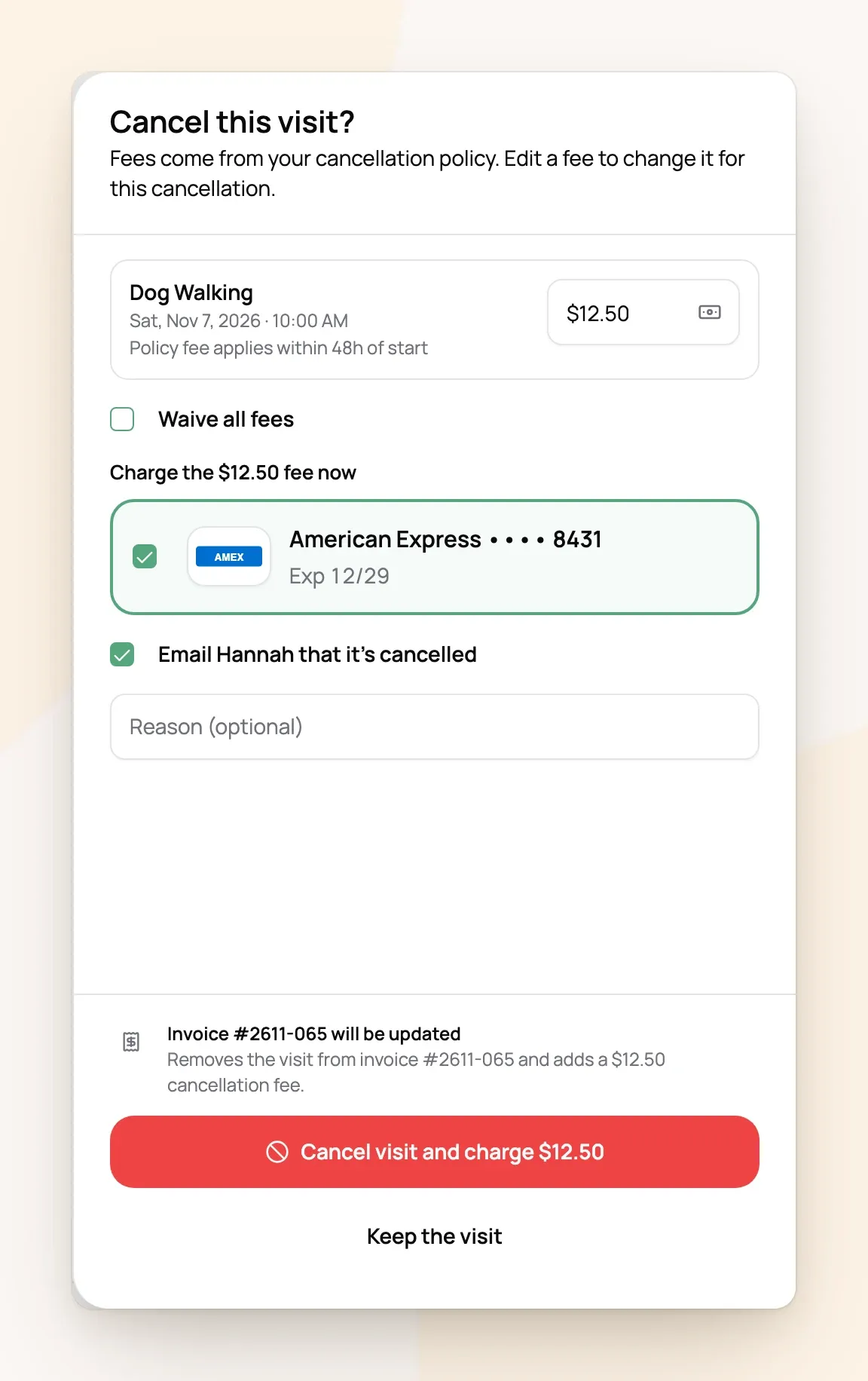
The option isn't offered for clients on autopay: the fee stays on their invoice and autopay collects it on the due date.
When autopay can't charge
If a charge doesn't go through, you get one email and notification, titled Autopay needs attention, and the invoice shows up under need you at the top of Invoicing. Open the invoice: the panel beside it says what happened and has the fix one tap away.
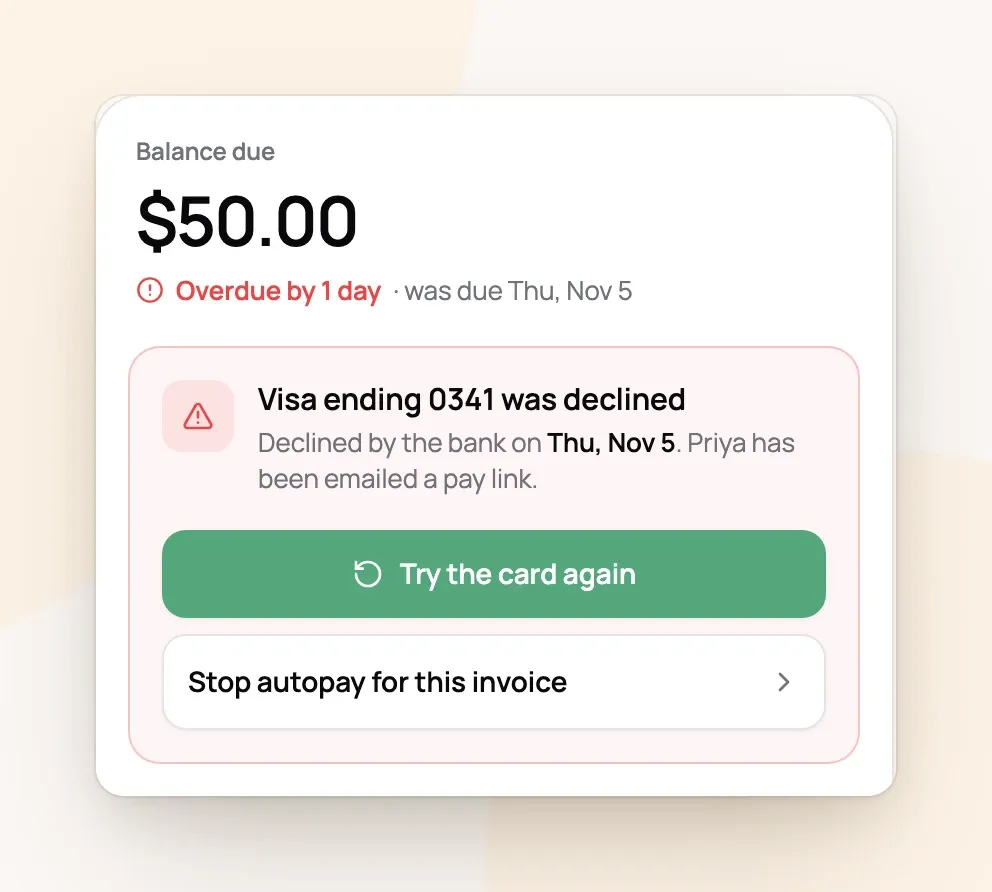
For example: Priya Patel's $50.00 invoice was due yesterday, and her bank declined her Visa ending 0341. She has already been emailed a link to pay. If she calls to say her bank fixed it, choose Try the card again. If she saves a new card instead, autopay emails her a new date and charges the new card on its own.
Frequently Asked Questions
Can clients turn autopay off themselves?
Can clients turn autopay off themselves?
No. You decide who's on autopay, and their portal says it's managed by you. Clients can always replace or remove their cards, except their last card while an invoice is unpaid.
Does turning on autopay charge old invoices?
Does turning on autopay charge old invoices?
Only if you tick Also charge overdue invoices when you turn it on or add a client. Nothing is ever charged the same day, and invoices due more than 180 days ago are never charged.
Can I skip autopay for one invoice?
Can I skip autopay for one invoice?
Yes. Open the invoice and, in its Getting paid panel, stop autopay for that invoice or move the charge to another day.
Who pays the card processing fee?
Who pays the card processing fee?
Whoever you chose in your Scritches Pay settings. If you pass fees to clients, the fee is added to autopay and Take payment charges too, and the day-before email shows it.
What happens to saved cards if I change plans?
What happens to saved cards if I change plans?
On a plan without card on file, autopay pauses and you can't charge cards, but nothing is deleted. Clients can still pay with cards they saved, and autopay picks up where it left off when you move back to Solo Pro.
Was this helpful?
Still need help? Ask the team