Sending Invoices Automatically
Choose when invoices are dated and due, let them email themselves on their invoice date, and let reminders follow up on the unpaid ones.
Written By Lucas Steflor
Last updated 3 days ago
It's Sunday night, Sarah Smith's walks are done for the week, and you still haven't sent a single invoice. Turn on automatic sending and every invoice emails itself on its invoice date, with reminders following up on the ones that aren't paid.
Choose when invoices are dated and due
Open Sending invoices in your Payments settings.
-
Invoice date: When it's booked (the default), On the first visit, On the last visit, or On a set day of the month.
-
Due: a number of days after it's issued, before the first visit, after the last visit, or on a set day of the month. Use 0 days for "on the day".
The box under the settings shows how a booking and a weekly repeat will be dated. Changes apply to new invoices and to repeats' unsent invoices; invoices you've already sent keep their dates.
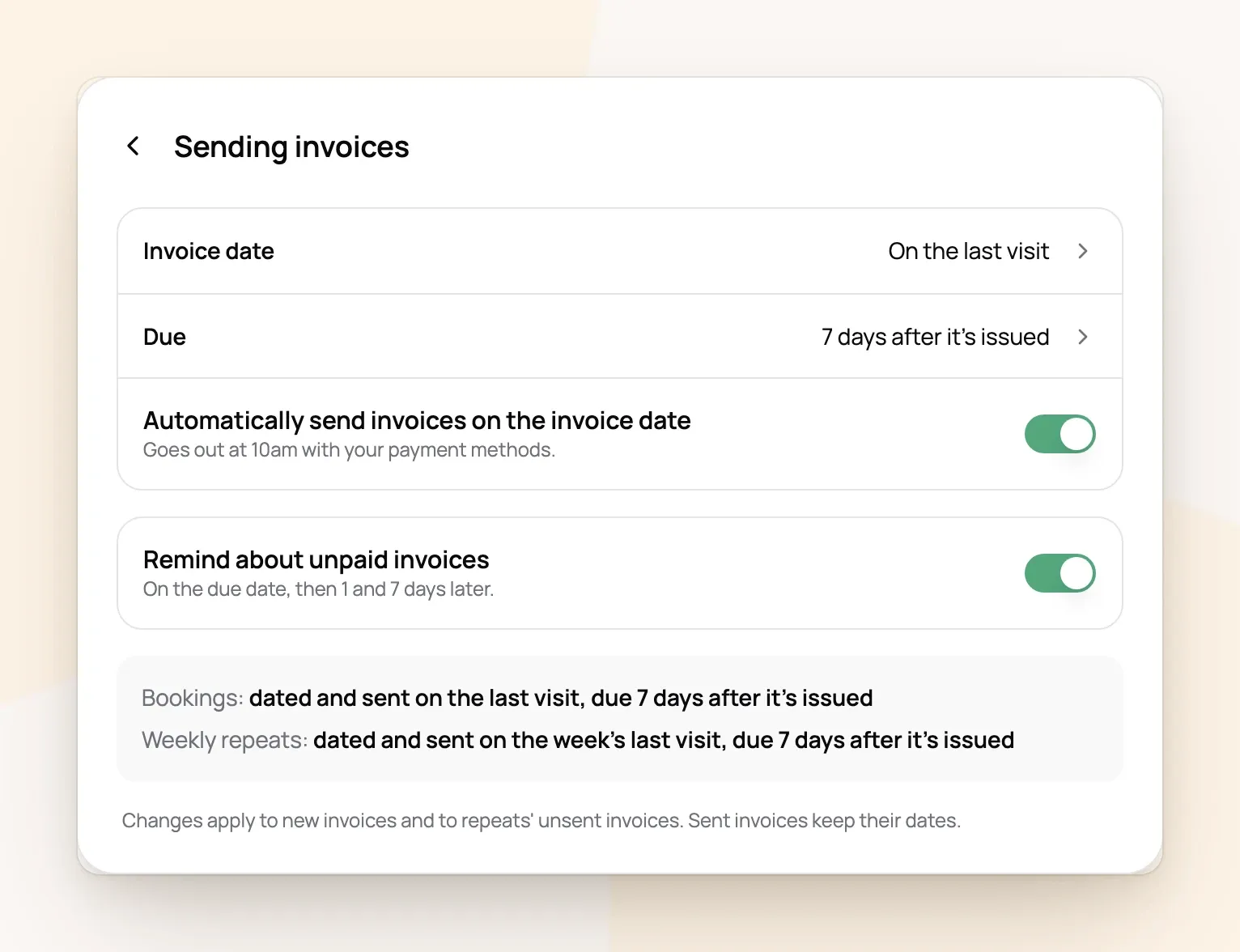
For example: with On the last visit and 7 days after it's issued, Emily Johnson's Tuesday and Thursday walks are invoiced on Thursday and due the Thursday after.
Send invoices automatically
-
Turn on Automatically send invoices on the invoice date.
-
Choose Start sending.
Each draft then emails itself at 10am (your business's time zone) on its invoice date, with a pay link and your payment methods. A draft created after its invoice date goes out at the next 10am.
A draft waits, and says why on the invoice, while:
the client has no email address,
it has nothing on it, or totals $0.00,
its booking is still waiting for you to confirm it.
With the switch off, nothing goes out on its own. Drafts wait for you and keep their dates.
Older drafts are paused, not sent. Drafts whose invoice date has already passed when you turn sending on are paused, so clients don't get a pile of old invoices at once. See Paused drafts below.
Remind clients about unpaid invoices
Turn on Remind about unpaid invoices. An unpaid invoice gets an email reminder at 10am on its due date, then 1 and 7 days later. They stop as soon as it's paid.
-
Only invoices that were sent get reminders: emailed, sent automatically, or shared with Copy client link.
-
Turning reminders on doesn't email invoices that are already past due.
-
To leave one client out, turn off Payment reminders on their profile.
After the 7-day reminder nothing else goes out on its own. Following up from there is up to you (Managing Invoices).
See what happens to an invoice
Open any invoice. The panel on the right (on your phone, tap the status card at the top) shows its plan: when it sends itself, and when each reminder goes out.
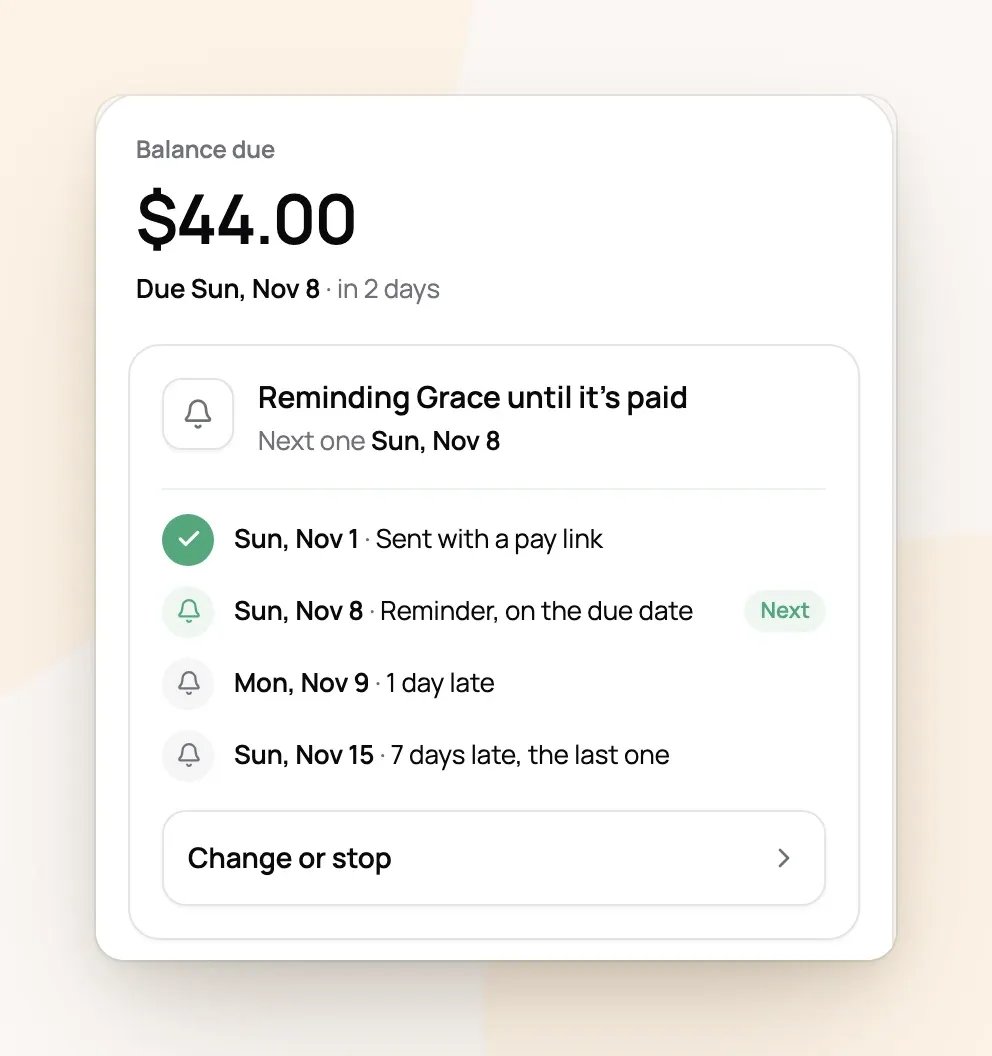
Change or stop changes this invoice only: Send it now or Pause sending on a draft, Send one now or Pause reminders once it's sent.
Paused drafts
A draft is paused when:
-
its invoice date had passed when you turned automatic sending on,
you chose Pause sending on it,
-
a change to your Invoice date setting moved a repeat's unsent invoice to a date that has passed.
A paused draft shows Sending paused and isn't emailed until you act. Open it and choose Resume sending, or send it yourself from Send. To see them all, open Paused drafts in Invoicing, where Resume all releases every one.
Send one yourself
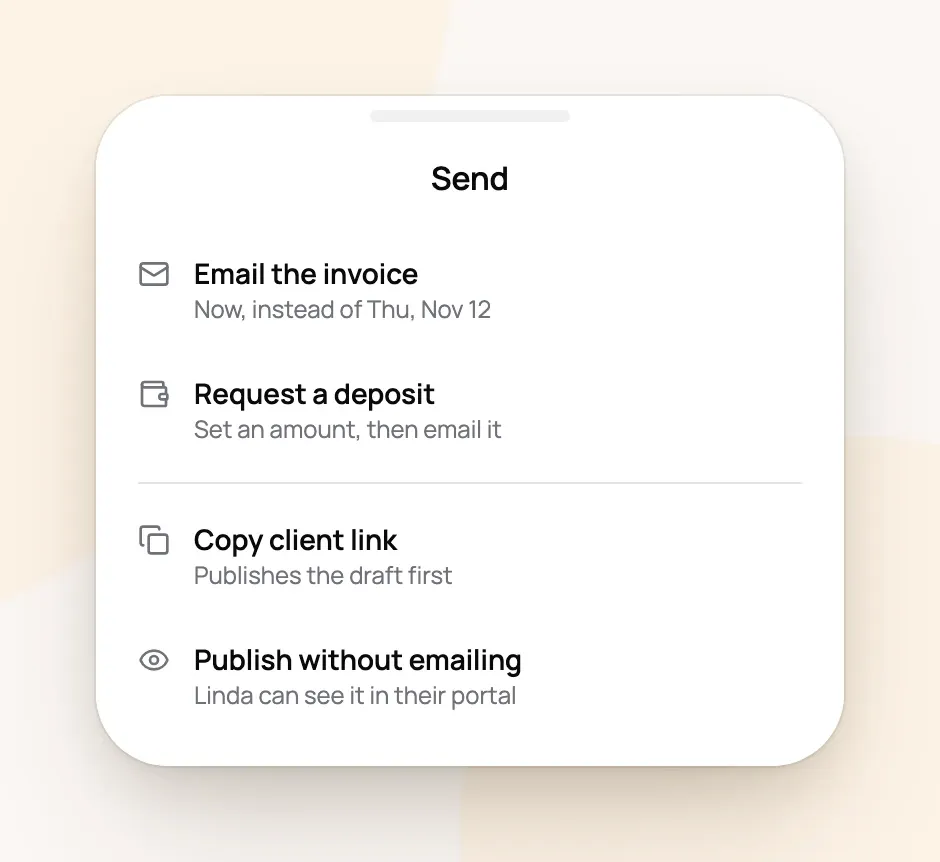
The Send button on any invoice works with or without automatic sending:
-
Email the invoice emails the pay link now. On a draft that would have sent itself later, it goes now instead.
-
Request a deposit asks for part of the total first.
-
Copy client link copies a link to text or message the client yourself. It counts as sent, so the automatic email doesn't go out and reminders follow up if it's unpaid.
-
Publish without emailing shows the invoice in the client's portal without telling them. It doesn't get reminders.
Frequently Asked Questions
Which plans can send invoices automatically?
Which plans can send invoices automatically?
Every plan, reminders included.
Do repeat booking invoices send themselves too?
Do repeat booking invoices send themselves too?
Yes. Each week's or month's invoice emails itself on its invoice date like any other (Repeat Booking Billing & Invoicing).
Can I stop automatic sending for one client?
Can I stop automatic sending for one client?
Not for a whole client. Choose Pause sending on each of their invoices, and turn off Payment reminders on their profile to stop reminders.
Why didn't my client get a reminder on the due date?
Why didn't my client get a reminder on the due date?
The due date reminder is skipped when the invoice was emailed less than 3 days before it's due, so the client isn't emailed twice in a row. The 1-day-late reminder still goes out.
What if I turn automatic sending off again?
What if I turn automatic sending off again?
Drafts stop going out and keep their dates until you send them. Reminders for invoices you've already sent carry on while reminders are on.
Was this helpful?
Still need help? Ask the team