Managing Invoices
Find unpaid and past due invoices, follow up, edit an invoice, ask for a deposit, record payments, send receipts, and give refunds or credit.
Written By Lucas Steflor
Last updated 3 days ago
Michael Brown still owes for a walk two weeks ago, Emily Johnson wants an extra walk added to this week's bill, and Linda Peterson just paid by Zelle. Everything you need to keep invoices straight lives in Invoicing.
Find who still owes you
The strip at the top of Invoicing shows what clients owe in total: Unpaid (everything sent and not yet paid) and Past due (the part that's late). Tap either one to list just those invoices, and tap it again to see them all.
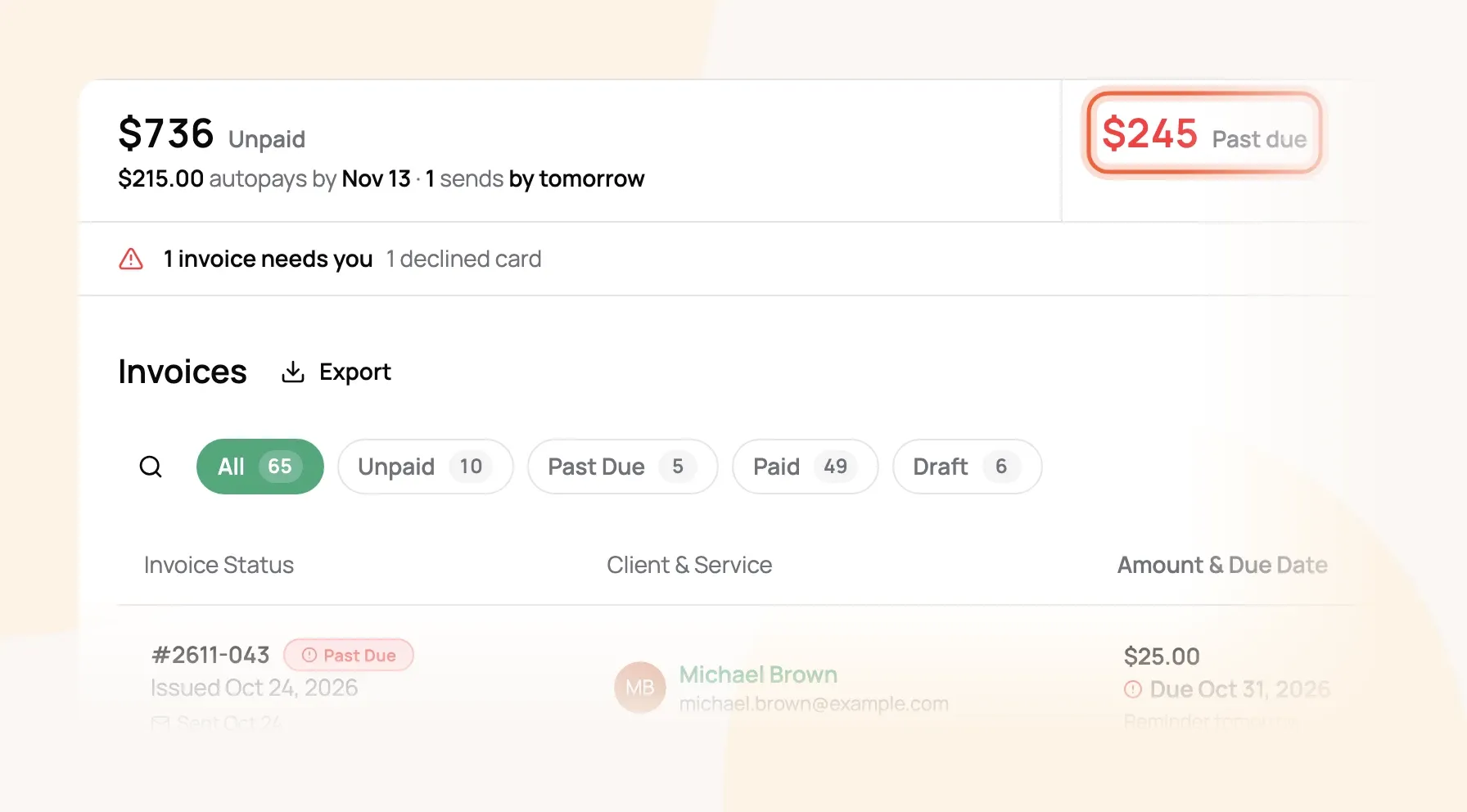
The tabs below it (All, Unpaid, Past Due, Paid, Draft) do the same with counts. Search finds an invoice by number, client or email.
An invoice turns Past Due the day after its due date, if it isn't fully paid.
Follow up on a past due invoice
-
Choose Past due and open the invoice.
-
Choose Send, then Email the invoice to email the client the pay link again, or Copy client link to text it yourself.
For example: Michael Brown's $25.00 walk was due last week. Email the invoice sends him a fresh pay link, and the invoice moves to Paid once he pays.
With reminders on, unpaid invoices are followed up for you on the due date, then 1 and 7 days later. The panel on the invoice shows the next one, and Change or stop has Send one now (Sending Invoices Automatically).
Change what's on an invoice
-
Change a price: choose the pencil on a line. On a visit line this changes the visit's price, and the line shows Custom price until you set it back.
-
Add a charge: Add Additional Charge adds a line of your own, like a key copy. Custom lines can be deleted with the trash icon.
-
Add visits: Add Bookings lists the client's visits that aren't on an invoice yet.
-
Take a visit off: open the booking and choose Change Invoice.
-
Discounts and tips: Add Discount takes a fixed amount or a percentage off; Add Tip adds one.
-
Tax and surcharges: choose the pencil next to the tax, holiday, weekend or extra pet amount to change it on this invoice. Reset to calculated puts it back.
-
Dates: choose the pencil next to Issued or Due.
If the invoice was already sent, send it again so the client sees the new amount. Once an invoice is paid, its visit prices are locked; give money back with a refund or credit instead.
To bill visits that aren't on any invoice yet, choose New Invoice. It shows which clients have uninvoiced bookings.
Ask for a deposit
-
Open the invoice, choose Send, then Request a deposit.
-
Enter a Percent or Fixed amount and when it's due.
-
Choose Save and email to send the request now, or Save to send it later.
The client is asked for the deposit first, then the rest by the due date. Once a deposit is saved, the Send menu offers Email a deposit request to send it again. The option goes away once the deposit is paid.
For example: Olivia Martinez's Thanksgiving stay comes to $382.50. A 50% deposit asks her for $191.00 up front, and the invoice shows Deposit, 50% with the $191.50 balance still due.
Record a payment
Card payments through Scritches Pay record themselves. For Venmo, Zelle, cash, check and the rest, open the invoice and choose Record payment (on your phone, it's the button at the bottom).
-
Pick how you were paid under How were you paid?
-
Leave Full balance selected, or choose Other amount for part of it.
-
Check Paid on, add a note if you like, and choose Record.
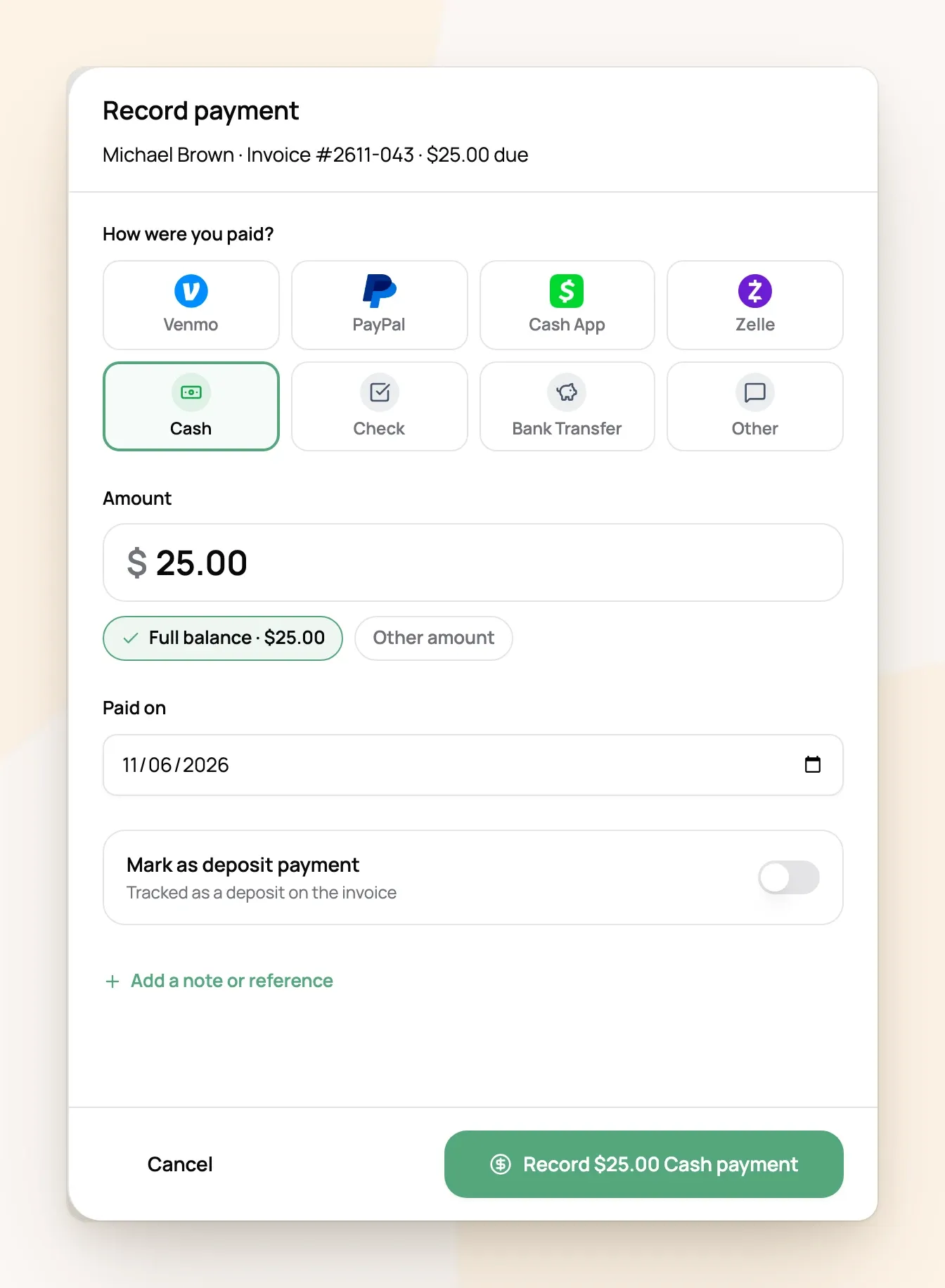
A partial payment leaves the invoice Partially Paid with the rest still due. If you record more than is owed, you choose where the extra goes: a tip, the client's credit, or decide later. To fix a mistake, choose the ... next to the payment, then Edit payment or Delete.
Receipts and PDFs
-
Invoice PDF: choose PDF at the top of the invoice.
-
Email a receipt: on a paid invoice, choose Send next to Receipt not sent. Card payments email a receipt on their own.
-
Receipt PDF: choose Receipt PDF under the payments.
Give a refund or credit
-
On the invoice, choose the ... next to the payment, then Refund (or Refund to card for a card payment).
-
Enter the amount, and under Send it to choose the original payment method or the client's credit.
-
Check what happens to the invoice. Choose Change to take the refund off the total, remove specific items, or leave the invoice as it is.
-
Choose the button at the bottom, such as Record $44.00 refund.
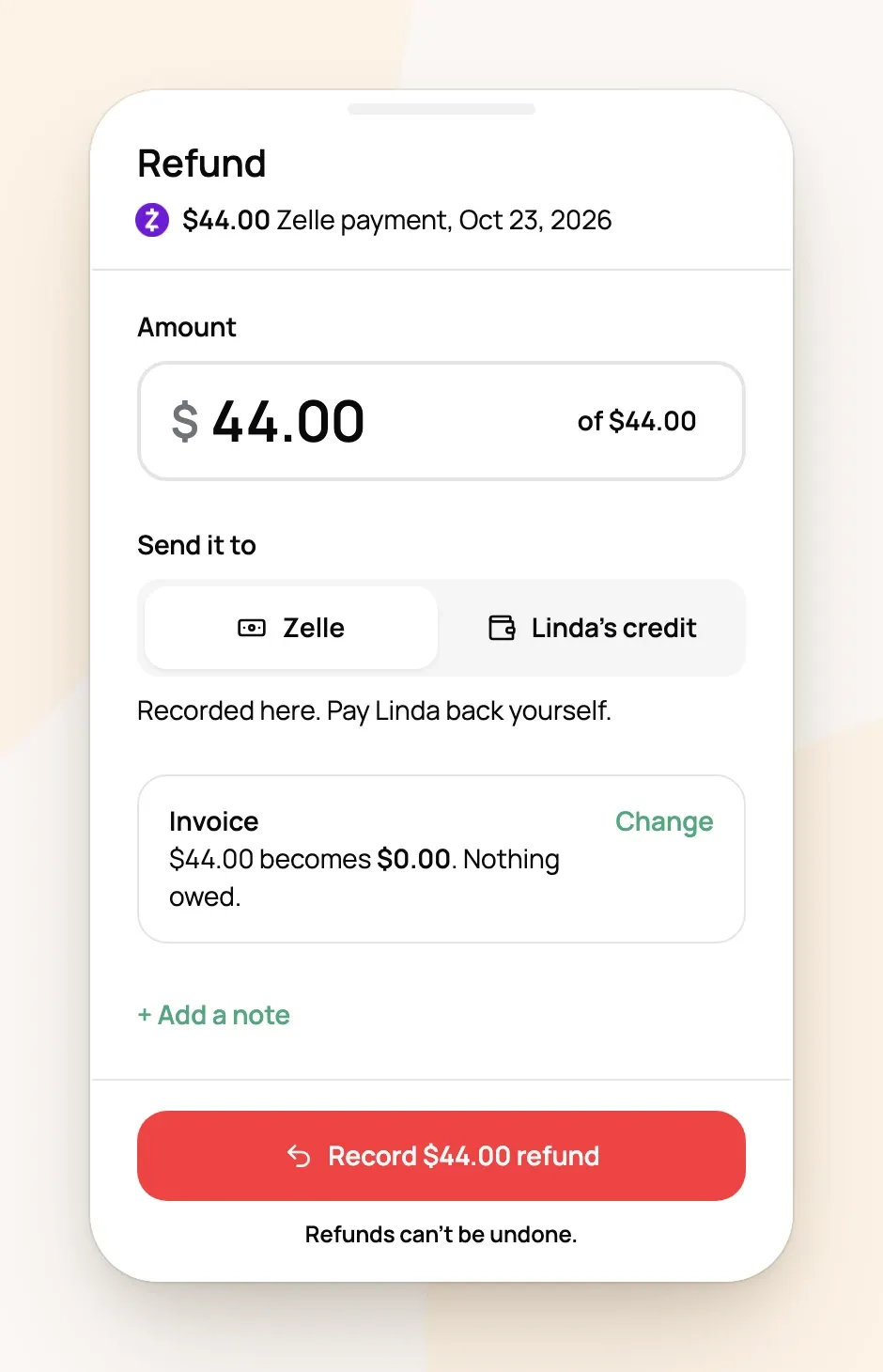
A card refund goes back to the client's card. Scritches only records a refund of a Venmo, Zelle, cash or check payment, so pay the client back yourself.
Refunds can't be undone. On a card refund, the processing fee isn't returned.
Credit sits on the client's profile under Account Credit, where Manage lets you add or refund it. It comes off their next invoice when it's emailed (by you or automatically), or choose Use credit on this invoice on an invoice.
Frequently Asked Questions
Can I delete an invoice?
Can I delete an invoice?
Drafts, yes: choose ... next to it, then Delete invoice. A sent invoice can be voided instead with Void invoice; any payments on it become the client's credit.
Why can't I change a visit's price on a paid invoice?
Why can't I change a visit's price on a paid invoice?
Paid visits are locked so the invoice keeps matching what the client paid. Refund part of the payment, or put it on their credit.
Why don't the Unpaid total and the invoice amounts add up?
Why don't the Unpaid total and the invoice amounts add up?
The strip counts what's still owed, after partial payments and credit. The list shows each invoice's full total.
Where do my repeat booking invoices come from?
Where do my repeat booking invoices come from?
Each repeat creates its own drafts, one a week by default, and you manage them here like any other invoice (Repeat Booking Billing & Invoicing).
Do I need a paid plan to invoice?
Do I need a paid plan to invoice?
No. Everything here works on every plan. Taking card payments needs Scritches Pay set up (Choosing How Clients Pay You).
Was this helpful?
Still need help? Ask the team