Traveling? Your Schedule Stays on Your Business's Time
Scritches shows every visit in your business's time zone, wherever your phone or laptop is. What the time zone bar means, what clients see, and what to do if your business moves.
Written By Lucas Steflor
Last updated 8 days ago
You're in Los Angeles for your sister's wedding, and back in Chicago your sitter has Cooper's 9:00 AM walk on Saturday. Your phone switched to Pacific time when you landed, two hours behind home. Open Scritches and Cooper's walk still says 9:00 AM, because that's when it happens in Chicago.
Every time is your business's time
Scritches shows every date and time in your business's time zone, wherever your phone or laptop is: the calendar, visit details, the times you pick when you book or move a visit, invoices and reports. You don't need to change anything on your device when you travel.
For example: from your hotel in Los Angeles, you book Linda Peterson's cats Oliver and Cleo for a 5:00 PM drop-in. The visit is at 5:00 PM in Chicago, the time your sitter and Linda expect.
The bar at the top of the app
While your device is on a different clock, a bar across the top of Scritches says Showing times in Central Time (CDT), your business's time zone, and the calendar adds the zone after its dates. Nothing needs fixing; it's there so you always know which clock you're reading.
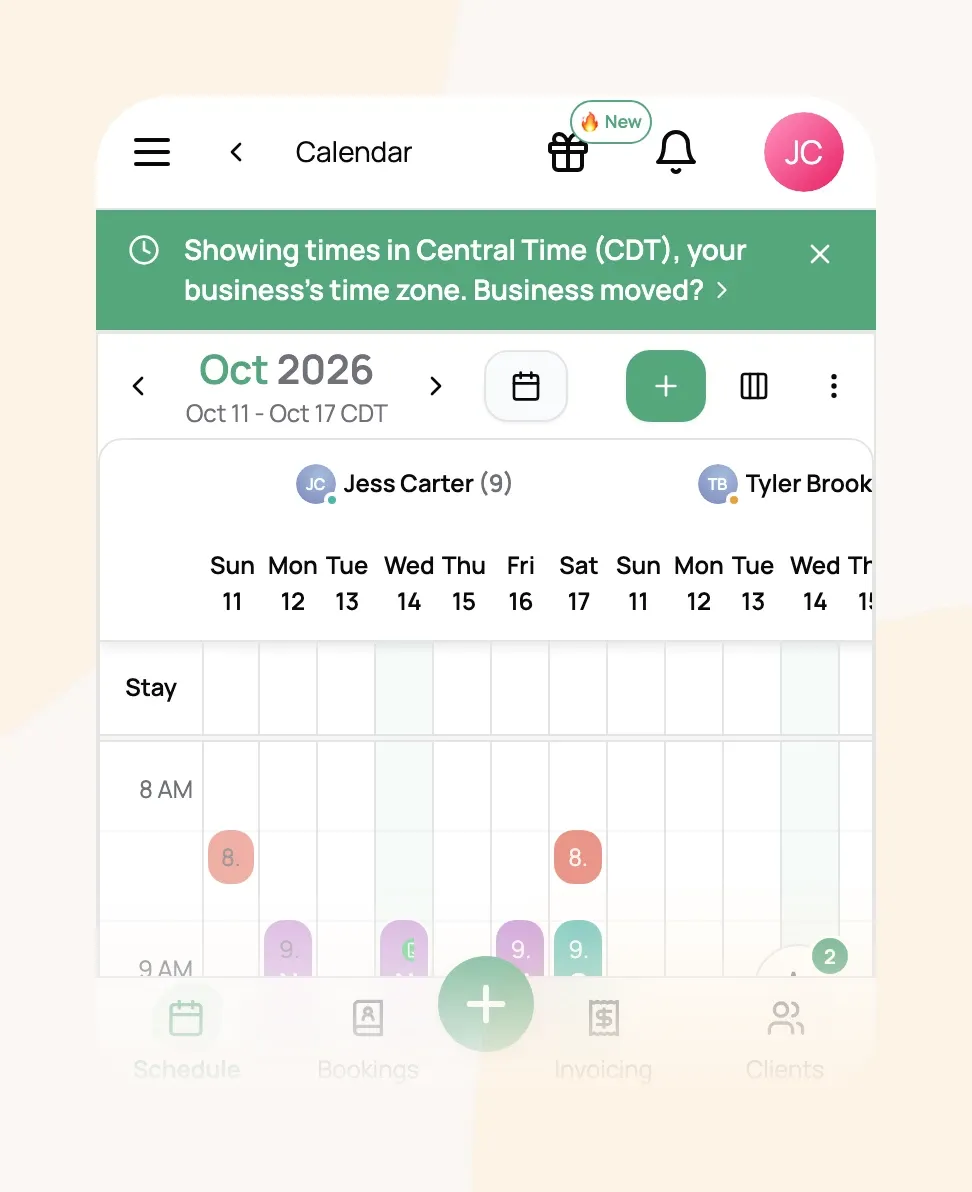
Close the bar with the X and it stays closed while you're in that time zone. Once you're home, it goes away by itself.
Your team sees the same thing. A sitter who lives across a time zone line, or checks the schedule from their own vacation, sees your business's times with the same bar.
What your clients see
Clients always see your business's time zone: in emails, on your booking page, in their client portal and on report cards.
If a client's own phone is on another clock, say Emily Johnson is booking Cooper's walks from her vacation in Florida, those pages show which time zone the times are in (9:00 AM CDT), so she never has to do the math.
If your business moved
-
Open Organization Details.
-
In Business Timezone, search for your new city and select it.
-
Choose Save Changes.
Visits already booked keep their exact moment. A walk booked for 9:00 AM Central shows as 7:00 AM after you switch to Pacific. Your working hours and repeat bookings keep their clock times, so visits a repeat creates from now on land at 9:00 AM Pacific. After you save, check your upcoming visits and move any that should stay at their old clock time.
Frequently Asked Questions
Do I need to change my phone's time zone when I travel?
Do I need to change my phone's time zone when I travel?
No. Leave it on automatic. Scritches already shows your business's times wherever you are.
Is it safe to book or move visits while I'm away?
Is it safe to book or move visits while I'm away?
Yes. The times you pick are your business's times, exactly as if you were home.
Why does Google Calendar show different times?
Why does Google Calendar show different times?
Google Calendar shows events in your phone's current time zone, so Cooper's 9:00 AM walk appears at 7:00 AM while you're in Los Angeles. It's the same moment; Scritches shows it in your business's time (Syncing Your Calendar with Google Calendar).
The bar says my business time zone is set to UTC
The bar says my business time zone is set to UTC
Scritches doesn't know where your business is yet, so times are on a universal clock instead of yours. Choose Set time zone, pick your city in Business Timezone, and choose Save Changes.
Times look an hour off. What should I check?
Times look an hour off. What should I check?
First, check that Business Timezone is your exact city, since neighbors can differ (most of Arizona and Saskatchewan never change their clocks). Then update your browser and phone: Alberta, British Columbia, the Northwest Territories and Manitoba stop changing their clocks on November 1, 2026, and an out of date browser can show their times an hour off.
I closed the bar. Will it come back?
I closed the bar. Will it come back?
Not while you're in that time zone. It shows again when your device is on a different clock, like on your next trip.
Was this helpful?
Still need help? Ask the team