Staff Scheduling, Calendar & Daily Reminders
Learn how to assign staff to bookings, use the calendar to manage your team's workload, and set up automated schedule emails.
Written By Lucas Steflor
Last updated 8 months ago
Assigning Staff to Bookings
Assigning staff determines who shows up for each visit and who gets paid. Open any booking to see the staff assignment section.
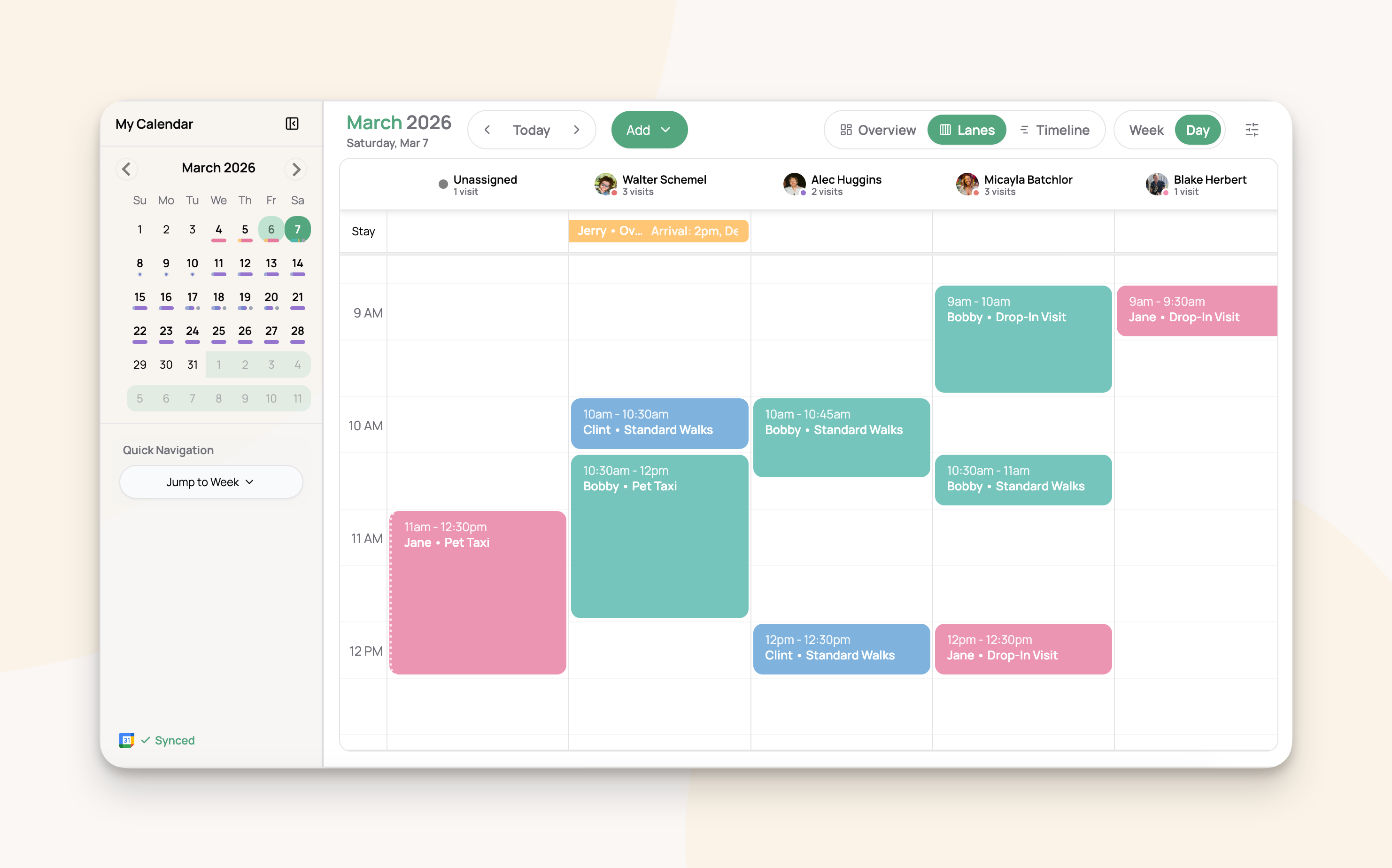
Per-Visit Bookings (Dog Walks, Drop-Ins)
Click Assign Staff and select a team member from the dropdown. Each staff member in the list shows their visit count for that day, so you can balance workloads at a glance.
Assign one or more staff members to any visit
Already-assigned staff are filtered out of the dropdown
Remove someone by clicking the X on their name pill

Overnight & Multi-Day Bookings (Pet Sitting)
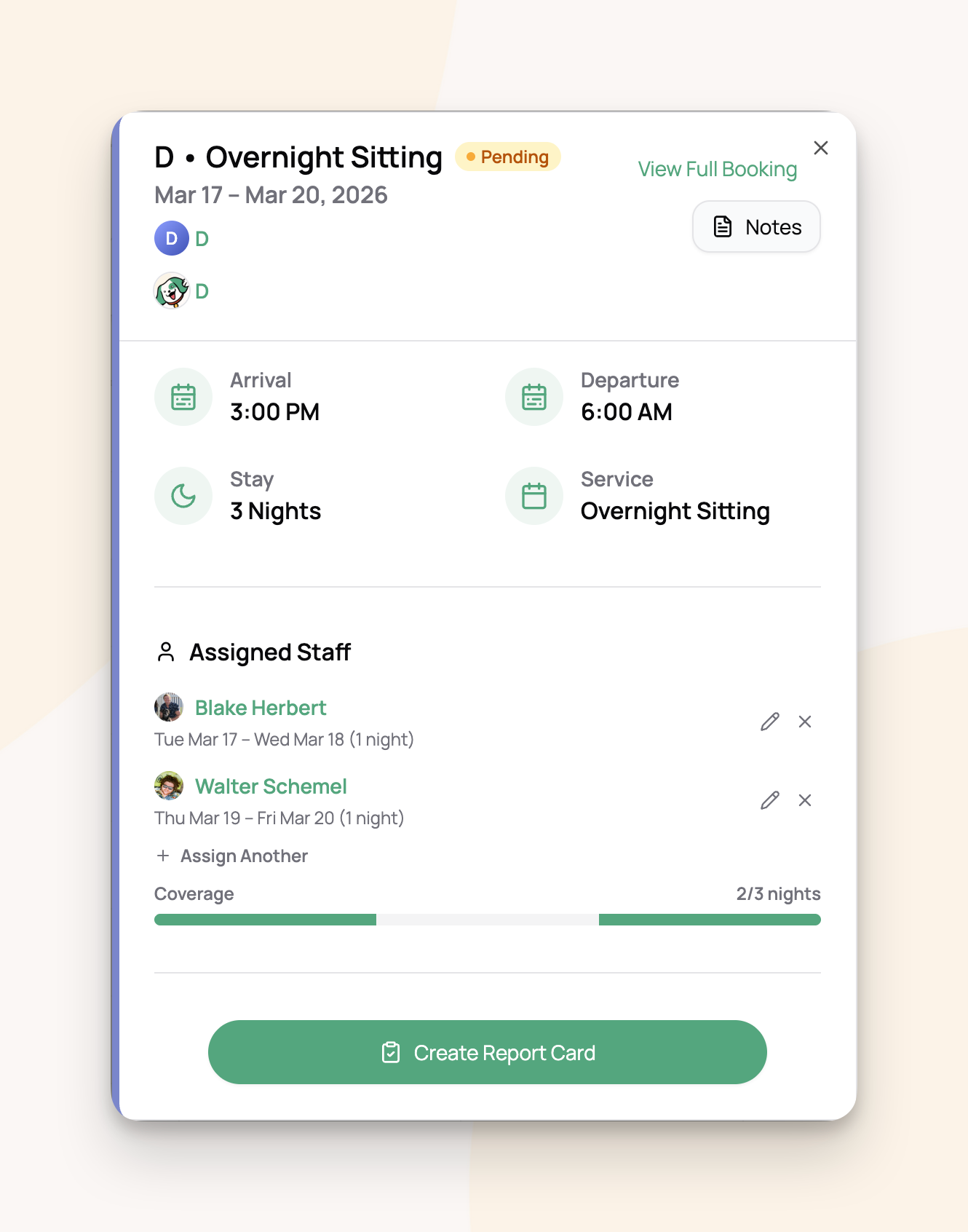
Overnight bookings work differently — you assign staff to specific date ranges within the stay, since different sitters may cover different portions.
Click Assign Staff to open the date range picker
Select the staff member
Choose their start and end dates within the booking
Click confirm
Each assignment shows as a card with the staff member's name, their date range, and how many nights or days they're covering. You can edit the date range (pencil icon) or remove the assignment (X button).
The coverage bar appears below assignments for overnight bookings. It visually shows which days/nights are covered (colored) vs. uncovered (gray), so you can quickly spot gaps.
Example: A 5-night stay with Jake covering nights 1–3 and Emily covering nights 4–5 shows a fully colored bar. If night 3 is unassigned, you'll see a gray gap.
What Happens When You Archive Staff
Before archiving a team member, you'll see a list of their future booking assignments. You can reassign them to another team member or leave them to handle manually. See Managing Your Team → Archiving for the full flow.
Using the Calendar
The calendar gives you a bird's-eye view of your team's schedule. Access it from the main Schedule section in your navigation.
Calendar Modes
Switch between three modes using the toggle at the top of the calendar:
Time Ranges
Each mode supports different time ranges:
Overview: Day, 3-Day, Week, Month, List, Year
Lanes: Day, Week
Timeline: Day, Week
On mobile, time ranges are selected from a drawer menu. On desktop, you'll see a segmented control or dropdown.
Calendar Sidebar
The collapsible left sidebar gives you quick navigation tools:
Mini calendar with dot indicators showing which days have events
Quick jump dropdown — jump 1–12 weeks forward
Google Calendar sync status indicator
Collapse the sidebar for more calendar space (your preference is saved)
Filtering
Filter your calendar view using the collapsible sections in the sidebar:
Staff filter — Show or hide specific team members. Includes an "Unassigned" option to see bookings without staff assigned. Active filter count shows as a badge.
Services filter — Show only specific service types. Organized by service category with "Select All" / "Deselect All" shortcuts.
Clients filter — Searchable client filter to focus on specific clients.
Color Coding
Choose how events are colored using the Color By option:
By Service — Each service type gets a consistent color (e.g., all dog walks are blue, all overnight stays are green)
By Client — Each client gets a consistent color
By Staff — Each staff member gets a consistent color; unassigned events show as gray
What Staff Members See
Calendar visibility depends on role:
Daily Schedule Reminders
Automatically email each team member their schedule for the upcoming day, so no one misses a visit.
Enabling Reminders
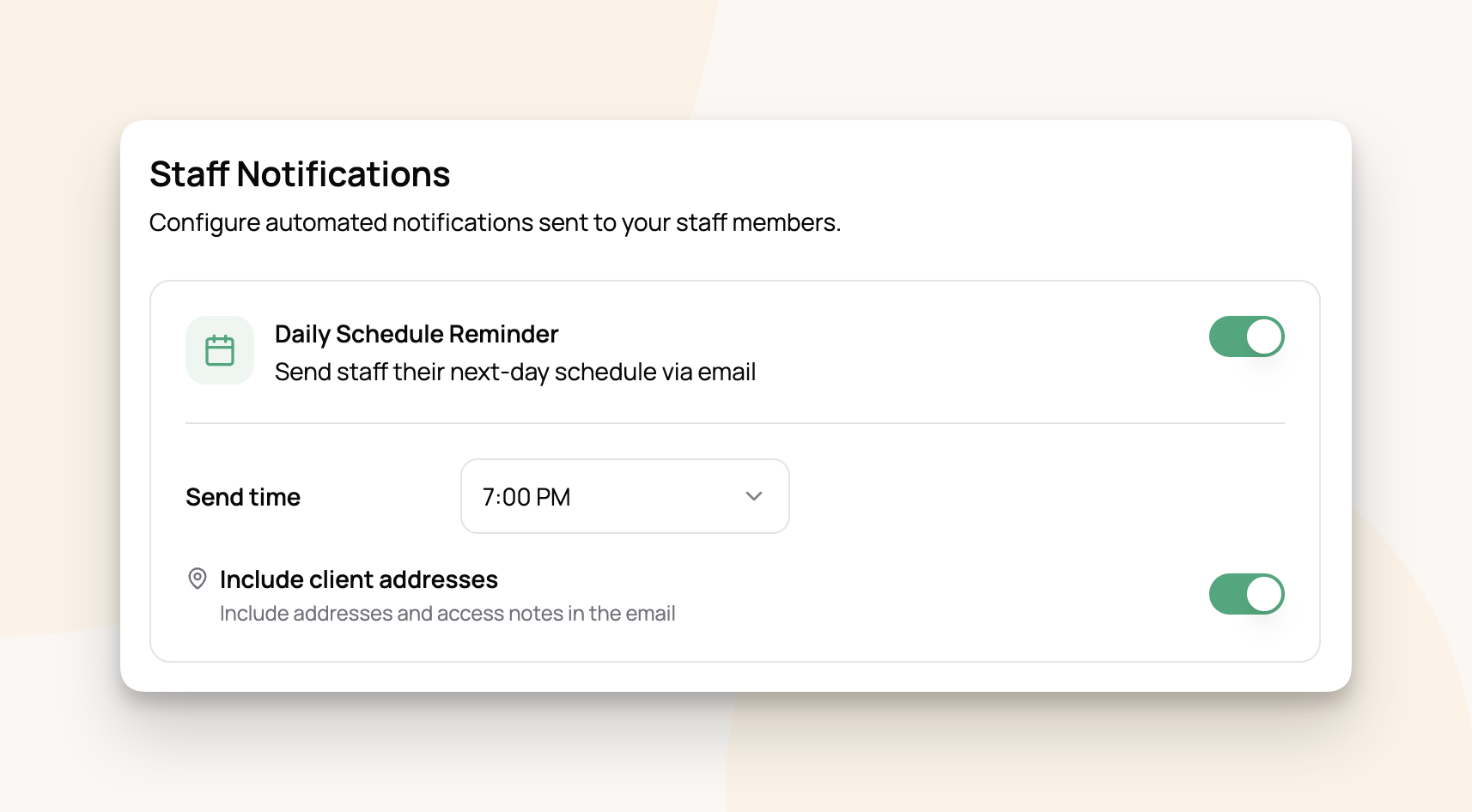
Go to Staff → Notifications
Toggle on Daily Schedule Reminder
Choose your settings (see below)
Only the business owner can configure this.
Choosing a Send Time
Most businesses prefer an evening send (6 or 7 PM) so sitters can review tomorrow's schedule the night before.
Include Client Addresses
Toggle Include addresses and access notes to add client addresses and any access instructions (e.g., "key under the mat", "gate code 1234") to the schedule email. This is helpful for sitters who visit multiple homes throughout the day.
What's in the Email
Each staff member receives a personalized email with only their assigned bookings for the day. The email includes:
Time — Start and end time for each visit
Service — Service name and variant (e.g., "Dog Walking — 30-Minute Walk")
Client name
Pet names and species (e.g., "Bella (Dog), Whiskers (Cat)")
Booking notes — Any notes attached to the booking
Address and access instructions (if enabled)
For overnight bookings, the email also shows the phase:
Arrival — First day of the stay (sitter is arriving)
Continuing — Middle days (sitter is already there)
Departure — Last day (sitter is wrapping up and leaving)
No Visits? Still Sends
Staff receive a daily email even if they have no visits scheduled that day. This confirms they have the day off and avoids any "did I miss something?" confusion. A quick "No visits scheduled" email gives peace of mind.
Requirements
Staff must have an email address — either from their user account or from the invitation email
Staff without an email on file are skipped
Only active (non-archived) staff receive reminders
Frequently Asked Questions
Can I assign multiple staff to the same visit? Yes. For per-visit bookings (dog walks, drop-ins), you can assign as many staff members as needed. For overnights, you can assign multiple staff to different date ranges within the same stay.
How do I see unassigned bookings? Use the Staff filter in the calendar sidebar and check "Unassigned." This shows all bookings that don't have a staff member assigned yet.
Can staff see each other's schedules? Only Senior Staff, Administrators, and the Owner can see all schedules. Regular Staff members see only their own.
What does the visit count in the staff selector mean? When assigning staff, each team member shows how many visits they already have that day. This helps you distribute work evenly across your team.
What if an overnight booking spans a weekend — does the email show all the days? The daily reminder shows only the booking's phase for that specific day (arrival, continuing, or departure). Your sitter will get a reminder each day they're assigned, with the appropriate phase label.
Do reminders go out on weekends and holidays? Yes. If reminders are enabled, they go out every day — including weekends and holidays — as long as there are assigned bookings to report.
Can staff opt out of receiving schedule reminders? No. Daily reminders are a business-level setting controlled by the owner. If reminders are enabled, all active staff with an email on file will receive them.
Need help with something else? Check out our other guides:
Was this helpful?
Still need help? Ask the team