Making Your Booking Page Yours
Add your logo, photos and a short about, choose how bookings are confirmed and who can book, then share your link.
Written By Lucas Steflor
Last updated 13 days ago
A dog owner finds you on Instagram, taps your link, and lands on your booking page. It's often the first thing they see of your business, and until you add your logo and a few words about yourself, it looks like everyone else's. Ten minutes here turns it into a page that sounds like you.
Add your logo and brand color
-
Open Brand.
-
Choose Upload logo. Square images look best, since the logo is shown in a circle. JPG, PNG or HEIC, up to 2MB.
-
Pick a brand color, or enter your own color code. It's used for buttons and accents.
Your logo and color follow clients everywhere: your booking page, their portal, invoices, receipts and emails.
Add photos and a short about
Open Online booking. Most changes here save as you go and show in the live preview next to them.
-
Cover photos: up to 10 photos, shown as a slideshow at the top of your page. Photos straight from your phone are fine.
-
About your business: a few sentences about who you are and how you care for pets. This one doesn't save on its own, so choose Save about when you're done.
-
Website & social links: your website, Instagram and Facebook, each starting with https://.
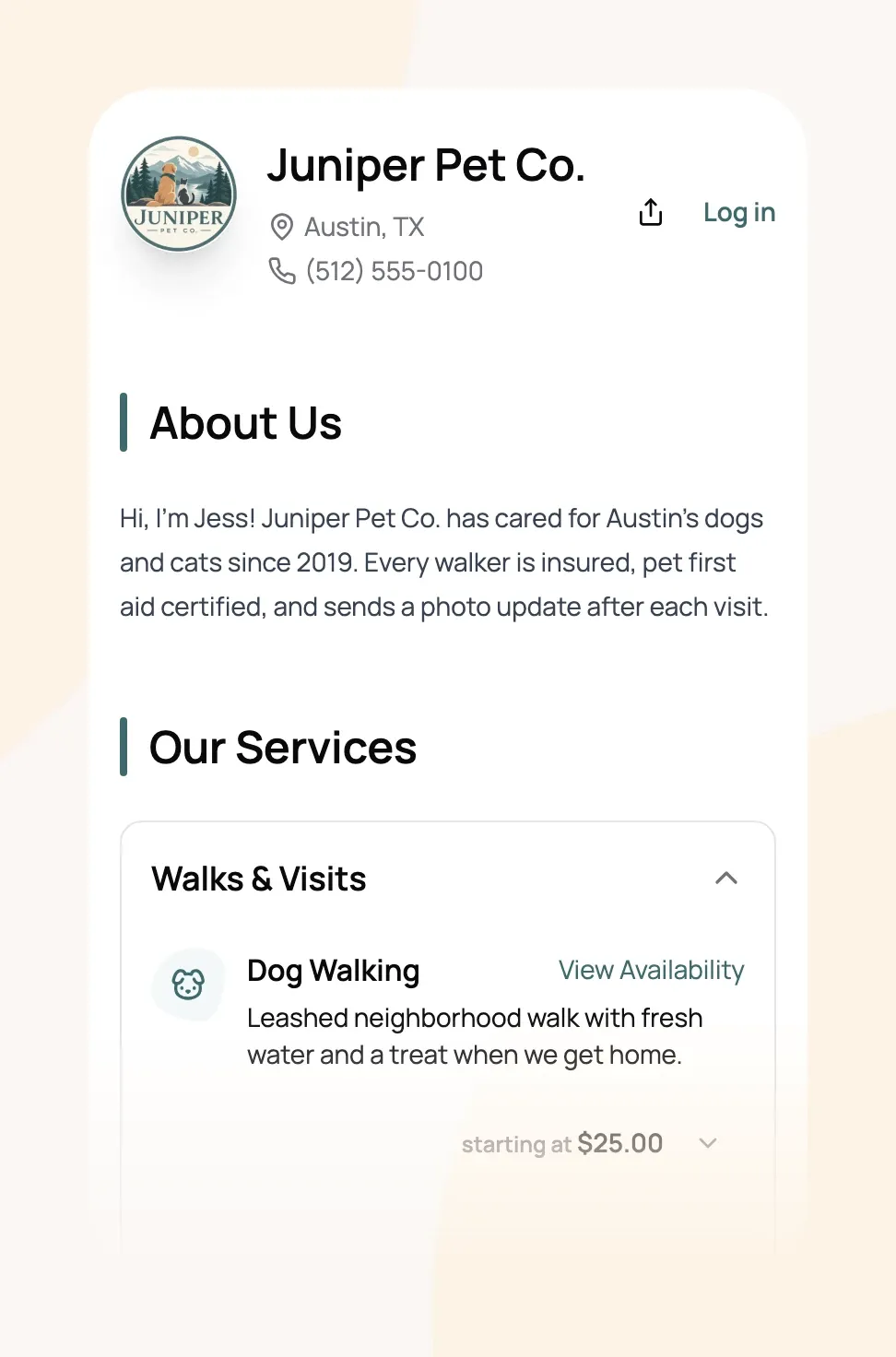
For example: Juniper Pet Co.'s page leads with Jess's logo and one short paragraph: who she is, how long she's been in Austin, and that every client gets a photo after each visit. Clients see your services and prices right below, grouped by category.
Choose request to book or instant book
On the same screen, under Confirmation, decide what happens when a client books online. It applies to every service and every client.
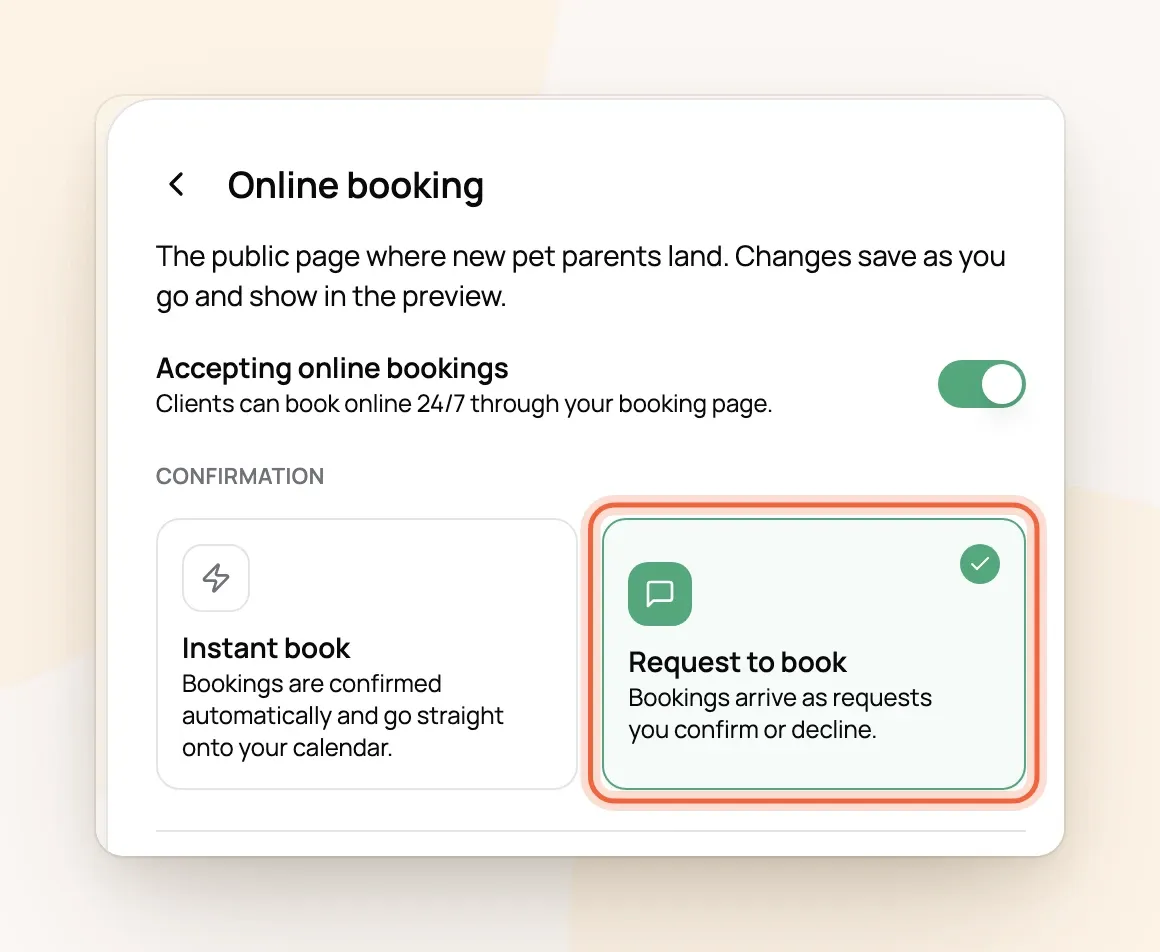
A request you haven't answered still holds its spot on your calendar, so decline the ones you can't take. Neither option creates an invoice; you bill from the booking once it's confirmed.
Choose who can book
Open New clients and pick one:
-
Anyone: new clients can book any service right away. This is where every account starts.
-
Intro visit first: new clients can only book an intro, like your Meet & Greet. Everything else unlocks once you approve them.
-
Existing clients only: only clients you already have can book, by logging in with the email you have on file.
The same screen is where you choose the form new clients fill out. How each option plays out for new and returning clients is covered in Choosing Who Can Book Online.
Share your link
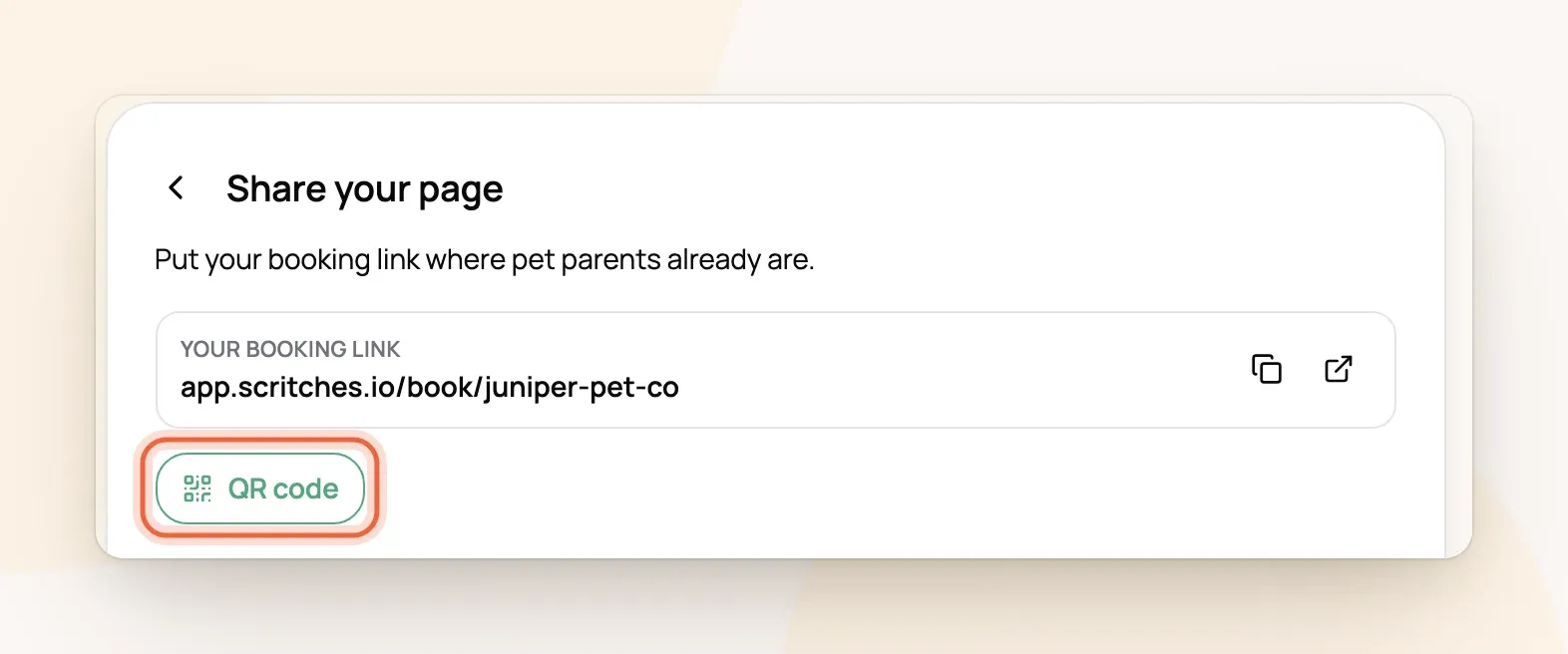
Open Share your page and copy Your booking link. Choose QR code to download a code for flyers, business cards or your car.
Further down, Share a specific service gives each service its own link that skips straight to booking it. Handy for a post about your new cat care visits. A "Book Now" button on your website is simply this link (see Turn Website Visitors into Clients with a ‘Book Now’ Button), and there are more places worth putting it in 10 Places to Promote Your Booking Link to Drive More Clients.
Frequently Asked Questions
Can I change my booking link?
Can I change my booking link?
Yes, in Your address. Old links and printed QR codes keep working and send clients to the new address.
Do clients need an account to book?
Do clients need an account to book?
No, unless you choose Existing clients only. Clients can book as a guest, and returning clients log in with a code emailed to them, so there's no password to forget.
How do I stop online bookings while I'm on vacation?
How do I stop online bookings while I'm on vacation?
Add blocked time for those dates instead of turning online booking off. It reopens on its own when you're back (Blocking Off Time for Vacations and Appointments).
Why does a service say "starting at"?
Why does a service say "starting at"?
It has more than one pricing option, like a 30-minute and a 60-minute walk. Clients see every option when they open it.
Can I show reviews or my team on the page?
Can I show reviews or my team on the page?
Yes, from Reviews display and Team highlights in Online booking. Reviews need the Solo Pro plan or higher, and team highlights need the Growth plan.
Was this helpful?
Still need help? Ask the team