Setting the Days and Hours Clients Can Book
Set your service windows, the days each service is offered, how much notice you need, and the dates you're away.
Written By Lucas Steflor
Last updated 13 days ago
You walk dogs on weekdays and do a few Saturday mornings, but a new client just asked to book a Sunday 6 AM walk through your booking page. New accounts start open every day from 6 AM to 10 PM, so until you change it, clients can ask for any of those hours. Here's how to make your booking page match the hours you really work.
These settings only limit what clients can book online. You can always book any day or time yourself.
Check your time zone
Every booking time is read in your business's time zone. It was set from the device you signed up on, so check it once: open Organization Details and look at Business Timezone.
Set your service windows
Clients don't pick a clock time when they book a walk or a drop-in. They pick a service window, a part of the day like Morning, and you arrive sometime within it. That leaves you free to plan your route.
New accounts start with three sample windows: Morning (6 AM to 12 PM), Midday (11 AM to 4 PM) and Evening (4 PM to 10 PM). Change them to the hours you actually work:
-
Open Service windows and choose Edit.
-
Change each window's name, start and end time, then choose Save changes. Choose Add a window if you need another part of the day.
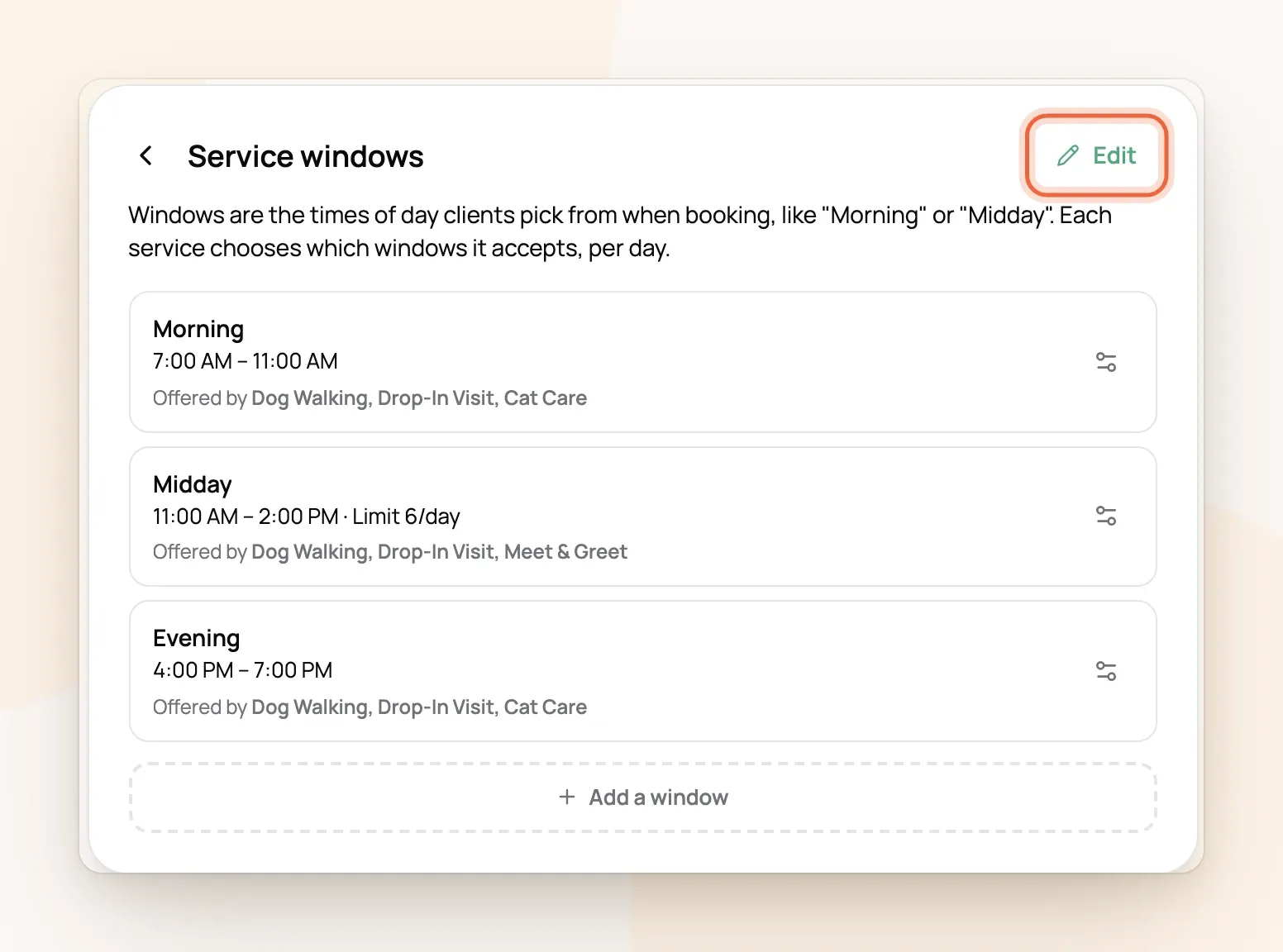
For example: Sarah Smith books a Midday walk for Wednesday. It lands on your calendar at 11:00 AM, the start of the window, and Sarah sees "Midday 11:00 AM - 2:00 PM" on her booking. Drag the visit on your calendar to the time you'll really be there. Windows have a lot more to them, like limits and overlapping times (How Service Windows Work).
Choose the days each service is offered
Each service picks which windows it offers on which days, so Dog Walking can run weekdays while Cat Care runs every day. A day with no windows ticked can't be booked online at all.
-
In Availability, choose a service under Per-service availability.
-
Under Weekly schedule, tap a cell to offer that window on that day, or tap it again to stop offering it. Quick set fills in weekdays, weekends or every day in one tap.
-
Choose Save changes.
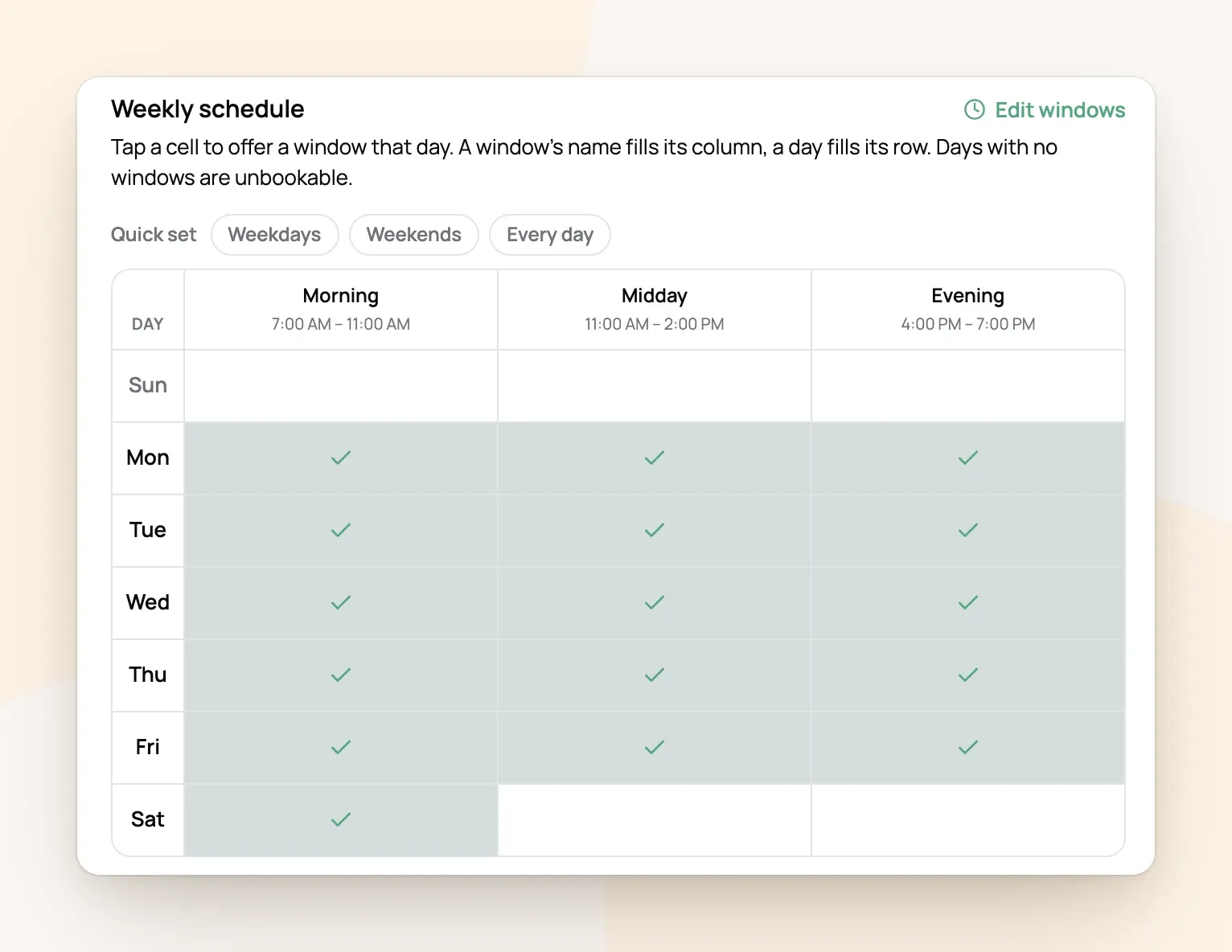
For example: Dog Walking is ticked for all three windows Monday to Friday and only Morning on Saturday. A client looking at Saturday sees just "Morning 7:00 AM - 11:00 AM", and Sunday can't be picked.
Check every service, including the Meet & Greet signup added for you. Overnight services don't use windows. Instead, each day has its own Arrival and Departure times, and a day that's switched off can't be part of a stay at all.
Choose how much notice you need
On the same screen, Booking notice sets how close to a visit clients can book and how far ahead they can plan.
-
Minimum notice is in whole days. Every service starts at 1 day, which means clients can book tomorrow onward but never today. Choose 0 days to accept same-day bookings.
-
Book up to is how far ahead the calendar opens. It starts at 3 months.
Block off days you're away
Going on a trip? Open Blocked time, give it a title only you will see, set the start and end, and choose Add Blocked Time. Clients can't book anything in that range, and it shows on your schedule.
Blocked time closes the whole window it touches. A 30-minute vet appointment at 10:00 AM hides all of Morning that day. More on short blocks, single services and vacations in Blocking Off Time for Vacations and Appointments.
Check it the way clients see it
At the bottom of Availability, choose See your availability as clients do to open your booking page. Pick a service and click through a few dates to make sure the windows and days look right.
Frequently Asked Questions
Can clients pick an exact time instead of a window?
Can clients pick an exact time instead of a window?
Yes. Switch a service to Exact start times and clients choose a time like 10:30 AM inside your windows (Letting Clients Pick an Exact Start Time).
How do I stop taking more than a few walks a day?
How do I stop taking more than a few walks a day?
Set a limit. You can cap a single window or a whole day across several services (Limiting How Many Bookings You Take On).
A client says a day is greyed out, but I'm free. Why?
A client says a day is greyed out, but I'm free. Why?
Usually the service isn't ticked for that day, the date is inside your minimum notice, or blocked time touches the window. Go through the full checklist in Why Isn't a Day Showing on My Booking Page?.
Do holidays close my calendar?
Do holidays close my calendar?
No. Holidays only add a holiday rate. Add blocked time for any holiday you take off (Holiday & Weekend Surcharges).
Does a booking request I haven't answered hold its spot?
Does a booking request I haven't answered hold its spot?
Yes. It counts toward your limits until you decline it, so answer requests you won't take.
Was this helpful?
Still need help? Ask the team