Adding Your Clients and Inviting Them to Their Portal
Add clients and their pets, send a welcome email so they can log in, and have us import everyone if you're switching from another app.
Written By Lucas Steflor
Last updated 13 days ago
You have a dozen regulars in a spreadsheet, a few more in your phone, and their lockbox codes scattered across old texts. Getting them into Scritches puts every client, pet and gate code in one place, and a welcome email lets each client see their bookings and pay you from their own portal.
Switching from another app or a spreadsheet? Email your client list to support@scritches.io and we'll import your clients and their pets for free.
Add a client
-
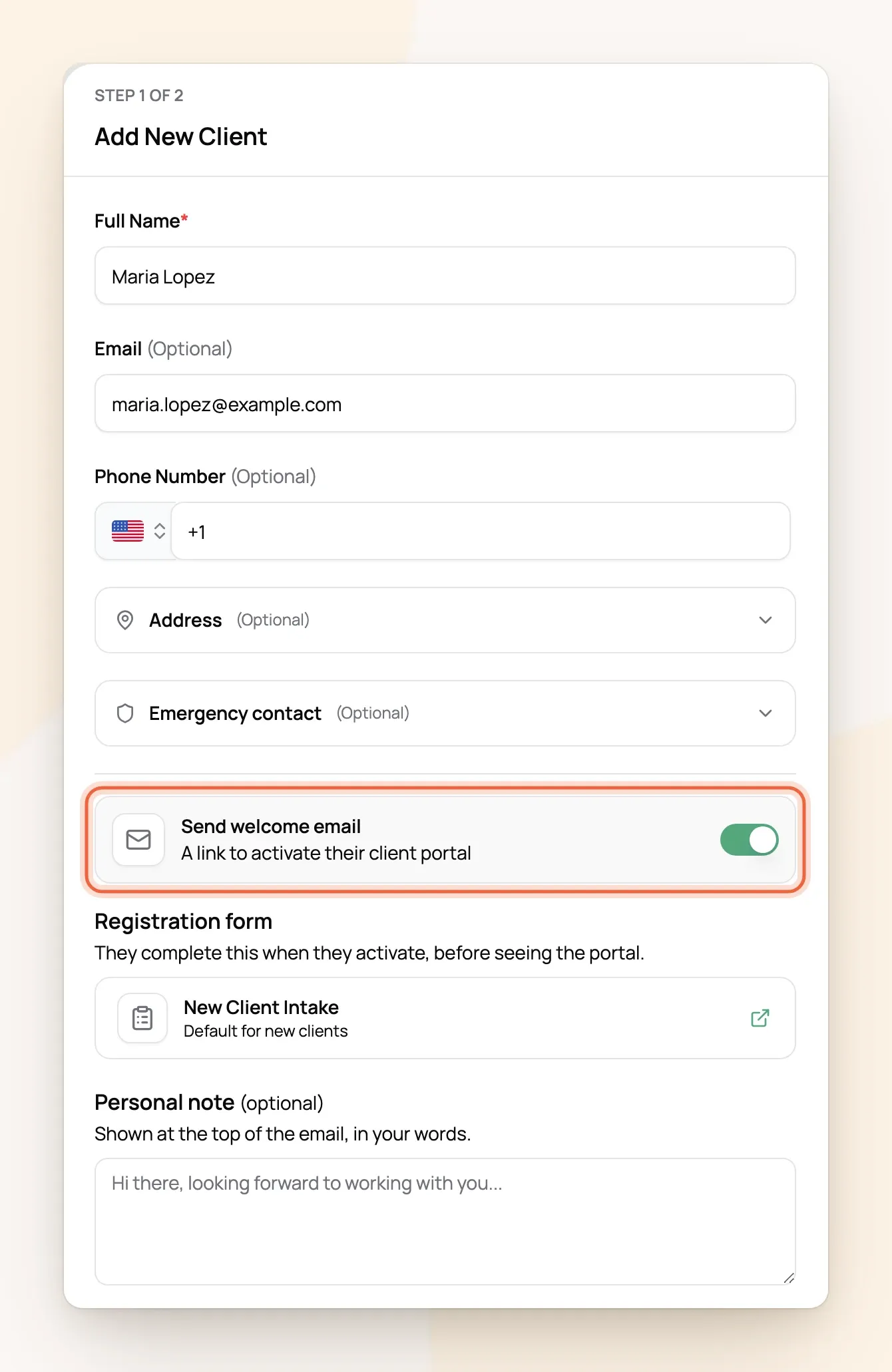
Open Clients & Pets and choose Add New Client.
-
Enter their name. Everything else is optional, but add an email if you want to invite them to their portal.
-
Open Address to add their address and Access Instructions, the place for lockbox codes, key locations and alarm details.
-
Choose Add Client, then add each pet's name and species and choose Save pets & finish. Breed, medications, feeding and vet details can be filled in later on the pet's profile.
For example: Sarah Smith's access instructions read "Lockbox on the side gate, code 2468." It's on her profile and on your printable daily schedule, so whoever walks Bella never has to text Sarah for the code.
Invite them to their portal
A welcome email gives your client a link to their own portal, where they can see upcoming visits, update their pets, sign agreements, pay invoices and book again. There's no password to set up: the link logs them in.
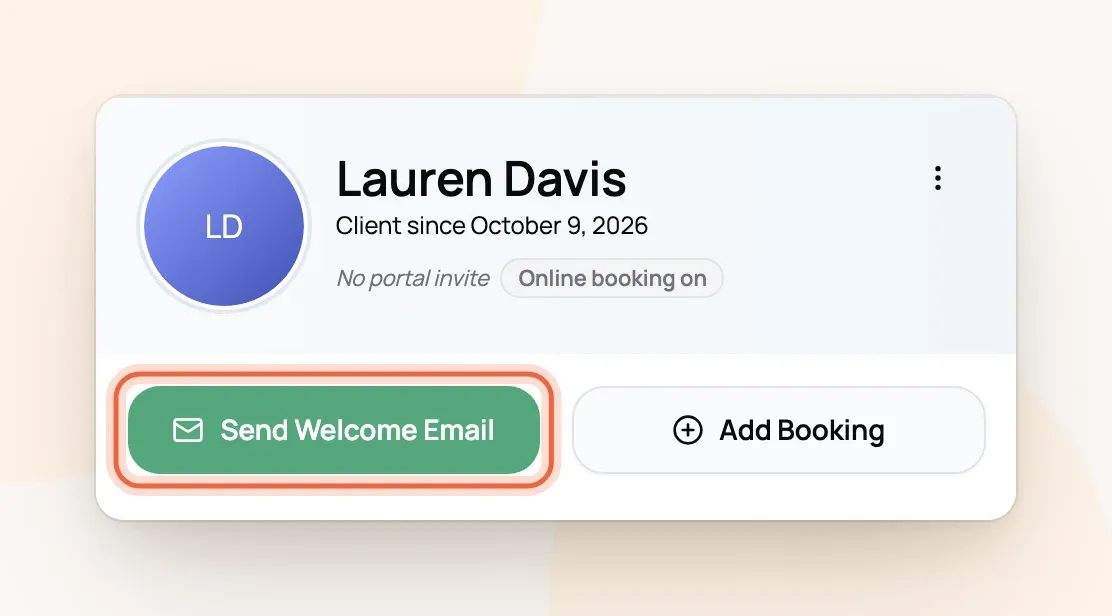
Turn on Send welcome email while adding the client, or send it later by opening the client and choosing Send Welcome Email.
The email shows your note at the top and an Activate Your Account button. Before they see their portal, they fill out the registration form shown in the window, so this is how clients you add yourself get your intake form and agreement (Getting New Clients to Fill Out Your Form and Sign Your Agreement).
For example: Lauren Davis met Jess at a Meet & Greet on Saturday. Jess sends her a welcome email with a short note, Lauren taps Activate Your Account, fills out New Client Intake with Hazel's details, signs the service agreement, and lands in her portal.
Where each client stands
Each client shows where they are with their portal:
No portal invite: you haven't sent a welcome email.
Portal pending: the email is sent but not opened yet.
-
Portal in progress: they've logged in but haven't finished your form.
Portal active: they're all set.
Your demo client
Signup added a demo client under your own name, with two pets, Max and Luna, and one practice booking. It's there so you can try things and see your business the way clients do, and emails to it come to your own inbox. When you're done with it, open its menu and choose Remove demo data.
Frequently Asked Questions
Do my clients have to use the portal?
Do my clients have to use the portal?
No. You can book and invoice clients who never log in. The portal just saves you texts and lets them pay and book on their own.
Why can't I send a welcome email?
Why can't I send a welcome email?
Either the client has no email address, or you haven't confirmed your own email yet. Check your inbox for the verification link from Scritches.
The welcome link expired. What now?
The welcome link expired. What now?
Choose Resend Welcome Email on their profile. Each email has a fresh link, good for 14 days.
Can I send welcome emails to everyone at once?
Can I send welcome emails to everyone at once?
Not yet. Welcome emails go one client at a time, from the client's profile or while you add them.
Does the demo client count toward my plan's client limit?
Does the demo client count toward my plan's client limit?
Yes, on the Starter plan's 5 clients. Remove the demo data to free the spot. Archived clients don't count either.
What does an import include?
What does an import include?
Clients, contact details, access instructions and pets with their care notes. Past bookings and invoices stay in your old system (Import Clients & Pets into Scritches).
Was this helpful?
Still need help? Ask the team