Letting Clients Pick an Exact Start Time
Switch a service to exact start times so clients book 10:30 AM instead of Morning, and control how slots fill up.
Written By Lucas Steflor
Last updated 13 days ago
A Meet & Greet only works if you and the client are both at the door at the same time. "Sometime Tuesday morning" won't do. For services like that, let clients pick an exact start time, like 10:30 AM, instead of a service window.
Switch a service to exact start times
-
Open Availability and choose the service under Per-service availability.
-
Under Time selection, choose Exact start times.
-
Pick how often to offer a start time under Offer start times every: 15 minutes, 30 minutes or 1 hour. Then choose Save changes.
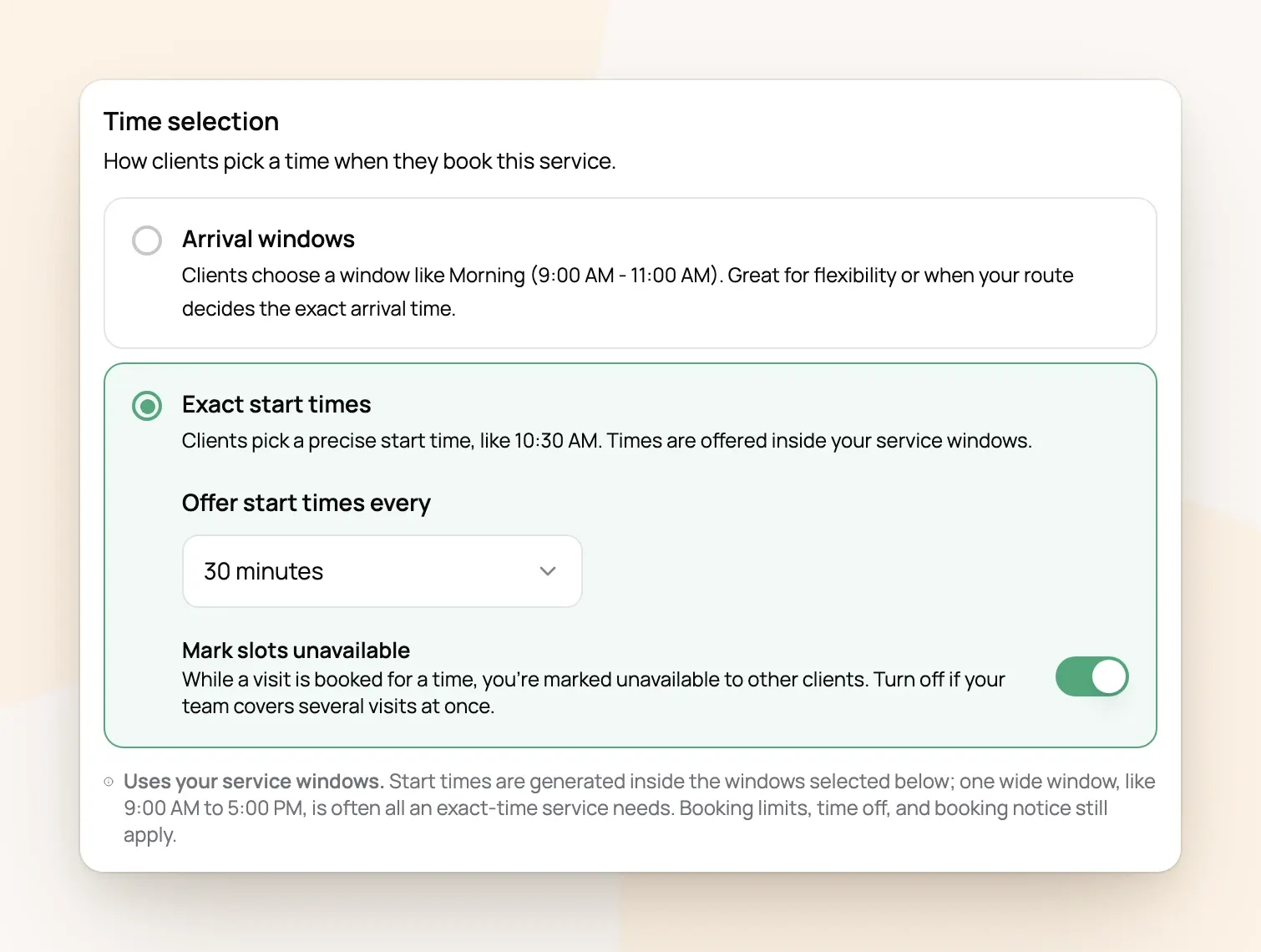
Your Meet & Greet already starts this way. Every other service starts on arrival windows, and each service can use either one.
Where the start times come from
Start times are laid out inside the service windows the service offers on that day, and only times where the whole visit fits before the window ends are shown. So exact-time services still need windows: they set the hours.
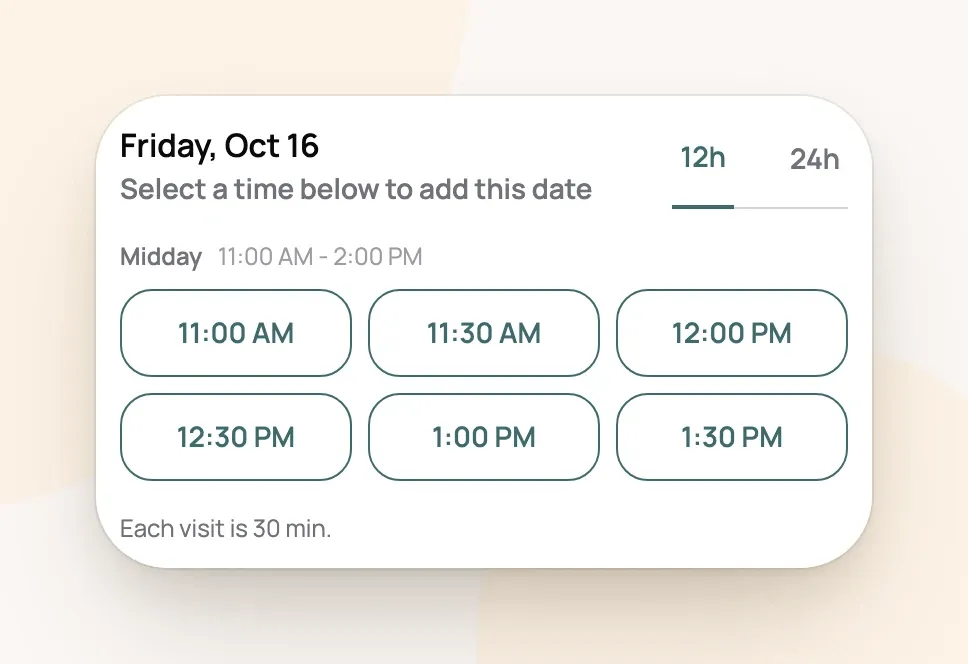
For example: Meet & Greet is offered in Midday (11:00 AM to 2:00 PM) on weekdays, every 30 minutes, and takes 30 minutes. Clients see 11:00, 11:30, 12:00, 12:30, 1:00 and 1:30. A 1-hour service in the same window would stop at 1:00.
If every service you take online uses exact times, you don't need several windows. One wide window, like 9:00 AM to 5:00 PM, is often all you need.
Stop two clients booking the same time
Mark slots unavailable is on by default. Once a client books 10:00 AM, that start time is crossed out for everyone else.
-
It covers all your exact-time services together, so a 10:00 Meet & Greet also takes 10:00 away from an exact-time walk.
-
Visits booked into a window, and overnight stays, don't block exact start times.
-
Turn it off if your team can cover several visits at the same time.
Everything else still applies: your minimum notice, blocked time and limits. A window's Max bookings in this window counts exact-time visits too, and once the window is full every start time in it is crossed out. Blocked time, on the other hand, only removes the start times it overlaps, not the whole window (Blocking Off Time for Vacations and Appointments).
Frequently Asked Questions
Do clients see the exact time on their booking?
Do clients see the exact time on their booking?
Yes. Visits booked at an exact time show that time to the client, not a window name.
Can I leave a gap between visits for driving?
Can I leave a gap between visits for driving?
Not automatically. A wider spacing, like start times every hour for a 30-minute visit, leaves room between them.
Why can't clients book a time later today?
Why can't clients book a time later today?
Times that have already passed are hidden, and a minimum notice of 1 day or more hides today altogether. Set it to 0 days to allow same-day bookings.
Should walks use exact times or windows?
Should walks use exact times or windows?
Windows usually work better for walks and drop-ins, because you can plan your route (How Service Windows Work). Exact times suit visits where the client has to be there.
Was this helpful?
Still need help? Ask the team